


- Mark as New
- Bookmark
- Subscribe
- Mute
- Subscribe to RSS Feed
- Permalink
- Report
CLICK HERE FOR THE NEW VERSION!
Problem: You have Autodesk 2021 software installed, but are now unable to simply change the licensing from Single User to Multi-User, Networked Licensed, or Trial version.
Reason: Autodesk has changed how the Autodesk 2020/2021 products are licensed and apparently there is no simple way to do this from Help > About to Manage Licenses, or by deleting LGS file information as in previous versions.
Solution: With the introduction of the Autodesk 2020 software release, changing the licensing now requires commands to be entered via an elevated command prompt. This is the same for 2021.
Detailed instructions for how to find and use the AdskLicensingInstHelper.exe and all of its commands and options can be found at this link:
Method #1: Essentially, you would need to run a command similar to this for AutoCAD 2021:
AdskLicensingInstHelper change --prod_key 001M1 --prod_ver 2021.0.0.F --lic_method ""
This method, however, is quite obtuse and requires you to also know the Product Key and the Product Version for your installed product. You can find this using the LIST argument and plugging your values into the command.
AdskLicensingInstHelper list
Because the normal everyday user is unlikely to be able to follow and comprehend these instructions clearly, I have decided to write a batch file to perform these actions without requiring the knowledge necessary in the Autodesk KB article. Also with the 2021 release and named user login, the manual method requires additional steps to force the logout and the release of the assigned license before the Autodesk application can reset the licensing dialogue. Note: For 2021 products, you need to logout of your Autodesk/SSO username within the software to manually reset named user licensing.
Method #2: Download and run the command script attached at the bottom of this article with elevated privileges.
1. When you launch the script (you may have to allow it in Windows 10 or if you have UAC enabled) you will see the following screen:
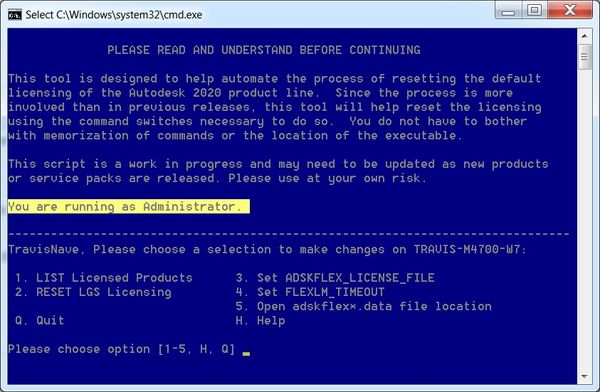
Note: You will need to right-click and run as Administrator. Otherwise, it will warn you that you are not running as administrator and need to close the program.
2. To determine which products you have installed and need to reset, choose option 1 to list the products installed.

In this example, the program lists AutoCAD 2020 with Product Key 001L1 and Product Version 2020.0.0.F. However, we will be using AutoCAD 2021 default values of 001M1 and Product Version 2021.0.0.F to reset back to factory default. The output of this command is a little convoluted. It is especially busy when you have multiple products installed. You will want to look for the value of "def_prod_key" and "def_prod_ver" when you run this option (highlighted.)
You can now type B to go back to the previous menu.
3. To reset the licensing for your listed product, choose option 2.
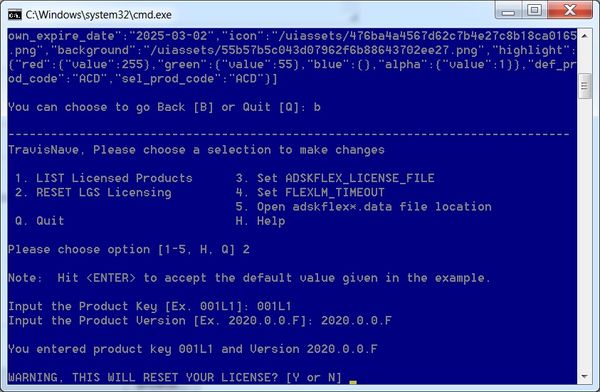
By default, the values are set for AutoCAD 2021 with the Product Key of 001M1 and the Product Version of 2021.0.0.F. to accept these default values, all you need to do is press <Enter> to continue. If the values of your product are different, then enter those values instead. For example, if you have AutoCAD LT 2021 installed, you will use Product Key 057M1. It will verify your entry and prompt you to confirm that you wish to reset your license back to factory default. Note: This license tool is backwards compatible for Autodesk 2020 products, which are shown in the pictured examples.
I suspect product versions will change as different updates and service packs are released -- as they were with the 2020 release.
4. To reset your license choose to answer Y to the prompt: WARNING THIS WILL RESET YOUR LICENSE? [Y or N] _
![Successful Result has no output between brackets []](https://forums.autodesk.com/t5/image/serverpage/image-id/621078i05DAF9E2BCDC9663/image-size/medium?v=v2&px=400 "noerror.png")
If successful, you should receive no output between the brackets. This is because the Autodesk license helper displays no output for a successful command. The main difference between this version and the older 2020 reset tool is that this version will automatically backup and reset the Named User Autodesk/SSO login of the product for assigned licenses as well.
If you made a typo or the product does not exist on your machine, then an error message will be displayed instead.

Also, if you are using the Autodesk Network License Manager for Network Licensed products, then resetting the licensing will also open the folder location for the LICPATH.LIC file, which contains the location of your license manager. This will allow you to easily modify the file or remove it altogether if unneeded.
5. You can then choose whether or not to reset another licensed product or to quit the program. When you quit the program, it is set to log an application event to your Windows logs. This can help you keep track of when the program has been run. Choosing Y will take you back to the main menu, while choosing N will exit the program.
Bonus options:
There are a few extra options included in this batch script that are helpful with Autodesk licensing. These are optional settings to help make changes that are also otherwise difficult to do or understand.
Set ADSKFLEX_LICENSE_FILE - This will allow you to change the System Environment Variable (and subsequently the registry value) of the Autodesk Network License Manager server location on the current client. Acceptable values are often 27000@SERVERNAME or simply @SERVERNAME. More information on this variable or instructions on how to set this manually can be found here.
Set FLEXLM_TIMEOUT - This will allow you to change the System Environment Variable for the amount of time that Autodesk software waits to check out a network license. This is helpful when there is network latency or you are using a VPN or WAN to connect to your NLM. A good start is usually a value of one-million. (1000000 = 1 second.) More information on this variable or instructions on how to set this manually can be found here.
Open adskflex*.data file location - This will allow you to open the file location where the adskflex*.data file exist that keeps track of single user licensed products. For more information about manually removing license files, please see this KB Article.
Download and unzip the script attached below. Run as Administrator. If Windows complains that the file is dangerous, you will need to click more information and run anyway.
If you have any issues or want to add features, please feel free to contact me!
Good Luck!
Travis Nave
 Need help in your post? Mention me with @TravisNave
My Expert Contributions to the
FLEXnet License Admin | MSI Cleanup Utility | .NET Framework Cleanup Tool | IPv6 NLM Fix | adskflex.opt Options File | Combine .LIC Files
Solved! Go to Solution.