Leader on Labels

Leader on Labels

arobinsonTPUC7
Participant Participant
1,864 Views
18 Replies
Message 1 of 19

Leader on Labels

arobinsonTPUC7
Participant
Participant

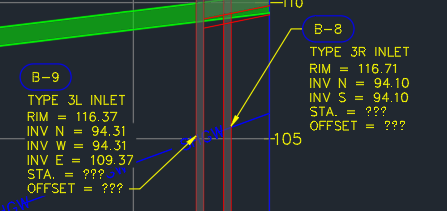
Got an interesting one here that should be easy to deal with, and yet I can't. Got a label style (see attached image) where we want structure name, description, rim and inverts, and then station and offset. The issue is the arrow and leader. If the label is on the right side of the structure and right next to it - it's fine. BUT, if it has to be moved anywhere on the screen - oy! I have to manually re-position the leader. Yet, I could swear there's a way to make it automatically move around. I tried changing the label style so that it's "stacked text" int he dragged state, but then the border doesn't display properly - I get a box around the whole label and not just the structure name. Is there any way to maintain the label's format and yet still have the leader be dynamic in its position/location?

0 Likes
Accepted solutions (2)
1,865 Views
18 Replies
Replies (18)
Message 2 of 19

imadHabash
Consultant
Consultant

Hi,

Can we have a CAD dwg sample for the arrow and leader for both situation?

Imad Habash

EESignature

0 Likes
Message 3 of 19

arobinsonTPUC7
Participant
Participant

How can I do that? The label is tied to a structure. If I upload a dwg file the data shortcut will be broken. I could upload our template drawing that has the style in it.

0 Likes
Message 4 of 19

chriscowgill7373
Mentor
Mentor

What about promoting the dref in the example file you send?

did you confirm that the label is not pinned?  (select it, check the pinned state in the properties palette)


Christopher T. Cowgill, P.E.

AutoCAD Certified Professional
Civil 3D Certified Professional
Civil 3D 2026 on Windows 11

Please select the Accept as Solution button if my post solves your issue or answers your question.

0 Likes
Message 5 of 19

Ed__Jobe
Mentor
Mentor

It sounds like you are using Civil 3D. This is the plain AutoCAD forum and it does not have labels, only text and mtext. Would you like me to move this to the Civil 3D forum?

Ed


Did you find this post helpful? Feel free to Like this post.
Did your question get successfully answered? Then click on the ACCEPT SOLUTION button.
How to post your code.

EESignature

0 Likes
Message 6 of 19

Joe-Bouza
Mentor
Mentor

That's nuisance. Here is what you do. Ortho on and pull the label straight up until you get a leader. Pin it. Now you should be able to grip and position without diving to mid structure

Joe Bouza
Did you find this post helpful? Feel free to Like this post.
Did your question get successfully answered? Then click on the ACCEPT SOLUTION button.

EESignature

0 Likes
Message 7 of 19

arobinsonTPUC7
Participant
Participant

Tried it, no change. I think it's because it's a civil 3D label. Thanks anyway.

0 Likes
Message 8 of 19

chriscowgill7373
Mentor
Mentor

What do you mean by Civil 3D label?  We know it is a Civil 3D label, which is why Ed moved your post.  There are many kinds of Civil 3D labels.  What kind of civil 3d label is it?  Structure labels have the ability to be modified as Joe described. I really think that it would be easier for us to help you if you share the drawing.  That way we could see how you did it, and offer suggestions that pertain to the dtyles you have created (including the possibility of changing those styles to provide the desired editability 


Christopher T. Cowgill, P.E.

AutoCAD Certified Professional
Civil 3D Certified Professional
Civil 3D 2026 on Windows 11

Please select the Accept as Solution button if my post solves your issue or answers your question.

Message 9 of 19

arobinsonTPUC7
Participant
Participant

Sorry, I was merely being precise as it is not Mtext. As for a drawing, okay, I've uploaded our base drawing. The main style in question is: PROFILE - STORM - STATION and OFFSET. If anyone can figure this out, I thank you!

0 Likes
Message 10 of 19

Joe-Bouza
Mentor
Mentor

Hi Andrew, the base drawing is blank. we are expecting the drawing with the poorly behaving label style in it labeling the structure in the profile. We are not here to recreate profiles and pipe to apply your style. You have to give us something to work with 

Joe Bouza
Did you find this post helpful? Feel free to Like this post.
Did your question get successfully answered? Then click on the ACCEPT SOLUTION button.

EESignature

0 Likes
Message 11 of 19

arobinsonTPUC7
Participant
Participant

Sorry, people, I'm trying, this is all new to me. The drawing in question has xrefs and data shortcuts. How am I supposed to upload all that?

0 Likes
Message 12 of 19

AllenJessup
Mentor
Mentor

Save the drawing to a new drawing and Promote the Drefs and Bind/insert the Xrefs.

You might not need the xrefs if they are just background. After getting everything in one drawing. You can erase anything that doesn't affect the issue.

Allen Jessup
CAD Manager - Designer
Did you find this post helpful? Feel free to Like this post.
Did your question get successfully answered? Then click on the ACCEPT SOLUTION button.

EESignature

Message 13 of 19

arobinsonTPUC7
Participant
Participant

Okay, had to purge a lot, but got it small enough to post.

Message 14 of 19

chriscowgill7373
Mentor
Mentor

The Label's anchor point is set to the Structure Dimension.  Edit the label style. go to the Layout Tab, the first value is currently set to tie to the feature with the structure dimension set as the anchor point, change this value to label location and see if it helps


Christopher T. Cowgill, P.E.

AutoCAD Certified Professional
Civil 3D Certified Professional
Civil 3D 2026 on Windows 11

Please select the Accept as Solution button if my post solves your issue or answers your question.

0 Likes
Message 15 of 19

arobinsonTPUC7
Participant
Participant

Thanks, I did try that. It helped in that the labels now come in next to the structure instead of about a hundred feet below it! No idea where that came from. However, it still won't allow the leader to move about the label as I change its position. Thanks for trying.

0 Likes
Message 16 of 19

chriscowgill7373
Mentor
Mentor

That statement helps me to better understand what you are trying to do.  You want the leader attachment point to chagr as the leader moves to different spots around the structure? 

I have to admit, when I posted my response yesterday. I was remoted into my computer from my phone and trying various options.  It was very difficult to work on such a small screen.  I know there are settings that can be used to flip the attachment point, but I think it may only be for left to right.  I think it is on the second tab of the style editor dialog box (sorry, not on my computer once again, so I think it is the General tab, there may be an option for flipping the anchor point.)

I can look later today when I am actually on my computer. 


Christopher T. Cowgill, P.E.

AutoCAD Certified Professional
Civil 3D Certified Professional
Civil 3D 2026 on Windows 11

Please select the Accept as Solution button if my post solves your issue or answers your question.

0 Likes
Message 17 of 19

chriscowgill7373
Mentor
Mentor
Accepted solution

I have been thumbing through and trying out a lot of different settings.  What I have found is, the only way to get the leader to auto switch sides is to stack the text, but then you lose the formatting of your leader.  However, if you leave it set to as composed,  when the leader is on the left, you can click the diamond grip and drag it to right amd snap it to the end of your bubble, and it will move the whole leader to the right.  We use this method with several of our label styles, because we didnt want to create a left and right version of the label style, which also is an option available.  (Similar to having a bottom and top pipe label style for arrow head attachment to the top or bottom of thw pipe instead of the center)


Christopher T. Cowgill, P.E.

AutoCAD Certified Professional
Civil 3D Certified Professional
Civil 3D 2026 on Windows 11

Please select the Accept as Solution button if my post solves your issue or answers your question.

Message 18 of 19

ChrisRS
Mentor
Mentor
Accepted solution

I concur with @chriscowgill7373 — you’ve run into a Civil 3D limitation.


Stacked text labels drag left or right cleanly, but they have formatting constraints, including creation‑order effects.


Assembled/Composed labels offer more formatting control, but they’re visually tuned for one side or the other. They rarely look equally good when dragged across the object.


That leaves three practical workflows:

  • Create separate left and right label styles. They stay clean, but you must keep both versions in sync whenever the design changes.

  • Use one label style and manually adjust the leader grip (the diamond). This is generally my preference — fewer styles to maintain, and you can correct the leader placement as needed.

  • Accept the stacked‑text limitations and avoid cross‑side dragging. Works fine if your labels rarely need to flip.


I do not anticipate Autodesk addressing this limitation in the foreseeable future.

Christopher Stevens
Did you find this post helpful? Feel free to Like this post.
Did your question get successfully answered? Then click on the ACCEPT SOLUTION button.

EESignature

0 Likes
Message 19 of 19

lauri_barnhart
Autodesk
Autodesk

Hello @arobinsonTPUC7, we appreciate you posting your question.


Did previous replies by @chriscowgill7373 or @ChrisRS help clarity your question?


If this helps, feel free to accept it as the solution.


This ensures others can benefit from the resolution shared here.


If you still require support, please post an update so we can assist you further.


Best,


Lauri | Community Manager


Lauri | Community Manager
0 Likes