Textures not being imported

Textures not being imported

Anonymous
Not applicable
5,331 Views
13 Replies
Message 1 of 14

Textures not being imported

Anonymous
Not applicable

I have a scene set up in 3DS with materials, but when I export the selected objects to Stingray, no material textures are coming over.  Everything is just coming in gray.  Searching through the project folders, it doesn't appear that any of the textures were even brought over.

Reply
Reply
0 Likes
Accepted solutions (2)
5,332 Views
13 Replies
Replies (13)
Message 2 of 14

paulkind
Alumni
Alumni

Hrm, there are many reasons this may occurr.  Could you tell me a little more about how your project is set up?  

1. Are the textures relative to your model files?

2. Could you screen capture your import settings (the seetings in there will dictate a lot)

3. Any other information that may be useful/non-standard?


Paul


Areas of Expertise - MayaLT : Mudbox : 3DS Max : Inventor : Game Dev
Follow me on Twitter : @paulkind3d

Please remember to give kudos freely and mark acceptable answers as solved!

PLEASE do not send me private messages unless asked to do so. If you have a question, start a thread, and ask me on the public forums where answering your question may help others.

Did you know there was a YouTube learning channel for Autodesk Games? New videos are posted regularly with all sorts of content relative to Stingray, Maya/MayaLT, 3DS Max, and other game related tools. Get your game on @ https://www.youtube.com/user/autodeskgameshowtos
Reply
Reply
0 Likes
Message 3 of 14

Anonymous
Not applicable

I attached a copy of my import settings.  All of the materials/maps are properly linked into the 3ds model and everything is found, no links broken.  I have tried using a standard material, as well as a VRay material, but neither work.

Reply
Reply
0 Likes
Message 4 of 14

paulkind
Alumni
Alumni

trying to repro on my end.  give me a few minutes and ill let you know.


Paul


Areas of Expertise - MayaLT : Mudbox : 3DS Max : Inventor : Game Dev
Follow me on Twitter : @paulkind3d

Please remember to give kudos freely and mark acceptable answers as solved!

PLEASE do not send me private messages unless asked to do so. If you have a question, start a thread, and ask me on the public forums where answering your question may help others.

Did you know there was a YouTube learning channel for Autodesk Games? New videos are posted regularly with all sorts of content relative to Stingray, Maya/MayaLT, 3DS Max, and other game related tools. Get your game on @ https://www.youtube.com/user/autodeskgameshowtos
Reply
Reply
0 Likes
Message 5 of 14

paulkind
Alumni
Alumni
Accepted solution

Heya dmc


Ok, so I just went through the process and found it to work with no hiccups.


Here is what I did.

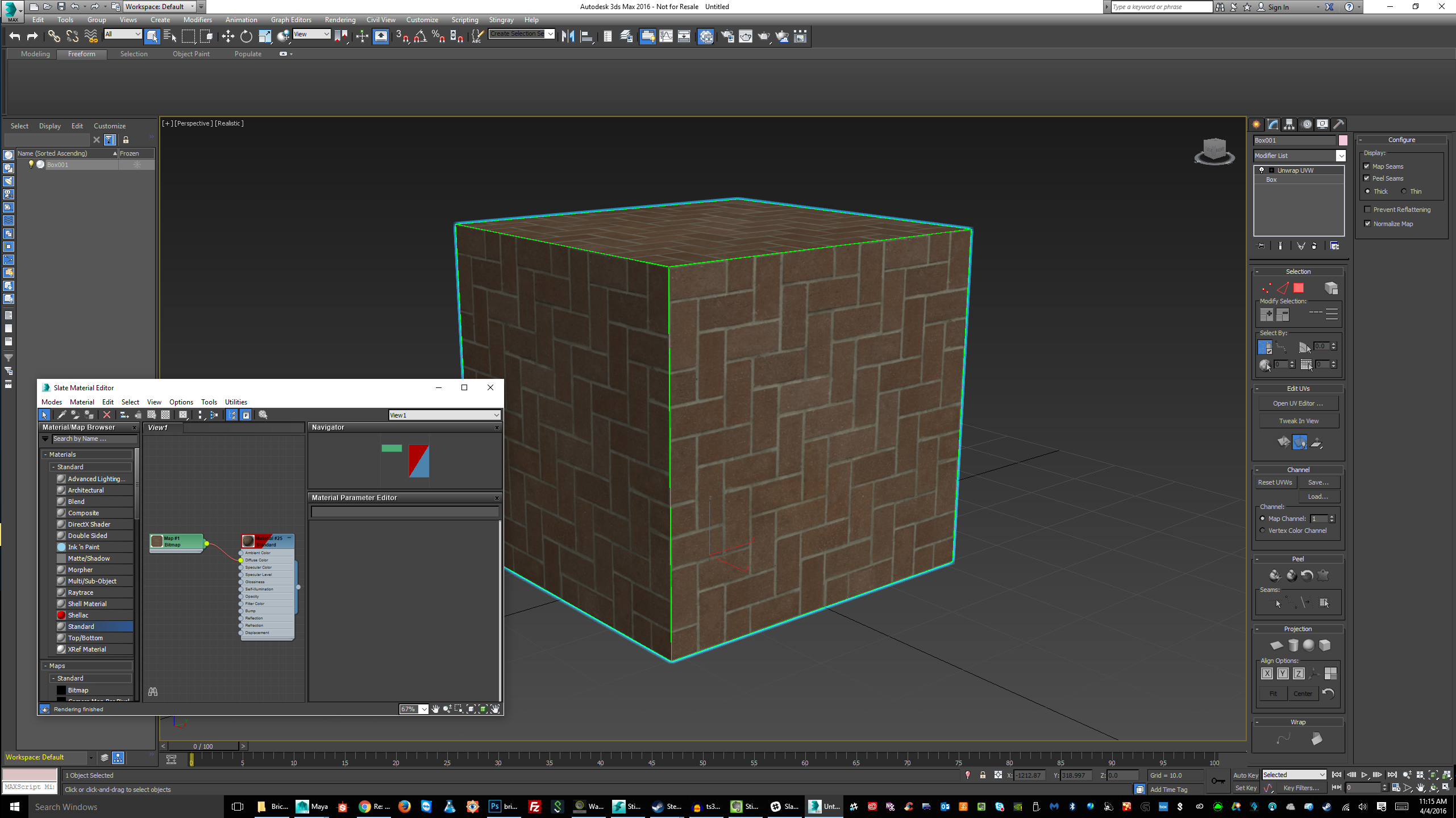
1. Created a model (its a simple cube) gave it a standard material, applied it to the diffuse channel.

2. Exported the model to a "game ready" folder.  I always make a "game ready" folder for myself just as good practice.  Within it i have a material folder.  In the materials folder, I keep my texture files. (.tga, .png  or sometimes .dds... png is my standard goto format)

3. In stingray I imported the files into a nice clean directory.

4. Placed on screen...  all materials and files came through on the first try.


See the images below.  maybe it can help you.


I would check my format of my images.  THey should only be in .tga, .png or .dds format.

Note : They should be images in sizes with multiples of 2 (ie: 128x128, 256x256, 512x512, 1024x1024, 2048x2048 etc)... not required if you dont plan to compress, but very very good practice.  


***I couldnt fit all the images in a single post, so ill post again with the remaining pictures.***

Areas of Expertise - MayaLT : Mudbox : 3DS Max : Inventor : Game Dev
Follow me on Twitter : @paulkind3d

Please remember to give kudos freely and mark acceptable answers as solved!

PLEASE do not send me private messages unless asked to do so. If you have a question, start a thread, and ask me on the public forums where answering your question may help others.

Did you know there was a YouTube learning channel for Autodesk Games? New videos are posted regularly with all sorts of content relative to Stingray, Maya/MayaLT, 3DS Max, and other game related tools. Get your game on @ https://www.youtube.com/user/autodeskgameshowtos
Reply
Reply
0 Likes
Message 6 of 14

paulkind
Alumni
Alumni

remaining images.

Areas of Expertise - MayaLT : Mudbox : 3DS Max : Inventor : Game Dev
Follow me on Twitter : @paulkind3d

Please remember to give kudos freely and mark acceptable answers as solved!

PLEASE do not send me private messages unless asked to do so. If you have a question, start a thread, and ask me on the public forums where answering your question may help others.

Did you know there was a YouTube learning channel for Autodesk Games? New videos are posted regularly with all sorts of content relative to Stingray, Maya/MayaLT, 3DS Max, and other game related tools. Get your game on @ https://www.youtube.com/user/autodeskgameshowtos
Reply
Reply
0 Likes
Message 7 of 14

Anonymous
Not applicable

Kind of. It seems that when I do import something, every 'instance' of the material is loaded. If i Have 100 windows, then my imported glass it tiled Glas_ncl1_01 and so on. Any way to change that. And how do I import a unit to world zero (providing that I reset the transformations in max)?


Thanks, Kyle.

Reply
Reply
0 Likes
Message 8 of 14

paulkind
Alumni
Alumni

Ok, so thats an easy one.  Simply set your object to the world position of 0,0,0 in 3ds max.

Because stingray treats your model as a "scene" it will always try to place it in the world at the same set of coordinates.  Therefore, if you set it to o,0,0, it will appear in stingray at 0,0,0.  It seems kind of weird at first, but it is actually really useful once you get used to it.

Areas of Expertise - MayaLT : Mudbox : 3DS Max : Inventor : Game Dev
Follow me on Twitter : @paulkind3d

Please remember to give kudos freely and mark acceptable answers as solved!

PLEASE do not send me private messages unless asked to do so. If you have a question, start a thread, and ask me on the public forums where answering your question may help others.

Did you know there was a YouTube learning channel for Autodesk Games? New videos are posted regularly with all sorts of content relative to Stingray, Maya/MayaLT, 3DS Max, and other game related tools. Get your game on @ https://www.youtube.com/user/autodeskgameshowtos
Reply
Reply
0 Likes
Message 9 of 14

paulkind
Alumni
Alumni

Also, as for your materials being multiples, simply select all your windows and apply one of the glass materials to all of your glass parts.  this will unify them to one material.  Currently you probably have multiple glass materials in your max file.  Stingray respects how you have it set up in max.

Areas of Expertise - MayaLT : Mudbox : 3DS Max : Inventor : Game Dev
Follow me on Twitter : @paulkind3d

Please remember to give kudos freely and mark acceptable answers as solved!

PLEASE do not send me private messages unless asked to do so. If you have a question, start a thread, and ask me on the public forums where answering your question may help others.

Did you know there was a YouTube learning channel for Autodesk Games? New videos are posted regularly with all sorts of content relative to Stingray, Maya/MayaLT, 3DS Max, and other game related tools. Get your game on @ https://www.youtube.com/user/autodeskgameshowtos
Reply
Reply
Message 10 of 14

Anonymous
Not applicable
Exporting selected from 3DS into a folder, then importing that fbx file seemed to fix bringing in the materials and textures. Maybe I'm crazy, but I seemed to think I used to be able to just click "send selection" in the Stingray menu in 3DS and that would automatically open the import dialog in Stingray and bring everything in, but that doesn't seem to be working.
Reply
Reply
0 Likes
Message 11 of 14

paulkind
Alumni
Alumni

It should work.  Techincally when you do the send to, it is doing the same thing, only it is automating it.  What version of 3DS Max are you working with.  Ill test it and send it over to Q/A for testing as well.  At least you now have a method that will work for you.  Also, it may be where the locations of the materials are and their formats that may be messing it up.  With games, you have to be very careful of these things.


Areas of Expertise - MayaLT : Mudbox : 3DS Max : Inventor : Game Dev
Follow me on Twitter : @paulkind3d

Please remember to give kudos freely and mark acceptable answers as solved!

PLEASE do not send me private messages unless asked to do so. If you have a question, start a thread, and ask me on the public forums where answering your question may help others.

Did you know there was a YouTube learning channel for Autodesk Games? New videos are posted regularly with all sorts of content relative to Stingray, Maya/MayaLT, 3DS Max, and other game related tools. Get your game on @ https://www.youtube.com/user/autodeskgameshowtos

Reply
Reply
0 Likes
Message 12 of 14

bruno.landry
Autodesk
Autodesk
Accepted solution
Hi, in your 3dsmax project, was the geometry imported from another application ? Check if you have duplicated material in Max, for exemple if you import a Naviswork model in Max, all material are duplicated per object, without relation to each other. Also maybe you have a multisub object with multiple material.

Another thing for the texture, make sure you don't have special character in it, for example texture from the Autodesk library often have "." in their file name, that won't be supported.
______________________________________


Bruno Landry
Product Manager - Autodesk 3ds Max
Reply
Reply
0 Likes
Message 13 of 14

Anonymous
Not applicable
I'm pretty sure the problem was in the "." in the name. I actually realized it and renamed those maps to something else. I still had to manually import that map as a texture in Stingray, because I guess I had already brought in the unit and it was having trouble overwriting the old material. But it works now.
Reply
Reply
0 Likes
Message 14 of 14

bruno.landry
Autodesk
Autodesk

Hi, yes have a look at the console, you'll see if there's an error with a specific texture.  The top image is 3dsmax, the bottom one is Stingray.

My colleague Martin Ashton created a script to fix this problem quickly in 3dsmax.  Just use the maxscript attached to the post (stingray_bitmap_sanitizer.ms).  Make sure all file link/path are correct, the script will create copy of the texture, replace all the "." by "_" and relink the texture path.  I had this problem when I was importing Infrawork model to Stingray using 3dsmax for optimization.


texture_name_01.JPG

texture_name_02.JPG

______________________________________


Bruno Landry
Product Manager - Autodesk 3ds Max
Reply
Reply
0 Likes