Strange lines and joins in PDF export

Strange lines and joins in PDF export

Anonymous
Not applicable
13,975 Views
25 Replies
Message 1 of 26

Strange lines and joins in PDF export

Anonymous
Not applicable

I know that there are quite a few posts similar to this one, but I can't seem to find an answer to my issues. I've also posted in the Printing and Plotting topic, but I was suggested to try the Mac topic instead. So...


................


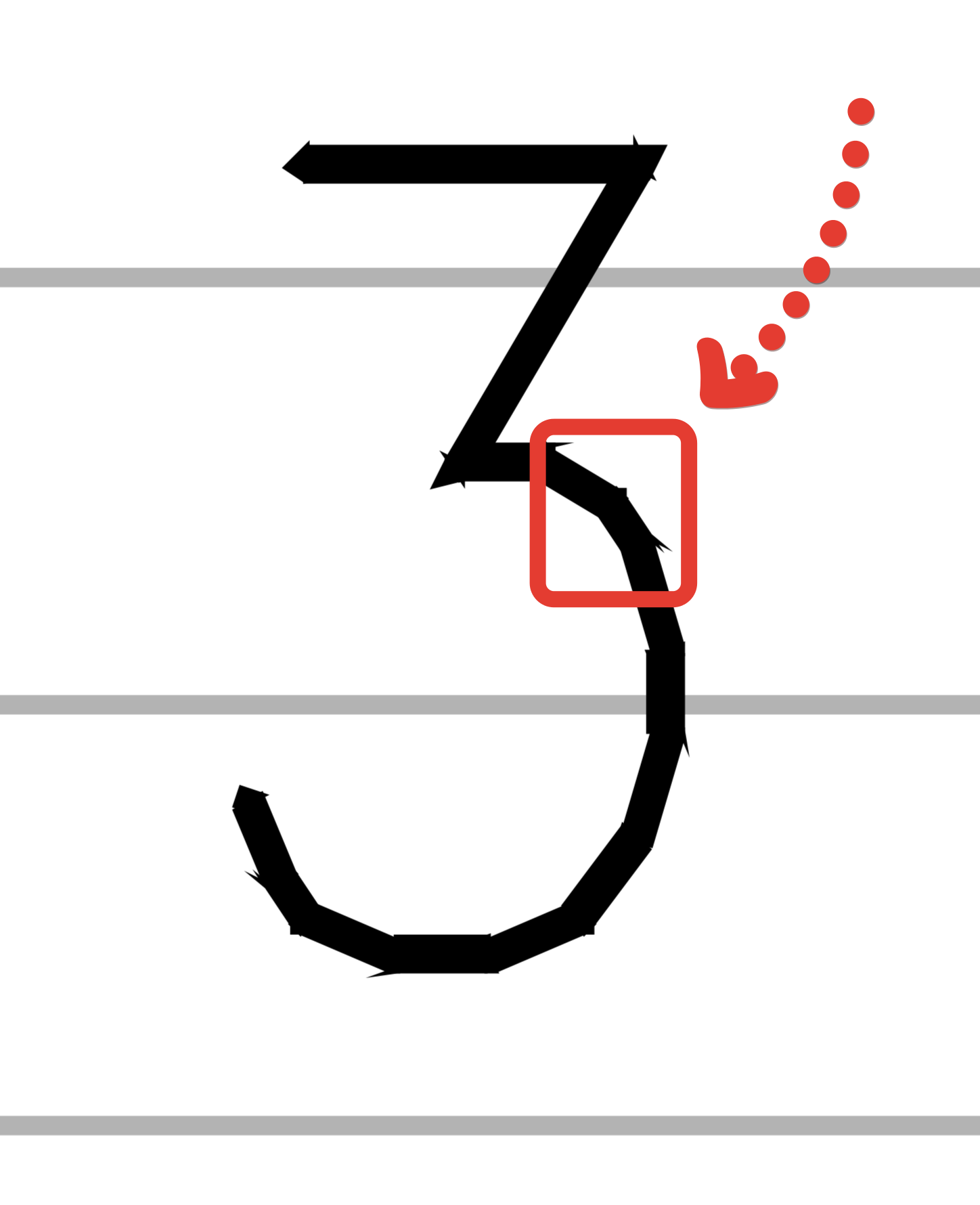
I'm seeing strange artifacts in PDF exports from my drawing. Corners are joined with small boxes appearing at intersections. I haven't had luck changing the corner join options in the CTB. Also, some of the hatched/filled regions are showing very strange thick lines and artifcacts at the joins and corners.


You can see an example of the boxes at the corners and joins in this screenshot from Adobe Illustrator CS5 of a region from "Dvc Layer 3". In this case, the PDF looks correct, just with these boxes everywhere.


And the strange thick lines and joins from this screenshot of "Dvc Layer 2". Here, the PDF does not match the DWG. Note the gaps betweent the "fingers" are all different sizes.


I think this last issue might have to do with hatching as noted in this forum thread.


I'm attaching...

- the DWG

- the exported PDF (through the Export dialog, not the Print to PDF option) from the DWG layout

- the CTB I'm using

- two screenshots from Adobe Illustrator CS5

(all zipped into one file)


Does anyone have any suggestions for me? How do I get the PDF output to look just like the layout I've defined in AutoCAD?


I'm using AutoCAD 2013 Mac on a Retina MBP with 10.8.4.


Thanks in advance for all the help!


Best,


/Daniel

0 Likes
Accepted solutions (1)
13,976 Views
25 Replies
Replies (25)
Message 2 of 26

maxim_k
Consultant
Consultant

Hi Daniel,


CTB file you attached in ZIP archive doesn't match CTB saved in Page Setup in your drawing. In DWG file you provide the name of CTB is "Monochrome Black fill".

Could you upload the exact file? This could be important.


Maxim


Do you find the posts helpful? "LIKE" these posts!
Have your question been answered successfully? Click 'ACCEPT SOLUTION' button.


Maxim Kanaev
Architect
MARSS

MacACAD | Linkedin

Etiquette and Ground Rules of Autodesk Community
0 Likes
Message 3 of 26

Anonymous
Not applicable

Hi Maxim,

Here's the original Monochrome black fill.ctb file.

Also, I'm not sure why the images disappeared from the original post, but you can find them in the original ZIP file.

Thanks,

/Daniel

0 Likes
Message 4 of 26

maxim_k
Consultant
Consultant
Accepted solution
Hi Daniel,

I made some investigations with your DWG and I can confirm your problems. Furthermore I have to say that with settings in your drawing PDF engine that uses AutoCAD for Mac wouldn't give acceptable results, that is true. I also tried to output your DWG from Windows version of AutoCAD and the results was good.
So seems that this defect in AC for Mac is working against you.
But wait a minute!
When I "drilled" into your drawing I noticed some things that you can try to correct:
1. I noticed that you draw the borders of the elements in your DWG with REGION objects - why? When I explode those REGIONS to LINES and then convert them to closed polylines - I get rid of this problem: "Corners are joined with small boxes appearing at intersections."
2. You trying to print relatively small elements, I mean parts in your drawing are extremely small against paper size you are using. Or in other words you are trying to print big city plan on A3 sheet of paper - the output scale in your drawing is 1:1000 ! And even if thickness of the lines will tend to zero ( which in itself is not possible for reasons of physics) with such output scale it is practically impossible to get acceptable results.
So what you can try on this matter? Try to crate a huge Custom paper size (not sure about the limitations for paper sizes in Mac OS but it seems that Preview.app can handle rather big paper sizes) So you can try to create paper size 10 or 100 times bigger then A3 paper size you use. Than save PDF file with such huge paper size. This will eliminate the problem of the scale and it seems to me that the results will be better. Than you can print this "huge" PDF with Preview.app to real printer using scaling, you even can try to save another PDF from print preview of Preview.app on ordinary A3 sheet of paper.

Maxim

Do you find the posts helpful? "LIKE" these posts!
Have your question been answered successfully? Click 'ACCEPT SOLUTION' button.


Maxim Kanaev
Architect
MARSS

MacACAD | Linkedin

Etiquette and Ground Rules of Autodesk Community
Message 5 of 26

maxim_k
Consultant
Consultant

Hi Daniel,


It seems that my workaround with creating huge custom paper size works.

So what I have done:

- I created custom paper size with dimensions 100 times larger than A3 - 29700 mm x 42000 mm

- assigned this paper size to layout, and set scale to 1:10 with "Scale lineweights" unchecked

- from Print dialog I opened PDF in Preview.app

- then I started print from Preview.app to A3 paper (scaled down) and again opened PDF in Preview where I got your drawing printed on A3 paper size


I attached resulting PDF - it looks good I think.


Maxim


Do you find the posts helpful? "LIKE" these posts!
Have your question been answered successfully? Click 'ACCEPT SOLUTION' button.


Maxim Kanaev
Architect
MARSS

MacACAD | Linkedin

Etiquette and Ground Rules of Autodesk Community
0 Likes
Message 6 of 26

Anonymous
Not applicable

Hello again, Maxim,


Thanks! Your workarounds seem to have worked perfectly!


The issue with regions, polylines, and strange boxes is based on my being new to AutoCAD and trying the first thing that looked like it worked. I'll definitely avoid regions in this situation from now on.


As for the huge custom canvas, is there any other way you could think of to avoid the extra export and scaling steps. Do you think I could use 0 lineweight on some layers? I'll play around in the next couple days, but any input would be very welcome.


Thanks again!


Best,


/Daniel


0 Likes
Message 7 of 26

maxim_k
Consultant
Consultant
Hi Daniel,

You can try to use 0 lineweights, but I just want to draw your attention to the fact that geometry in your drawing is extremely small in size, in order to see artifacts in PDF file I have to zoom 6400% in Illustrator. Hope no one will to look at your drawings through microscope 🙂
In real world practice for details of such small dimensions you have to use apply the scale 10:1 or 100:1, but not 1:10 or 1:100.

Maxim

Do you find the posts helpful? "LIKE" these posts!
Have your question been answered successfully? Click 'ACCEPT SOLUTION' button.


Maxim Kanaev
Architect
MARSS

MacACAD | Linkedin

Etiquette and Ground Rules of Autodesk Community
0 Likes
Message 8 of 26

Anonymous
Not applicable
Hi Maxim,

Ha! These drawings are actually specifically for people to use under a microscope! They're photolithography masks for electronics microfabrication.

As you can tell, I'm pretty new to AutoCAD. Been using Illustrator for these files in the past. Can you elaborate on your recommended scaling?

We work with features on the micron scale (usually no smaller than 10 micron), but need to export them to A3 for printing on a special printer. Right now, I'm working with 1 unit = 1 micron on the model, and (using your large canvas suggestion) with 1:100 scaling on the layout. I chose 1:100 so that I could open the resulting large (10x A3) PDF in Illustrator CS5 easily.

Thanks again for the excellent help!

/Daniel
0 Likes
Message 9 of 26

Anonymous
Not applicable

I'm having this issue as well but don't understand the solution. I'm new to AutoCAD as well...going on about 3 weeks experience. 


I've attached screenshots of my drawing in AC and of the PDF output. Also attached the PDF itself. 


I'm using AC 2013 on a MBP (brand new) with 8GB RAM and 3.1 GHz i7. 

0 Likes
Message 10 of 26

maxim_k
Consultant
Consultant
Welcome to Autodesk Forums!

Hi,
To investigate your problem I need not only PDF file, but DWG file along with custom plot style table file (if any), Could you please attach it here?

Maxim

Do you find the posts helpful? "LIKE" these posts!
Have your question been answered successfully? Click 'ACCEPT SOLUTION' button.


Maxim Kanaev
Architect
MARSS

MacACAD | Linkedin

Etiquette and Ground Rules of Autodesk Community
0 Likes
Message 11 of 26

Anonymous
Not applicable
Eric Banks
[email protected]
0 Likes
Message 12 of 26

maxim_k
Consultant
Consultant
Hi Eric,
There is no attachment. I'd suggest you to compress files before attaching here.
Maxim

Do you find the posts helpful? "LIKE" these posts!
Have your question been answered successfully? Click 'ACCEPT SOLUTION' button.


Maxim Kanaev
Architect
MARSS

MacACAD | Linkedin

Etiquette and Ground Rules of Autodesk Community
0 Likes
Message 13 of 26

Anonymous
Not applicable

Sorry, trying again. 

0 Likes
Message 14 of 26

maxim_k
Consultant
Consultant

Hi Eric,


The reasons of the problem you have with PDF output from AutoCAD for Mac are:

1/ The geometry in your drawing (inside viewport) is extremely small - actually you can see it only when viewing PDF file, I think if you will try to print this PDF you will get black blot in place of the contents of the viewport.

2/ You are using in your drawing polylines with width assigned different from 0. But there is a defect (bug) in AutoCAD for Mac when it outputs polylines with width different from zero - it represents such polylines as a set of filled triangles instead of one curve with width and outlines this set of filled triangles with additional curve. The result of this bug you can see in PDF output.


You can try to use the method I described earlier in this thread, but you will get big size PDF filebecause of the second reason I mentioned above.

I created custom paper size ten times bigger than A2 paper size,  assigned to the layout in your drawing, than scaled up the contents of layout ten times, changed the view inside viewport to match your initial file, than opened preview in Print window, than saved PDF from Preview with scaling down to A3 paper size. The resulting PDF I attached here.


Maxim


Do you find the posts helpful? "LIKE" these posts!
Have your question been answered successfully? Click 'ACCEPT SOLUTION' button.


Maxim Kanaev
Architect
MARSS

MacACAD | Linkedin

Etiquette and Ground Rules of Autodesk Community
0 Likes
Message 15 of 26

Anonymous
Not applicable

Hi Maxim!


Need help urgently!!! The pdf saved on A3, A4, or even A0 size is sketchy. Text and dimensions crack out completely.


PFA pdf and my ctb. 


Will really appreciate your suggestion. 


Thanks !


0 Likes
Message 16 of 26

Anonymous
Not applicable

Sorry to have missed the attachments . PFA.

0 Likes
Message 17 of 26

maxim_k
Consultant
Consultant

Welcome to the Autodesk Forums!


Hi,


A quick question: do you mean these artefacts:


2016-05-07_22-01-18.png


Maxim


Do you find the posts helpful? "LIKE" these posts!
Have your question been answered successfully? Click 'ACCEPT SOLUTION' button.


Maxim Kanaev
Architect
MARSS

MacACAD | Linkedin

Etiquette and Ground Rules of Autodesk Community
0 Likes
Message 18 of 26

Anonymous
Not applicable
Thank you for the prompt response!

Yes I am referring to the same.
0 Likes
Message 19 of 26

maxim_k
Consultant
Consultant

If you need to get something like in attached PDF file, you need to edit your plot style table file and set "Line join style" and "Line end style" to "Use object end (join) style":


2016-05-07_22-23-39.png


Maxim


Do you find the posts helpful? "LIKE" these posts!
Have your question been answered successfully? Click 'ACCEPT SOLUTION' button.


Maxim Kanaev
Architect
MARSS

MacACAD | Linkedin

Etiquette and Ground Rules of Autodesk Community
Message 20 of 26

Anonymous
Not applicable

I tried doing the same. Yet my drawing doesn't seem to be as crisp as yours. Is there anything that I am missing? 


Thanks


0 Likes