max 2016: Objects not visible in layer manager...

max 2016: Objects not visible in layer manager...

jens.diemer
Collaborator Collaborator
49,641 Views
93 Replies
Message 1 of 94

max 2016: Objects not visible in layer manager...

jens.diemer
Collaborator
Collaborator

I have some scene files, with objects that aren't visible in layer manager:


bug1.pngbug2.pngbug3.png

Jens

------------------------------------------------------------------------------------------------------------------
https://github.com/jedie/3dsmax_bugs | https://github.com/jedie/3dsmax_patches
Accepted solutions (1)
49,642 Views
93 Replies
Replies (93)
Message 21 of 94

bill30
Contributor
Contributor

Hi Kate,


I do have service pack 3 installed, I'm using the student version and not sure if that makes a difference, but it diddn't mention a Layer fix in the Ser 3 notes. I can't even do the 2014 save down trick to get the layers to show up.


Thanks,

Bill

0 Likes
Message 22 of 94

dbrainard
Advocate
Advocate

Just thought I'd echo the fact that I am also experiencing this strange layer phenomenon in 2016. Have several objects on in a scene that now appear to have no layer assignemnts (odd) and I can't assign these rogue items to an active layer. It has not been fun tryign to keep our MAX scenes organized this past year.

Message 23 of 94

dbhinnant
Advocate
Advocate

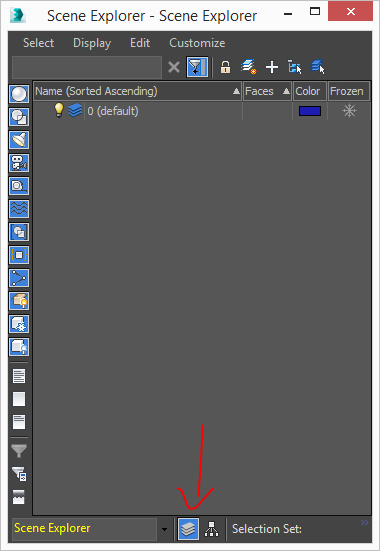
I have also had this problem since going to 2016.  The workaround for me has been to switch between Layer Explorer and Scene Explorer in the drop down at the bottom of the window.  Very annoying.

0 Likes
Message 24 of 94

bill30
Contributor
Contributor
Thanks -it allows me to see the objects but not fix the layers they're on.


Sent from my iPhone
0 Likes
Message 25 of 94

Andrew.Marlowe
Explorer
Explorer
Accepted solution

I was having the same issue when merging some scenes and the script on the first page didn’t work for me. Not sure why, but I came across this version of the same thing and its works fine. Select all the objects that aren’t showing up in in the layer manager and run this:


--Select objects that arent showing up and run this script. It will create a new layer with 

layer = LayerManager.newLayer()
for n in (selection as array) do layer.addnode n

Hope this helps!


-Andrew

Message 26 of 94

CRAengineer
Enthusiast
Enthusiast

i'll chime in as another person affected by this PITA bug...


we get a lot and I mean A LOT of 3d models from 3rd party vendors and need to merge them with our in-house scenes. recently, maybe after SP3 or SP2, this bug started happening to us.  


fortunately that second script works for us and we first merge all new files from vendors into their own file, run the script to fix the layers, then merge/xref into our production scenes.


ya, it's extra work but it works and i'm hoping 2017 doesn't have this kind of 'feature' if you want to call it that.

Message 27 of 94

Anonymous
Not applicable

Chiming in that I'm having this issue as well, albeit in a slightly different form. I'm using 3ds max 2016 SP3.


I imported models from one scene to another. The layer that the models were in in the original scene does not exist in the scene into which I imported them. The models that I imported don't show up in the layer manager of the new scene, and selecting them and adding them to a layer does nothing. I tried creating a new layer with the name of the layer they were in in the original scene, and then adding them to that layer in the new scene, and they still don't get added. There's just no way to view or select them from the layer manager. They do show up in the hierarchy view.


The previously proposed solution of opening the original file, changing what layer they're in, and then re-importing them to the new file won't work for me, because I've already edited them significantly in the new file.


This is a persistent bug that Autodesk should fix if there's not some simple solution we're all missing.

Message 28 of 94

Anonymous
Not applicable

For the record, the solution proposed by Andrew.Marlowe above works for me. But this bug should still be fixed so the interface works as intended.

Message 29 of 94

Alfred.DeFlaminis
Alumni
Alumni

Hello @jens.diemer and everyone else,


This is an interesting one.  Is it possible for any of you to post scenes files that currently have this issue for me to investigate and attach to a bug tracker case if needed?  It would mean a lot, and thank you.  They can be super simple scenes, I just would like to take a closer look. 


Are all of you by any chance using 2 or more monitors who are experiencing this bug?  Is max on your 2nd monitor?  Could you please list your OS as well? 


Thank you very much and best regards,

Message 30 of 94

dbrainard
Advocate
Advocate

Hi Alfred,

It just so happens that I use two monitors and am operating on the Windows 10 platform. I often have my layers panel on my second screen, but I keep MAX on my primary screen. For what it's worth!

Thanks!


0 Likes
Message 31 of 94

Anonymous
Not applicable

Thank you for the reply, Alfred DeFlaminis!


I am indeed using two monitors. But I keep 3ds max 2016 and all the UI windows on one monitor. I'm using Windows 7 Enterprise SP1. Nvidia GeForce GTX 980 Ti with 6GB VRAM. Intel Xeon E5-2687W v3 3.1 GHz.


I will post the max file for bug reporting but currently it's huge so I will clear out extra objects first. Hope specs help meanwhile.

0 Likes
Message 32 of 94

Anonymous
Not applicable

I also use 2 monitors. I generally keep Max on my primary monitor and I generally dock my layers panel on the left. I sometimes work with other panels (material editor, curve editor) on the other monitor.
Windows 7 Ulitmate

I don't remember which project caused me this trouble, but if I come up with it I will provide it.

0 Likes
Message 33 of 94

Alfred.DeFlaminis
Alumni
Alumni

Thank you both for the replies!


There is a logged bug with 3ds Max on dual monitor setups with navigation, and it may be that it's affecting this as well.  Is max running on your primary monitors or secondary monitors?  If secondary, does the problem persist if you use the primary monitor?  (You may have to restart max if you move it from monitor 2 to monitor 1 in order to do a proper test here.)  Thanks so much! 


Since each of your are on a different OS, we can discount the OS as a part of the problem, which is great.  Thanks so much.  

Best Regards,

0 Likes
Message 34 of 94

Andrew.Marlowe
Explorer
Explorer

Hi Alfred,


I've attached a scene that has a handful of objects in it, yet none of them are displayed in the Layer Manager only in the Scene Hierarchy. The script I posted back in June seems to fix it. I stripped everything else out of the scene to make it easy for you. I honestly believe it has some issue with merging complex scenes.


Windows 10 Enterprise

Nvidia GeForce GTX 980 Ti with 6GB

64gb Ram

Intel Xeon E5-2687W v3

Duel Monitors - I keep max typically on the same screen. 


Best,

Andrew

Message 35 of 94

dbhinnant
Advocate
Advocate

I have this issue with every file.  I use 3 monitors with Max on the primary.  I use the the "Layer Explorer" button on the toolbar to open "Scene Explorer - Layer Explorer" and drag it to another monitor.  I have to toggle from Layer Explorer to Scene Explorer to see all of my objects.

Message 36 of 94

Alfred.DeFlaminis
Alumni
Alumni

Thanks for the information, I think given that @dbhinnant uses Max on primary monitor that the multiple monitor issue isn't what is causing this.   Thank you @Andrew.Marlowe for the attached file, I can confirm this issue on my end.  I will enter this into our tracking system and thank you all for taking the time to detail the problem for me.  


Best Regards,


0 Likes
Message 37 of 94

jens.diemer
Collaborator
Collaborator

I have also three monitors. max on the primary and scene explorer on a other monitor...


What a strange bug, if this depends on the number of monitors!


A example max file attached in the first post!

Jens

------------------------------------------------------------------------------------------------------------------
https://github.com/jedie/3dsmax_bugs | https://github.com/jedie/3dsmax_patches
0 Likes
Message 38 of 94

Alfred.DeFlaminis
Alumni
Alumni

Hello @jens.diemer,


Don't worry, it has nothing to do with the number of monitors.  I haven't seen this before so I wanted to collect as much info as possible to investigate.  If I log a bug into the system I like to include as much info as I can.  The devs are pretty great about communication and I'd rather provide more details than are needed than less. 


There was an error recently with another user who was unable to view his modifier menu, it was just gone for him.  It turned out to be because max was on his secondary monitor, so when I saw another issue where something was straight missing, I wanted to be sure they weren't related. 


Best Regards,

0 Likes
Message 39 of 94

Alfred.DeFlaminis
Alumni
Alumni

Hello @jens.diemer,


I wanted to follow up here and let you know this was logged into the system as a bug.  If I hear anything back regarding this issue I will update here in this thread.  For the time being, the workaround posted by @Andrew.Marlowe does seem to work from my tests, and we should use this for the time being.  Thank you for detailing this issue.  


Best Regards,

0 Likes
Message 40 of 94

Anonymous
Not applicable

The problem at my studio is that a majority of the objects missing are also frozen. I can't select them to run the script (I wrote the same thing as soon as it happened), and I can't unfreeze them. Clearly I can't toggle freeze in the layer manager, but they also do not unfreeze when "unfreeze all" is run from quad menu. I don't think the layer manger is the root problem, but a symptom of something bigger. It's almost like the scene index is corrupted. Therefore the layer manager can't find the object, and the objects don't react to "hide by category" and "unfreeze all".

0 Likes