Reveal in wall

Reveal in wall

husamcivil
Enthusiast Enthusiast
1,686 Views
3 Replies
Message 1 of 4

Reveal in wall

husamcivil
Enthusiast
Enthusiast

Hi all

How can create non straight shape Reveal on wall face in revit ?

Has any one an idea ?

thank you

0 Likes
Accepted solutions (1)
1,687 Views
3 Replies
Replies (3)
Message 2 of 4

Libei.Wang
Autodesk
Autodesk

Hi @husamcivil,


Thank you for reaching out to us.


This forum is for Revit Live, an Autodesk product to visualize and interact with your Revit model.  You will get better and faster support by posting your question in Revit Architecture forum.


Best regards,

Libei



Libei Wang
Sr QA Analyst for 3ds Max
0 Likes
Message 3 of 4

aRcHiTeCt.JM
Mentor
Mentor
Accepted solution

How to create and add custom wall Reveal profiles

when creating a wall reveal in Revit only 5 choices of basic rectangular profiles are offered. 

Standard Reveal Profiles  
 
Causes:The choice available is determined by the Reveal profile families which are loaded and available in the project. 

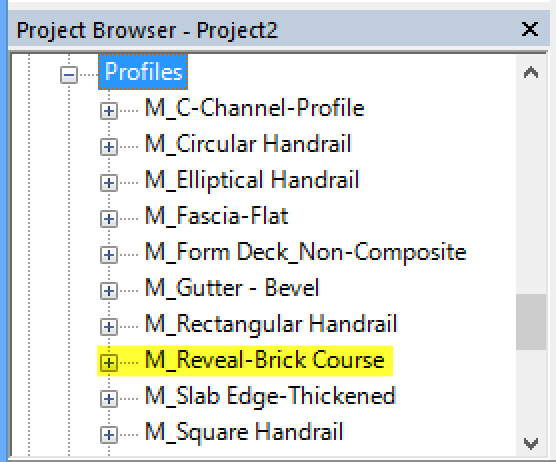
Most out of the box projects will have a single standard Reveal family already loaded which contains the default 5 profiles available in theReveal function, as visible in the Project Browser under the Families > Profiles branch: 

Reveal family 
 
Solution:Follow the steps below to create a custom profile family to be used in a wall reveal. 

1. With your project open click on the application button (R) then choose New > Family 
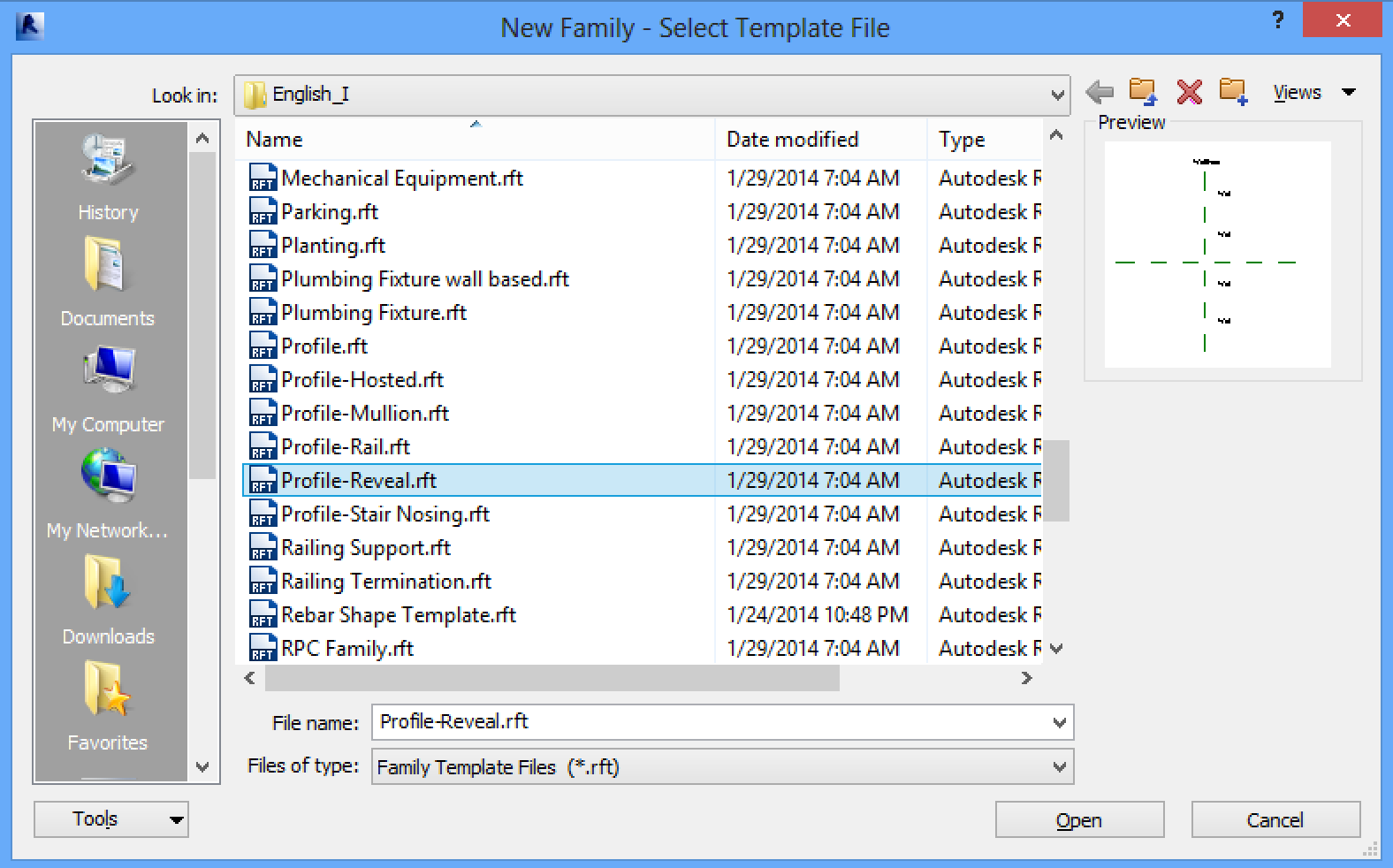
2. In the New Family - Select Template File dialog, choose 'Profile-Reveal.rft' then click on Open. 

Profile Reveal template selection 

3. Using the tools available in the Create ribbon tab draw the custom profile that will cut into the wall. Make sure you complete the profile by drawing a closed shape. 

Custom Profile drawn 

4. When done, save the profile family then click on Load Into Project (from the Ribbon) to load the family into your project 
5. Back in your project file, switch to an elevation or 3D view 
6. From the Architecture ribbon tab, open the Wall drop down and choose Wall: Reveal  to add a new reveal 
7. From the Properties palette, click on Edit Type 
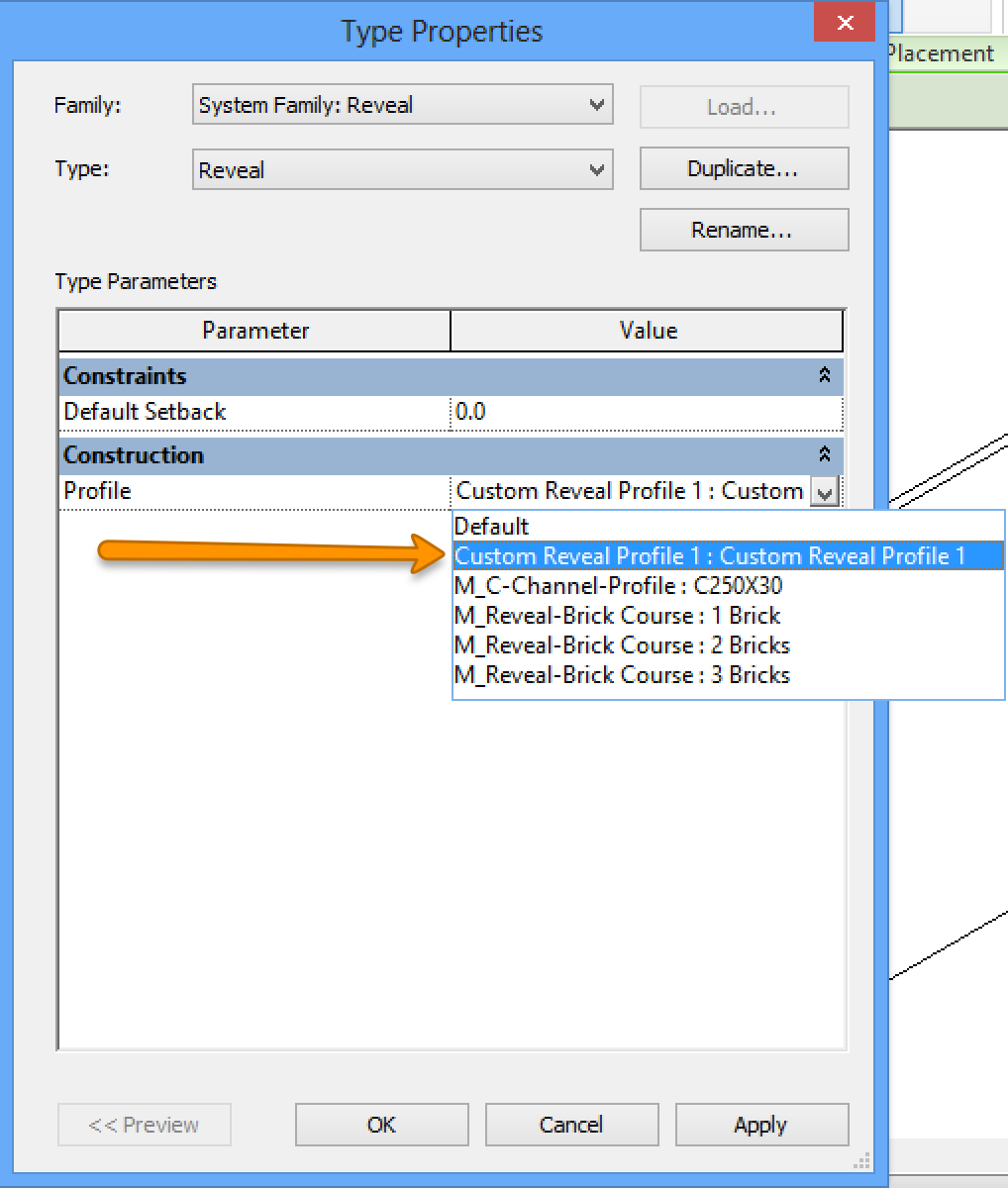
8. In the Type Properties dialog, open the Profile drop down list and select your custom profile: 

Custom profile selection 

9. Click OK when done 
10. Now place the reveal with the custom profile on a wall of your choice.

aRcHiTeCt.JM

REVIT EXPERT ELITE
➪ ➪ ➪ ➪ ➪ ➪ ➪ ➪ ➪ ➪ ➪ ➪ ➪ ➪ ➪ ➪ ➪ ➪ ➪ ➪ ➪ ➪ is it working for you ? ➪ ⇩ 'Accept as solution' ⇩ ⇦

Message 4 of 4

mekdem.kidane
Alumni
Alumni

Hi @husamcivil


I'm just checking in to see if you need more help with this. Did the suggestion that @aRcHiTeCt.JM provided work for you?

If so, please click Accept as Solution on the posts that helped you so others in the community can find them easily.

0 Likes