Have electrical outlets how up dashed on Demo plan when they are being removed

Have electrical outlets how up dashed on Demo plan when they are being removed

Anonymous
Not applicable
2,363 Views
16 Replies
Message 1 of 17

Have electrical outlets how up dashed on Demo plan when they are being removed

Anonymous
Not applicable

I'm sure this is simple but, I can't figure out how to have my electrical outlets and/or lighting fixtures to show up dashed in plan when they are being removed.  It's my first electrical and RCP plan in Revit.  Thanks for the assistance!  

0 Likes
Accepted solutions (1)
2,364 Views
16 Replies
Replies (16)
Message 2 of 17

timlove
Advocate
Advocate

Well if you are just doing something quick you could do a visibility override of the objects, not the right way really.


To do it with phasing that is part of revit:

1) In the properties window of the object, make sure the Phase Created, and Phase Demolished are filled in.  If they are the same, the object is considered Temporary, the the Demo phase is later it will be considered Demolished at that phase.

2) In the properties window of the view, make sure the Phase is set to whatever phase your objects will be demolished.  The Phase Filter will define how each object will be affected.

3) On the Manage Ribbon open up the Phases window.  The Phase Filters tab will let you know how each filter will affect the different status of the object; New, Existing, Demolished and Temporary. The Overrides tab will show what each of the overrides will be. 


0 Likes
Message 3 of 17

ToanDN
Consultant
Consultant

Set the view's phase status to New Construction and the view's phase filter to Show Previous + Demo.

0 Likes
Message 4 of 17

Anonymous
Not applicable

For electrical I realized that I had input the 'annotation symbols' families (that are nested into the electrical families) directly into the plan so that is why they were not showing up dashed even though they were on the correct phase.

0 Likes
Message 5 of 17

RDAOU
Mentor
Mentor

@Anonymous 


  1. Either use  3D model category (electrical fixture) which is phase-able
  2. or type VV for Visibility Graphics >> under Annotation categories tab >>> Override Generic Annotations in that view to Dashed


    RDAOU_1-1639551960064.png


YOUTUBE | BIM | COMPUTATIONAL DESIGN | PARAMETRIC DESIGN | GENERATIVE DESIGN | VISUAL PROGRAMMING
If you find this reply helpful kindly hit the LIKE BUTTON and if applicable please ACCEPT AS SOLUTION


0 Likes
Message 6 of 17

Anonymous
Not applicable

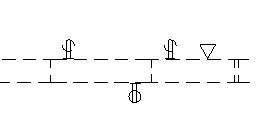
I figured out why most electrical outlets were not showing up dashed and have fixed it (per above).  Now my data port isn't showing up dashed.  I think this is just because the line segments are too long for whatever dashed line I have it set to.  I would like the 2 electrical outlets and the data (top symbols in the attached image...the bottom one should stay as is) to show up with smaller dashed lines than what it is currently.  I'm not sure how to set it and/or override the electrical to a smaller dashed line that it is right now.  

0 Likes
Message 7 of 17

barthbradley
Consultant
Consultant

Manage Tab=>Phases=>Graphic Overrides.


Phase GO 1213.png


Change the Projection/Cut Lines how you want them.  

0 Likes
Message 8 of 17

RDAOU
Mentor
Mentor

@Anonymous 


Create a new line pattern with a bigger gap and a smaller dash then use that in the override (Phase Override or visibility Graphics overrides)


RDAOU_3-1639552060568.png


YOUTUBE | BIM | COMPUTATIONAL DESIGN | PARAMETRIC DESIGN | GENERATIVE DESIGN | VISUAL PROGRAMMING
If you find this reply helpful kindly hit the LIKE BUTTON and if applicable please ACCEPT AS SOLUTION


0 Likes
Message 9 of 17

Anonymous
Not applicable

Won't that override ALL of the demo elements? I'd like the walls to remain the way I have them but the electrical to be a smaller dash.

0 Likes
Message 10 of 17

barthbradley
Consultant
Consultant

@Anonymous wrote:

Won't that override ALL of the demo elements? I'd like the walls to remain the way I have them but the electrical to be a smaller dash.


Sure will.  Use Graphic Overrides in the View then.  


...you can do it as a Filter so can apply the Filter to other like Views. 


Elec Out Phasing.png

0 Likes
Message 11 of 17

RDAOU
Mentor
Mentor

@Anonymous wrote:

Won't that override ALL of the demo elements? I'd like the walls to remain the way I have them but the electrical to be a smaller dash.


@Anonymous 


It depends how you apply the override.In the previous reply you said you fixed it as mentioned above but you did not specify which way... Did you replace/use a Generic Annotation for the Fixtures or Did you use a 3D Model Category family (ie: Electric Fixtures)?


  1. If you used 3D component (electric fixture) and do not want to affect the Demo in general
    • You can use a view filter to override only the electric fixture
  2. if the fixtures are generic annotations, then the override would and not related to Phasing
    • you can override the category under Visibility Graphics 
    • or you can override by applying a view filter

RDAOU_0-1639552697209.png


RDAOU_1-1639552796793.png


YOUTUBE | BIM | COMPUTATIONAL DESIGN | PARAMETRIC DESIGN | GENERATIVE DESIGN | VISUAL PROGRAMMING
If you find this reply helpful kindly hit the LIKE BUTTON and if applicable please ACCEPT AS SOLUTION


0 Likes
Message 12 of 17

timlove
Advocate
Advocate

If you used Generic Annotations for placing the symbols I would create a new Category Type for your electrical symbols. Without this you will have to pick between overriding all Generic Annotations or none of them. 

timlove_0-1639577905054.png

When you do this, pick your new name carefully, and then stick with it.  You do not want to end up with Elec Anno, Elec_Anno, and Elec-Anno where you have to make the same changes over and over to get what you want. 

0 Likes
Message 13 of 17

Anonymous
Not applicable

Maybe I'm missing something or maybe what I'm trying to do is not possible.  Whatever overrides I try it affects ALL electrical (new, existing AND demo).  I'm not well versed in using the filters so maybe this is the answer to a smaller dash in the demolished electrical only?  I'm still not exactly sure how to have it affect ONLY the demolished electrical and data outlets. Thanks for your help everyone who has answered thus far!

0 Likes
Message 14 of 17

timlove
Advocate
Advocate

If  you want that much modular changes for visibility based on phases I suggest you upgrade the model to Revit 2022 as they opened up the phase created and demoed parameters to filters. 

0 Likes
Message 15 of 17

barthbradley
Consultant
Consultant
Accepted solution

Employ the "Phase Demolished" in your Filter Rules.  


...okay, I get that you DO NOT have 2022. I misread.  Filter by another Rule then; maybe Comments.  Or, instead of Rule-Based Filter, maybe use a Selection Filter.  


Elec Fix Demo.png

0 Likes
Message 16 of 17

Anonymous
Not applicable

Barthbradley.  This worked (and now you are my favorite person).  Thanks all for your helping this Revit newbie!!

Message 17 of 17

barthbradley
Consultant
Consultant

Thanks. That made me feel warm and fuzzy.  🤗

0 Likes