Persp Camera NaN

Persp Camera NaN

Anonymous
Not applicable
47,808 Views
47 Replies
Message 1 of 48

Persp Camera NaN

Anonymous
Not applicable

Hello,


I get this weird issue where after some time, my default perspective camera goes completely blank.
The geometry still shows in top/side/bottom/etc. and I can even click in the empty space of the persp and it will select the asset in outliner, but nothing shows up in persp. The only temp solution I have is to create a new persp camera everytime it does this, but after a while, it will do it again.
I want to know if there's another solution besides creating 30 something cameras.
I deleted prefs, I tried framing the assets, and I even put any number where it shoes "NaN", it nothing happens.
Anybody have suggestions? 
Thank you!

(Update, it seems like the only way I can replicate the error is when I accidentally select the camera and snap its location to an object. No errors come up in the script  editor. I use the "v" tool a lot, is there any way around this?)
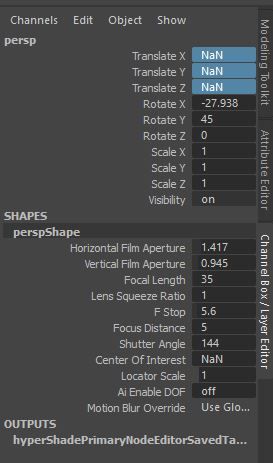

NaN.JPG

Accepted solutions (4)
47,809 Views
47 Replies
Replies (47)
Message 21 of 48

Anonymous
Not applicable

I can't get this fixed, as soon if I reset transformations camera and remove all the NaN values, then It works again until I hit "frame selected" and then everything is NaN again. Doesn't matter which camera. Happens with every Camera..... problems not solved

0 Likes
Message 22 of 48

Anonymous
Not applicable

found a solution, removing prefs worked...

0 Likes
Message 23 of 48

sherridg101
Enthusiast
Enthusiast

The 'Reset Transformations' and 'Default View' set the camera back to the centre, but 'Frame Selection' still shoots the camera way back.


No 'working solution', as such.

0 Likes
Message 24 of 48

mspeer
Consultant
Consultant

Hi!


Then there's a problem in your scene (something very far away from origin).

0 Likes
Message 25 of 48

Anonymous
Not applicable

I'm having the same problem, it's not objects in the scene. This is happening on a clean scene. I've had other people open my scenes and not been able to replicate the problem. I even did a re-install. Still pressing F to frame on a brand new scene will make the camera go NaN every time


0 Likes
Message 26 of 48

mspeer
Consultant
Consultant

Hi!


I never heard of this before, it sounds like something is corrupted at your Maya installation or Preferences (maybe a user script, or plug-in?).


1. Try a reset of your preferences.
Rename the folder prefs in folder 2018 to something like prefs_backup, or to reset everything, the folder 2018 to 2018_backup (or even the maya folder to maya_backup). Maya creates new folders (don't copy preferences from previous Maya versions). Detailed at:
https://knowledge.autodesk.com/support/maya/troubleshooting/caas/sfdcarticles/sfdcarticles/Reset-May...


First try with a new scene before open one of your old scenes.


2. Uninstall and re-install Maya.

0 Likes
Message 27 of 48

Anonymous
Not applicable
Found out the issue
There was an old Maya 2018 pref folder on my drive from when I re-installed windows. Un-installing didn't delete that folder and none of the resets did either, I was able to track it down from some Node errors in the mel editor
0 Likes
Message 28 of 48

sherridg101
Enthusiast
Enthusiast

I have the issue just with CAD data in Maya 2016 and 2018 on a Mac and Windows.


No such issues with non CAD data.

0 Likes
Message 29 of 48

sherridg101
Enthusiast
Enthusiast

Deleting prefs worked for me in the end, too.


Thanks for the info.


0 Likes
Message 30 of 48

smbell1979
Enthusiast
Enthusiast
Accepted solution

I know this is old, but I'm posting this in the question with the most views so it can hopefully help people out.


This happens quite often, and the question has been answered "successfully" many times, but the answer is not really solving the problem. After this happened to me again, I decided to actually find the solution instead of just telling people to delete their preferences, because that is not good solution in my opinion. The preferences file is just a text file, it's 99% of the time not "corrupt", just something has been set funny.


The solution to fix this while keeping your settings is to change the "Fit Factor" back to 1 under the Cameras section of the preferences.  Somehow it gets set to 0.01 so when you hit F, it zooms way out.  That's it, done. No need to remove the preferences and waste 20 minutes of your time setting everything back up.

Message 31 of 48

sherridg101
Enthusiast
Enthusiast

Awesome!


Cheers for that Scott. I've been looking for this answer for a while too.


Seems 0.9 - 0.1 ish works too.


Thanks agin.

0 Likes
Message 32 of 48

curtis_w_w
Community Visitor
Community Visitor

this is my fix for the Maya 2018 F key problem

I found a way to fix this issue without clearing your preferences!

open the channel box and outliner, select the "front" icon thing in the outliner and copy all of the values (line for line) from Translate X all the way to Scale Z (in channel box) and paste those values to the "persp" icon in the persp channel box. Don't try to zoom in on anything in the perspective view port yet (or you'll have to start over again). Then copy all of the values in the frontShape channel box (starting from Horizontal Film Aperture all the way down to Centre of Interest) and paste those values into the perspShape channel box and when you finish copying all of the values, your perspective in the viewport should be working again, now you should be able to zoom in and out again without losing your view. I would avoid using the F key though, as I still lose the view and have to re-copy all of the values all over again.

This is if you accidentally hit the F key and lose your perspective view, not sure if it would be the same fix if you lost your front, top, or side view in the view port.  


Message 33 of 48

sherridg101
Enthusiast
Enthusiast

Cheers for the info, but Scotts' solution fixes the issue for all scenes and you CAN use the F key again.


Cheers

0 Likes
Message 34 of 48

curtis_w_w
Community Visitor
Community Visitor

Scott's fix doesn't work for me. When I try to set the "Fit factor" to 0.01 to 1, I get an error that reads "Error: A permanent scriptJob cannot be killed.". 

I also get an error when I start up Maya 2018 and attempt to open my Maya preferences that reads " Error: file: /Applications/Autodesk/maya2018/Maya.app/Contents/scripts/startup/updatePrefWndUI.mel line 125: Value is out of range: 0"

No idea what that all means, but the problem persists.

0 Likes
Message 35 of 48

mspeer
Consultant
Consultant

Hi!


Try a reset of your preferences.
Rename the folder prefs in folder 2018 to something like prefs_backup, or to reset everything, the folder 2018 to 2018_backup (or even the maya folder to maya_backup). Maya creates new folders (don't copy preferences from previous Maya versions). Detailed at:
https://knowledge.autodesk.com/support/maya/troubleshooting/caas/sfdcarticles/sfdcarticles/Reset-May...

0 Likes
Message 36 of 48

smbell1979
Enthusiast
Enthusiast
Usually the script job error means you opened the preferences window before
maya was fully loaded. Close maya, restart it and let it fully start up.
Make sure all the messages about loading plugins have finished in the
message line at the bottom. I promise it works.
Message 37 of 48

Anonymous
Not applicable

Resetting preferences

  1. Use explorer to navigate to the following directory:

    C:\Users\USERNAME\My Documents\Maya\VERSION\
    ​​
  2. Locate the prefs folder and rename it to prefsOld.
  3. Restart Maya. If prompted to, select the option to Create Default Preferences.
Message 38 of 48

Anonymous
Not applicable

In your userPrefs file change:

-fv "defaultFitFactor" 0

to
-fv "defaultFitFactor" 0.95

0 Likes
Message 39 of 48

ptorrevillas
Participant
Participant

Although the previous solution may work.  You will always get problems when trying to refit again.  The main problem is that the defaultFitFactor in the prefs for some reason sometimes get set to 0.0 and this is what generates the NaN values.  What you can do is reset it so you don't have to blow away your current prefs and then you should be able to fit your views in your existing scenes and on....


from maya import cmds
cmds.optionVar( floatValue=( "defaultFitFactor", 0.5 ) ) cmds.savePrefs( general=True )


Cheers!


PJ


0 Likes
Message 40 of 48

ptorrevillas
Participant
Participant

Although the previous solution may work.  You will always get problems when trying to refit again.  The main problem is that the defaultFitFactor in the prefs for some reason sometimes get set to 0.0 and this is what generates the NaN values.  What you can do is reset it so you don't have to blow away your current prefs or edit it manually risking corruption and then you should be able to fit your views in your existing scenes and on....


from maya import cmds
cmds.optionVar( floatValue=( "defaultFitFactor", 0.5 ) ) cmds.savePrefs( general=True )


Cheers!


PJ

0 Likes