rough surface but only on one side

rough surface but only on one side

david_w_faulkner15
Participant Participant
7,071 Views
15 Replies
Message 1 of 16

rough surface but only on one side

david_w_faulkner15
Participant
Participant

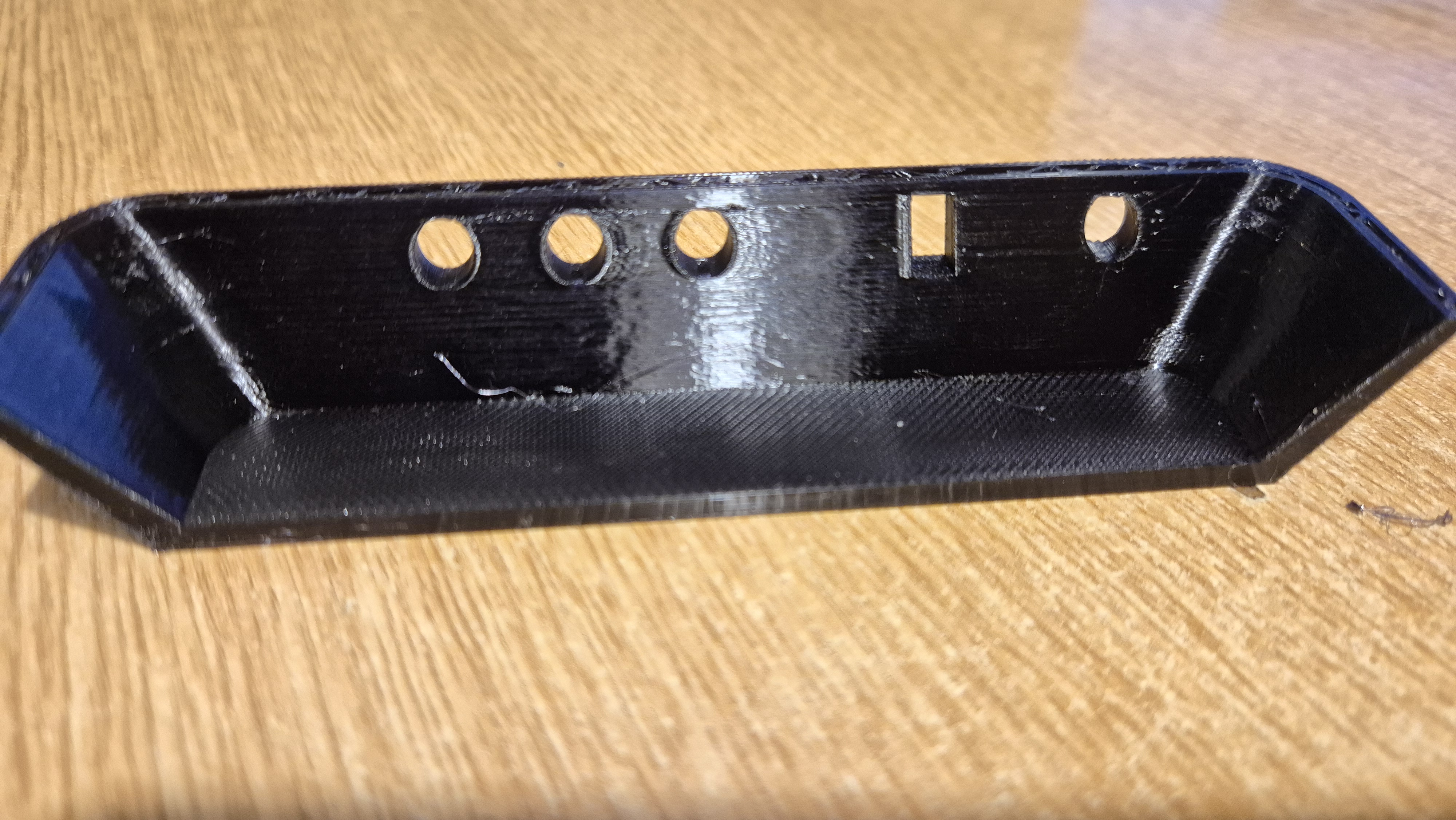
Using the loft tool I created a box with a smooth transition between its' sloping sides and the base

but

when printed the surface finish on two sides is awful, the other sides are perfect

In the example shown the surface with the LED's is poor, the one with the USB socket is good

I did not use any supports as the angles arent that steep and am printing in PETG @ 0.12mm layers on a new Bambu A1, the "good" sides are super smooth and very even

Other projects are super smooth all round

Any ideas please

0 Likes
Accepted solutions (1)
7,072 Views
15 Replies
Replies (15)
Message 2 of 16

jeff_strater
Community Manager
Community Manager

I don't think that this is a Fusion modeling problem.  The geometry here looks fine on both sides.  I show Gaussian Curvature and Zebra Stripe analysis:


Screenshot 2025-01-01 at 6.50.07 PM.pngScreenshot 2025-01-01 at 6.49.57 PM.pngScreenshot 2025-01-01 at 6.49.23 PM.pngScreenshot 2025-01-01 at 6.49.14 PM.png


So, I suspect that the problem is with your printer, or the slicer, or the software driving the printer, but I think the model is fine.


Jeff Strater
Engineering Director
0 Likes
Message 3 of 16

david_w_faulkner15
Participant
Participant
OK, thanks
It is strange that the other sides and also the vertical part above the slope all printed perfectly.....
0 Likes
Message 4 of 16

david_w_faulkner15
Participant
Participant

I tried printing it with and without supports but the result was exactly the same

The INSIDE printed perfectly smoothly, the outside was very rough and poor

It APPEARS to be the result of the “loft” function which created the sloping sides but we cannot see why

Have attached the test piece for other suggestions

Thank you


Message 5 of 16

david_w_faulkner15
Participant
Participant

additional pics


0 Likes
Message 6 of 16

jeff_strater
Community Manager
Community Manager
Accepted solution

Not sure.  I suspect it is the holes more than the loft, but I have no proof of that.  All the 3D printer sees is triangles.  It cannot "know" that those triangles came from a loft.  I did notice that the STL you shared had a wide variation in triangle sizes on that face.  Perhaps that is confusing the slicer.  You could try exporting as mesh, and manually try to adjust the mesh so that it is more uniform, and see if that helps. 


Screenshot 2025-01-03 at 8.41.23 AM.png


But, I really wonder whether this is a 3D printer setting/calibration issue more than anything.


Jeff Strater
Engineering Director
Message 7 of 16

david_w_faulkner15
Participant
Participant

Thank you for your prompt reply.....
Strangely I have found that using higher layer sizes the problem is reduced

>From the left :   0.16, 0.12, 0.12, 0.08

1.jpg


0 Likes
Message 8 of 16

david_w_faulkner15
Participant
Participant

Hazah.... we (my son is the brains 😁) applied the create mesh as you suggested and the result is superb and fully acceptable 


thank you


attached examples printed @ 0.12


20250103_181652.jpg20250103_181705.jpg

Message 9 of 16

david_w_faulkner15
Participant
Participant

are there any hard and fast rules or guidance as to when we should use  mesh rather than the default export .....would it be better to always use mesh if there are any complex curves etc?????

Message 10 of 16

vilenpro
Observer
Observer

I have the same behavior on a model that i used "loft" to cut a "double" slope. When looking in the slicer (Orca) it seems the inner walls are visible on this slope which makes the surface rough.  If i cut the slope using "extrude" feature these the inner walls are not visible. Same project, same Orca settings. I guess the issue is in the "loft" feature.


0 Likes
Message 11 of 16

david_w_faulkner15
Participant
Participant
We cured the problem by exporting as "grid"......it then printed perfectly smooth
Message 12 of 16

vilenpro
Observer
Observer

I can't find this format in the export options. Is this an option in Fusion that needs to be turned on? Google doesn't give me too much information about it.

0 Likes
Message 13 of 16

david_w_faulkner15
Participant
Participant

Go to mesh tab > create > tesselate.

Click the body(s) you wish to export, these will be what gets turned into a mesh.

Lowering Surface Deviation and Normal Deviation makes the resulting mesh more accurate, with more triangles.

david_w_faulkner15_0-1737663381732.png


Click OK to create the mesh, it may take a few seconds to process. You should then see a mesh appear:

david_w_faulkner15_2-1737663557943.png


Before you export, make sure to hide the original bodies and only have the mesh(es) shown:

david_w_faulkner15_4-1737663617875.png


Then export as usual in whatever format you usually use (e.g. .3mf)

david_w_faulkner15_5-1737663650469.png


The high detail mesh will be what gets exported.

Message 14 of 16

vilenpro
Observer
Observer

Thank you so much for a such detailed instruction. I'll give a try.

0 Likes
Message 15 of 16

david_w_faulkner15
Participant
Participant

All credit to my son....its way beyond me 


0 Likes
Message 16 of 16

david_w_faulkner15
Participant
Participant
All credit to my son....its way beyond me 😁
0 Likes