Sheet Set Manager for Web - STB file not being utilized

Sheet Set Manager for Web - STB file not being utilized

matt.whislerCMJPM
Explorer Explorer
2,240 Views
7 Replies
Message 1 of 8

Sheet Set Manager for Web - STB file not being utilized

matt.whislerCMJPM
Explorer
Explorer

We are using Civil 3D 2023 with project located on the Autodesk Construction Cloud. When publishing to PDF though SSM for Web, it is not utilizing our STB file. We've had no issue for years with older SSM. The company STB is saved on a server. We also saved a copy in an ACC docs folder in case it would read it there. We have also tried adding the STB path to the Plot Style Search Path on all installed Autodesk products. In addition, we have added the STB to the  web.autocad.com support files.

Does anyone have any suggestions for getting Sheet Set Manager for Web to utilize our STB file? TIA.

0 Likes
2,241 Views
7 Replies
Replies (7)
Message 2 of 8

lim.wendy
Alumni
Alumni

Hi Matt,


Thank you for reaching out regarding the issue you're experiencing with Sheet Set Manager for Web not utilizing your STB file. I see you are visiting as a new member of the Civil 3D forum. Welcome to the Autodesk Community! 

Given the complexity of the issue you're facing, it appears that further troubleshooting may be necessary to pinpoint the exact cause of the problem. While I'm here to provide assistance where I can, I highly recommend reaching out to our dedicated Support Team for a more thorough investigation. They have the expertise and resources to delve deeper into the technicalities and provide tailored solutions to address your specific situation.

In the meantime, @C3D_TomR may offer valuable insights or suggestions based on his experience with similar issues.


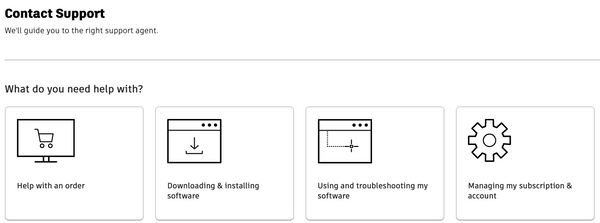
  1. Visit the 'Contact Support' page at https://www.autodesk.com/support/contact-support.
  2. Once there, please sign in to your account
  3. Select the 'Using and troubleshooting my software' option. 
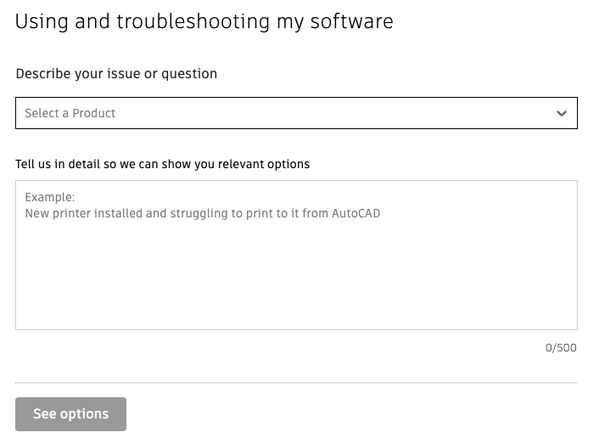
  4. Next, provide a detailed description of your issue or question. 
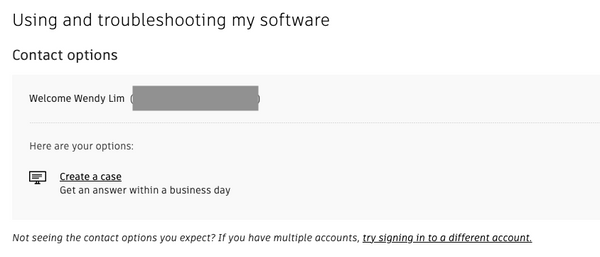
  5. Click on 'See options,' and you will be presented with your subscription contact choices. You can either click 'Live Chat' to chat with an Autodesk support specialist or click 'Create a case' to send your question via email.


Remember to mark your posts as having an "Accepted Solution" if a solution is found as it helps other forum users with the same issue – so don't be shy about marking it as a solution! Accepted solutions get viewed more and help more users find the answer to their problems. . You could unmark the post as an accepted solution if the solution did not work. Click the ellipsis menu  > Not the Solution to cancel an accepted answer. 


Wendy Lim

Data Nerd | Community Advocate | AEC Industry


facebook twitter twitter blogs pm


Join the new online Rail Community


Rails Summit


0 Likes
Message 3 of 8

Adam_Farnsworth1
Enthusiast
Enthusiast

Do you have your STB saved in a Support folder location in your ACC folder structure, and is the Support file path pathed correctly?

Support File Location.png

0 Likes
Message 4 of 8

Gerald_Lambayan
Explorer
Explorer
Is there already a solution for this one? I am currently experiencing the same issue.
0 Likes
Message 5 of 8

Adam_Farnsworth1
Enthusiast
Enthusiast

The best solution I've found for publishing is to set the SSMDETECTMODE to 0 and using the old SSM, unfortunately. SSMFW isn't quite ready for production, it seems.

Message 6 of 8

Gerald_Lambayan
Explorer
Explorer

Found the solution:

I have been in the same situation with the poster.
Using C3D 2023 or maybe this is also applicable to latest versions.

1. proceed to https://web.autocad.com/. log in your credentials.
2. when logged in, on the left side of the screen, select "+Add Storage Source."
3. select and add the storage source, in my case I added the Autodesk Docs.
4. after clicking add, proceed back to left side of the screen and select "Manage Support Files".
5. once inside, under the "Manage Support Files" window, click on the source and select your project.
6. Next click the "Plot Styles" and upload your CTB/STB file. Then click done.

You can now use your Sheet Set / .dst file that you have arrange and at the same time it utilize the correct ctb/stb file.
Make sure all users has access of the BIM360 or ACC of the specific project and have applied this workflow so that they can use the dst file with the correct ctb/stb file.

0 Likes
Message 7 of 8

brad_kantherDM5YB
Participant
Participant

@Gerald_Lambayan i just tried the above... and the "Manage Support Files" option is no longer there! Im guessing this has to be done via ssm support paths as per @Adam_Farnsworth1 suggestion.. But as far as i can tell its not even detecting the CTB/STB via this path


brad_kantherDM5YB_1-1743984033941.png


0 Likes
Message 8 of 8

ceethreedee.com
Collaborator
Collaborator

This is now done by project, although supposedly it is possible to do it for your whole ACC Hub.. 

Read the help guide here


In a nut shell though, its still done via Autocad Web "web.autocad.com"

Add your project from Autodesk Docs in..

Then hit the three dots... and choose "Project Support Files"

ceethreedeecom_0-1743988802697.png
There is a popup up the top that will ask you if you want to setup your "Connected Support Files"

ceethreedeecom_1-1743988856008.png

This will create a folder at the root of your "Project Files" directory on ACC called Autodesk.Support. 


ceethreedeecom_2-1743988954112.png


Its seem to be possible to add other folders.. By going back into the Project Support Files . Its add two new options up the top.

ceethreedeecom_3-1743989046197.png


Finally i can now see my plotstyles showing up in the project support files sections


ceethreedeecom_4-1743990341583.png


Despite all this .... IT STILL DOESNT FIND THE PLOTSTYLES!!!! 

If anyone knows what i'm doing wrong... please tell me!!


all this stuff is supposed to be black in PDF!!

ceethreedeecom_5-1743990412150.png


Civil 3D 2025 / Infraworks 2025
Win 10 -DELL Precision Notebook 7680

Want FREE TOOLS! Come get my free productivity tools for civil 3d from the appstore here Ceethreedee tools
Or from my website below!
https://ceethreedee.com/ceethreedee-tools
0 Likes