Setting up Remote Solve/Fast Track

Setting up Remote Solve/Fast Track

marco.mueller
Enthusiast Enthusiast
2,216 Views
5 Replies
Message 1 of 6

Setting up Remote Solve/Fast Track

marco.mueller
Enthusiast
Enthusiast

KB Article For More Detail:


The remote solve capabilities of Autodesk Simulation CFD allow users to perform the calculation of their analysis on a different computer than their own. With this remote solve option the available computation power can be optimally used.


If there are two computers (interface computer > analysis computer) involved the following requirements are necessary:


  • Both computers have to be in the same network (WAN or LAN)
  • Both computers need the installation of the same version of Autodesk Simulation CFD
  • The interface computer needs to be configured:

Inside the installation folder at the interface computer (i. e. C:\Program Files\Autodesk\Simulation CFD 2012\...) there is file called server.cfg. Open this file with Notepad and simply enter the name (or IP address) of the analysis computer.


After restarting the software at the interface computer the user is able to chose the desired analysis computer:
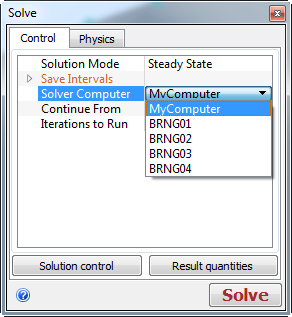
 

11-1-2011 10-56-37 AM.png


Additional computers can be added in new lines inside the server.cfg-file. Also the number of CPU cores to be used for the calculation can be specified (default value is the maximum available number of cores, smaller than or equal to 2^N: so 2, 4, 8, 16...). e. g. to use only 4 cores the line should look like:


*4cores analysis-pc-name MPI4

*8cores analysis-pc-name MPI8


Marco Müller
Product Support Specialist
Digital Simulation
Autodesk, Inc.
Accepted solutions (1)
2,217 Views
5 Replies
Replies (5)
Message 2 of 6

Anonymous
Not applicable

In order to use this function do we have to buy 2 licenses?

0 Likes
Message 3 of 6

marco.mueller
Enthusiast
Enthusiast
Accepted solution

No, all is possible with one license but of course just one job at the same time.


Marco Müller
Product Support Specialist
Digital Simulation
Autodesk, Inc.
0 Likes
Message 4 of 6

Royce_adsk
Community Manager
Community Manager

Excellent guide Marco!


One concern that might trip some users up is the issue of Firewalls.


Here is a list of programs that you should add as exceptions to cover all aspects:


cfdcalc.exe

mesher.exe

cfdesign.exe

servman.exe

cfdserv.exe

CFdMonitor.exe


Royce.Abel
Technical Support Manager

0 Likes
Message 5 of 6

WillieGillespie
Participant
Participant

Another question about the licensing in this sort of setup.  Is it licensed per interface computer, or per solver computer?

In the dialog above, it shows several computers that could be picked as solvers.  Does that mean they had 5 licenses?  Or is it the interface computer that has the license, and it can pick any 1 solver computer?


Or is it a different setup with a network license where just the first solver that checks it out gets the license, but all are equal candidates?

0 Likes
Message 6 of 6

marco.mueller
Enthusiast
Enthusiast

the license is perfectly splitted in one interface* and one solver portion (if you own 1 full license). The computer that first obtains a license (if there is one left) has is until it is released. Other computers have to wait. The is valid for the interface and solver portion, both are independent from each other.


* the interface itself needs at least one CAD connection (exception: Inventor Fusion connection is not licensed and free)


Marco Müller
Product Support Specialist
Digital Simulation
Autodesk, Inc.
0 Likes
