scales

scales

Anonymous
Not applicable
5,274 Views
25 Replies
Message 1 of 26

scales

Anonymous
Not applicable

can someone please explain this stuff to me, apologies for being extremely ignorant on how this stuff works. I am not an architect or designer, I have no specific training in this field. I am an Arboricultural consultant/ surveyor. I usually use other peoples drawings, topographicals, architects drawings etc. I simple add into these drawings root protection areas and canopy distributions of trees on the site. Occasionally I do not have the benefit of working with an architect. 


so, this drawing i am doing by myself. I have set the units in model space to metres. I want to now export this to a pdf that will be a suitable scale to print @Anonymous. I go to layout 1,  I would like the drawing to fit onto A4, the site is approx 76 metres by 81 metres. 


how do I accomplish this correctly ???? help very much appreciated    

0 Likes
Accepted solutions (1)
5,275 Views
25 Replies
Replies (25)
Message 2 of 26

pendean
Community Legend
Community Legend
0 Likes
Message 3 of 26

Anonymous
Not applicable

Thanks Pendean. But to be honest I have spent months watching vids and trying to figure this stuff and got absolutely no where.  From what I can see autocad is pretty much different for every user dependent on year of release, device and what settings you happen to have on or off. Very Frustrating. I am actually slowly getting there with it now, through gruelling trial and error and picking out relevant bits of info from here there and everywhere. Its very simple really... WHEN YOU KNOW HOW!


0 Likes
Message 4 of 26

pendean
Community Legend
Community Legend
Watching videos for months? Watch one or two videos, then do it yourself in your DWG file, if it stops working you come here, post your DWG file, show everyone what you've done and you'll get pointers on how to continue.

Ready?

0 Likes
Message 5 of 26

Pointdump
Consultant
Consultant

Dave,
"Its very simple really... WHEN YOU KNOW HOW!"
Amen brother. Truer words and all that. I haven't had to plot anything for over a decade, but like you it was ALWAYS a trial and error process. To this day I still don't understand it. So you're not alone.
Try this. Use command LAYOUTWIZARD and step through and select A4 paper size. In your new Layout click "Paper" which will change to a Modelspace Viewport. Pan and Zoom until things look good. Then look at Scale at bottom of page. Round that number up or down to get a tidy scale.
Dave

Dave Stoll
Las Vegas, Nevada

EESignature

64GB DDR4 2400MHz ECC SoDIMM / 1TB SSD
NVIDIA Quadro P5000 16GB
Windows 10 Pro 64 / Civil 3D 2025
0 Likes
Message 6 of 26

Patchy
Mentor
Mentor

I go to layout 1, I would like the drawing to fit onto A4, the site is approx 76 metres by 81 metres


Maybe this will help, go to layout draw a sheet size 0,21m x 0,297 m

Inside this sheet, make a viewport then zoom 1/1000xp

so your drawing scale is 1:1.000


0 Likes
Message 7 of 26

Anonymous
Not applicable

Thanks for the replies guys. I'm onto a different drawing now, I fired of the last one to an architect colleague who also tried to explain a few things, and I understood a little, and learnt a little, but I'm still not by any means "in the know", it turns out the last one fitted nicely onto A4 at 1:500

So today I tried messing around with another drawing.. Units are set in mm in model space, I click over to layout 1 (I'm still not sure what viewports are or how the scale in here is related to the scale on the printed page) however, I simply selected from the scale list "fit to page" which created a custom scale, however, this custom scale is represented (just an example and not the exact number) like this 0.0004536, and I don't what that means, neither do I know how to convert that to nearest clean scale such as 1:500 or 1:200 etc (my drawings are always "map" style drawings representing landscapes, structures, and trees. Anyway none of this was relevant it seems? As, I hit print, then first selected dwg tp pdf pc3. Then selected paper six A3 IOS (can't remember exact size of paper, 420mm I think) then selected plot extents, centre fit, and then I in the scale box's I chose a ration of 50mm to 1 unit (which I think is 1:500 (1cm on the page equalling 500cm in real life) my heads already hurting trying figure if that's correct or not.. Anywayyy.. It fitted on the page nicely. I compared this to the same drawing produced by an architect at the same scale at the same page size, and they looked exactly the same (viewed digitally in pdf)... So, I'm assuming I can follow that same process for all other drawing, but changing the ratio accordingly, e.g. 40mm to 1 unit is 1:400, 20mm to 1 unit is 1:200 etc etc? (providing the drawing units is set in millimetres of course) ammarite (am I right) ??? All comments appreciated. Cheers guys. 

0 Likes
Message 8 of 26

Anonymous
Not applicable

Bunch of typos in there, apologies 🤦‍♂️


0 Likes
Message 9 of 26

pendean
Community Legend
Community Legend
>>>...this custom scale is represented (just an example and not the exact number) like this 0.0004536, and I don't what that means...<<<

FIT as a scale option simply means there is nothing for you to figure out: you opted to go with what's best, and what is best in that instance is not something worth guessing at really.

Why don't you show your work: post this latest DWG file for someone to examine and help you set it up correctly.
0 Likes
Message 10 of 26

Anonymous
Not applicable

OK, will do, cheers. I'll post it tomorrow. However, regardless of the FIT option, this option was not relevant anyway yes? As whdn I set up the page options, paper size etc and set the ration as 50mm to 1 unit, it ended up 1:500 on A3 anyway... Does that sound right to you? 

0 Likes
Message 11 of 26

pendean
Community Legend
Community Legend
Yes, when you ask the program to FIT, you also opt out of needing to know what scale is being used.
Kind of like going to the supermarket to buy food vs you growing/harvesting it yourself, in the former you opted to not care about the exact details that got it to the store 😉

We'll need to see your DWG file to better understand your issue.
0 Likes
Message 12 of 26

Anonymous
Not applicable

ok, here is the drawing as promised.  Could you kindly talk me through how to set this up correctly in the layout tab/ paper space/ model. So as I can correctly scale it to fit any size paper sheet I choose. 


Many thanks in advance for your time. 


Dave.  

0 Likes
Message 13 of 26

pendean
Community Legend
Community Legend
Thanks for the file: the content and scalebar in the file say meters/centimeters, but your DWG file is set up to use inches for units. Which is it?

Is there an exact known dimension of a house or lot we can double-check? All I see are elevation marks. That's how you double-check things, right now I (and you and anyone else) cannot do that in your file.
0 Likes
Message 14 of 26

Anonymous
Not applicable

hmm. its supposed to be in millimetres. Before I stared anything in that drawing, I typed the command "units" and set it to millimetres. When I open the file now, and type "units" it states that is set to millimetres. So what have I done wrong? why is it different for you ? Im using Autocad 2021.


The tree marked as "T1" has a blue circle around it (as do they all) this is the RPA (root protection area) the radius of that circle for T1 is 7.8 meters. When I check that in the drawing, it tells me it is 7800, so seems correct to me ????  (see attached pics)

0 Likes
Message 15 of 26

Anonymous
Not applicable

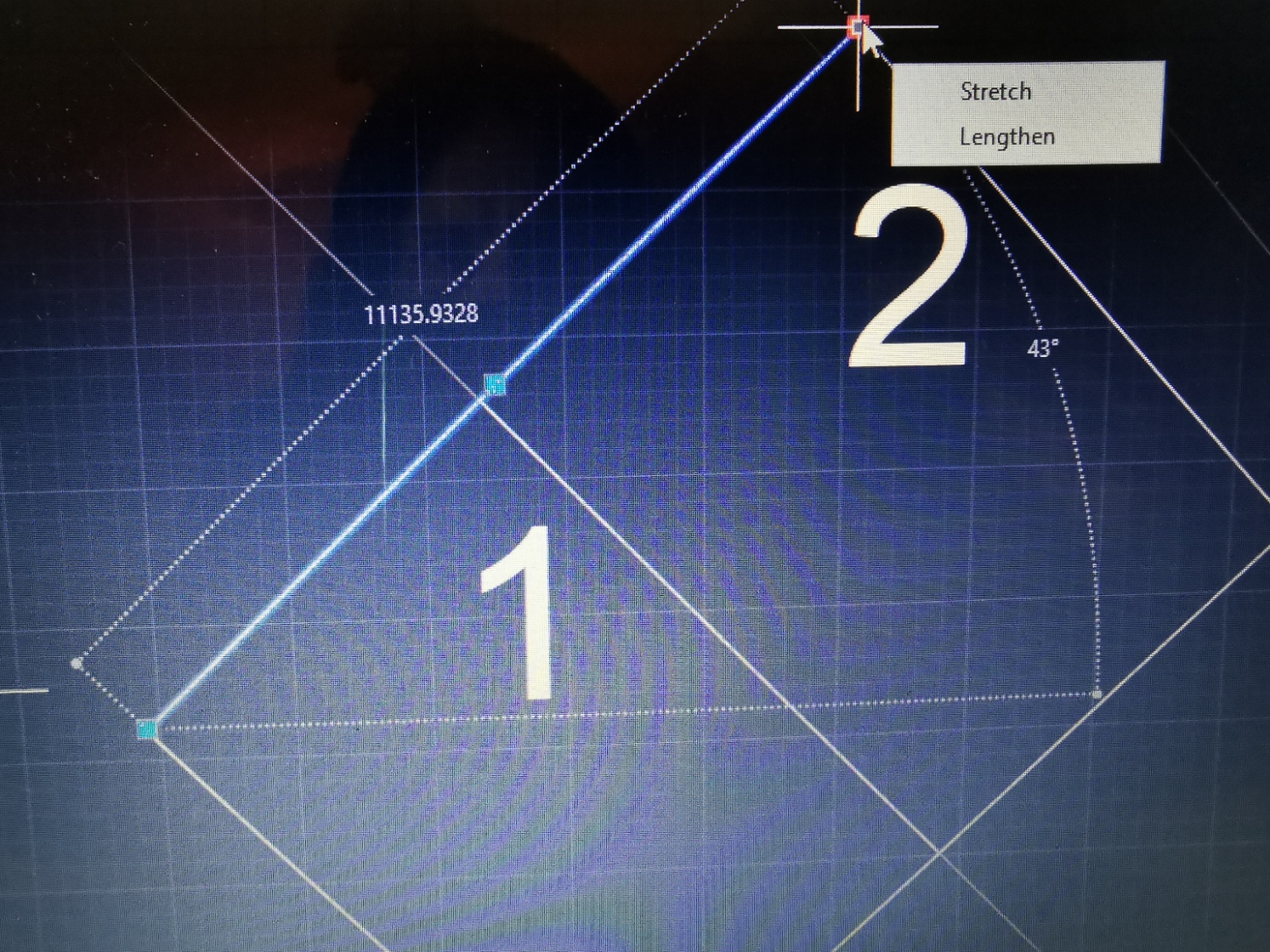
see attached pic. houses 1 and 2 (not plot 1 and 2) measure in the drawing at 11135mm. 


using google maps (not the most reliable I know) I get a real life distance of 11730mm.


so lets just assume that the readings in the drawing are correct in mm. 

0 Likes
Message 16 of 26

pendean
Community Legend
Community Legend

"units"? DWGUNITS command shows the file you posted as being in inches, that command is the one to use to identify what units in the file are meant to be.


pendean_0-1613602636343.png


T1 blue circle radius in the file you posted measures 1625.2610 in your posted DWG file.


0 Likes
Message 17 of 26

pendean
Community Legend
Community Legend
>>>...houses 1 and 2 (not plot 1 and 2) measure in the drawing at 11135mm. ...<<<
11135+ inches in your posted DWG file.
0 Likes
Message 18 of 26

Anonymous
Not applicable

oh dear * shakes head* yes I see now. You are correct obviously. hhhhhhhhhh... dammit. 


ok so I did this...


DWGUNITS  I chose 3 (millimetres)

Display format. I chose 2 (decimal) 

Match INSUNITS I chose YES

Scale current objects. I chose YES

Include in paper space. I chose YES


now everything has gone massive *head is in hands right now* 


How do i get the whole drawing to be in millimetres ????


new file attached 

0 Likes
Message 19 of 26

Anonymous
Not applicable

I need to scale everything back down by a certain factor so as the radius of that RPA (T1) is 7800. How do I work that out mathematically?

0 Likes
Message 20 of 26

Bob_Zurunkle
Advisor
Advisor

Just a few points for starters:

1. You draw the objects in modelspace at a scale of 1:1

2. You draw the border, title and outline of the sheet you want to print out, in paperspace at 1:1 scale.

3. You create a 'viewport' and adjust its size and shape to be within your borders.

Now pretend you are in a control booth. The border is the 4 edges of a monitor. The viewport is the 'screen' of the monitor. What it displays is a view of your objects in modelspace, much as a monitor in a control booth might be showing the view of a camera pointed at the objects on a stage. Now, you can double-click inside the viewport and pan and zoom around, much like you might direct the cameraman (or camerawoman) to do. Zooming in gives a tighter scale (closer and closer to 1:1), while zooming out gives a looser scale.

Sometimes I will do something like that in order to see the entire object first, and then select known scales from a list to see if they go too far either way, or are just right. Once I am happy with what I see, I 'lock the viewport'. That's how I find out the largest standard scale that will fit a viewport on a standard sized sheet.

I know that's oversimplified and basic, but each of these things is available to learn, either from ummmm Ube-tay OO-yay, or by pushing the F1 key and looking it up in the help feature. That's all for now!

If by some odd chance my nattering was useful -- that's great, glad to help. But if it actually solved your issue, then please mark my solution as accepted 🙂
0 Likes