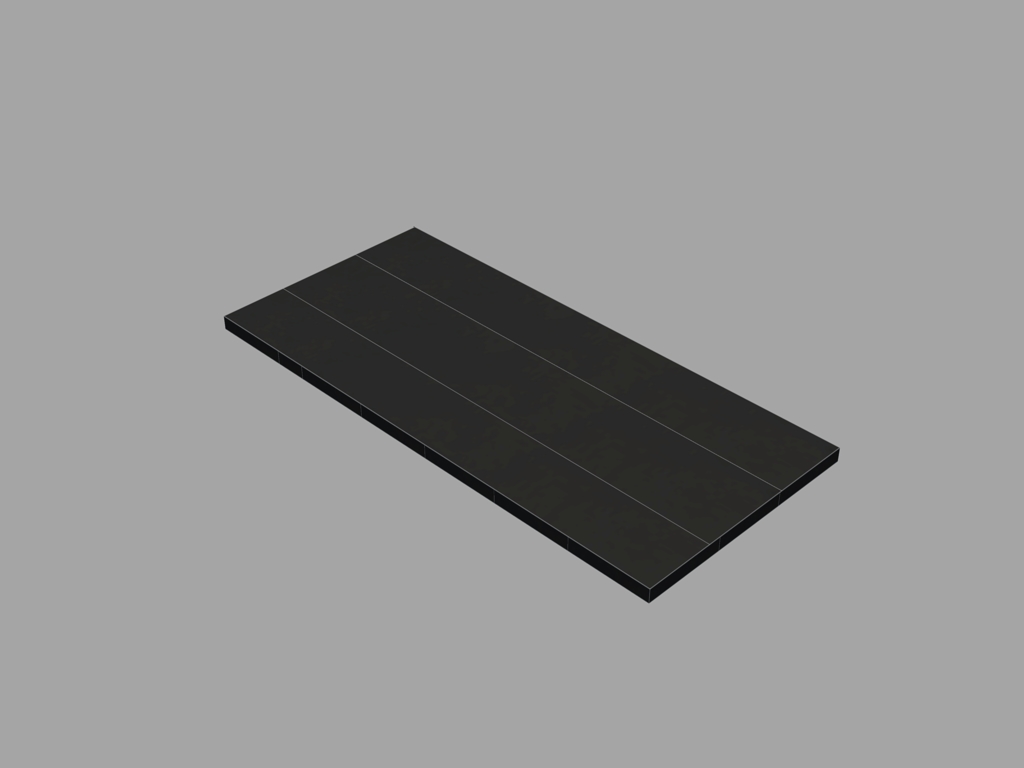
Turn off visibility of image frame on rendering

Turn off visibility of image frame on rendering

Anonymous
適用対象外
7,628件の閲覧回数
22件の返信
メッセージ1/23

Turn off visibility of image frame on rendering

Anonymous
適用対象外

Is there a way I can hide the frame of an attached raster image when I render it?


I have already set IMAGEFRAME value to 0, but that seems to work only for regular views and plotting, not for rendered views. I want to save a rendered view of my project as a picture, and nothing seems to work. The frames are visible, and strangely their color (white) is different than the one I've chosen for the images (red).


Can anyone help?


(the attached file shows the frames/lines I'm talking about, if you look at the kitchen countertop)

0 件のいいね
解決済み
7,629件の閲覧回数
22件の返信
返信 (22)
メッセージ2/23

john.vellek
Alumni
Alumni

Hi juanita83,


Have you tried Imageframe=2? Is there any difference? Also you might try rendering to a file - see AKN Article.


I don't see the frames in your attached images (but I might be blind :)). Can you describe your render settings?


Please hit the Accept as Solution button if my post fully solves your issue or answers your question.


John Vellek


Join the Autodesk Customer Council - Interact with developers, provide feedback on current and future software releases, and beta test the latest software!

Autodesk Knowledge Network | Autodesk Account | Product Feedback
0 件のいいね
メッセージ3/23

maxim_k
Consultant
Consultant
I tried to render with IMAGEFRAME=2 and got output without frames on my side.

Maxom

Do you find the posts helpful? "LIKE" these posts!
Have your question been answered successfully? Click 'ACCEPT SOLUTION' button.


Maxim Kanaev
Architect
MARSS

MacACAD | Linkedin

Etiquette and Ground Rules of Autodesk Community
0 件のいいね
メッセージ4/23

Anonymous
適用対象外

Thanks for the quick response.


I tried setting IMAGEFRAME to 2, but there was no difference unfortunately.


My render settings are:

quality = medium

output = 1024x768

brightness/contrast/mid tones = default (65/50/1)


Sun status is on and lighting units are set to international lighting.

The attached images are in jpeg format.

I use AutoCAD 2016 for mac.


I have noticed that when I use low quality for rendering, the lines/frames disappear. But I would prefer at least medium quality.

By the way, I'm surprised you don't see the frames in my attachment. スマイリー びっくりした


I will attach the .DWG file and the .jpeg attached image, just in case you or someone else can figure out what is going on...

0 件のいいね
メッセージ5/23

john.vellek
Alumni
Alumni

Hi @Anonymous


I have been playing with your drawing at the same settings and still don't see an imageframe when I render. Perhaps we should see if this happens as a different user logon as well.


Is it possible to create a new administrator account, run the render and see if it is still happening? Do you have more than one Mac to try this on?


John Vellek


Join the Autodesk Customer Council - Interact with developers, provide feedback on current and future software releases, and beta test the latest software!

Autodesk Knowledge Network | Autodesk Account | Product Feedback
0 件のいいね
メッセージ6/23

Anonymous
適用対象外

I'll give it a try later and we see what happens. It's really weird though!

Thanks for the effort anyway!I'm really glad for all the suggestions!

0 件のいいね
メッセージ7/23

Anonymous
適用対象外

I logged in on my Mac with a different admin account and the problem was still there.

I opened my drawing on a windows PC and there were no frames!

So I guess it's my Mac's issue...

0 件のいいね
メッセージ8/23

john.vellek
Alumni
Alumni

Hi @Anonymous,


Neither @maxim_k or I are able to duplicate this. Tell me this, if you print just images  (not rendering) do you get the frames showing up on them too? If so, have you always seen this problem or has something more recently triggered the problem?


John Vellek


Join the Autodesk Customer Council - Interact with developers, provide feedback on current and future software releases, and beta test the latest software!

Autodesk Knowledge Network | Autodesk Account | Product Feedback
0 件のいいね
メッセージ9/23

maxim_k
Consultant
Consultant
解決済み

Hi @juanita83,


I checkrd this once again with the file you privided and now can confirm the issue with light border around each of the images in render output.

I also checked your file in AutoCAD 2016 for PC and the "border" doesn't appear when I render in it.

At the same time rendering in AutoCAD 2014 for PC gives me the same result as in AutoCAD 2016 for Mac.

(see attached images)


As an explanation I can say that AutoCAD 2014 for PC and AutoCAD 2016 for Mac use the same rendering engine, but AutoCAD 2016 (and later) for PC uses another rendering engine. Cloud based Autodesk rendering service also uses new rendering engine.


You can try to render your drawings "in Cloud"in AutoCAD 2016 for Mac and look at the results.


Maxim


Do you find the posts helpful? "LIKE" these posts!
Have your question been answered successfully? Click 'ACCEPT SOLUTION' button.


Maxim Kanaev
Architect
MARSS

MacACAD | Linkedin

Etiquette and Ground Rules of Autodesk Community
メッセージ10/23

john.vellek
Alumni
Alumni

Hi @Anonymous,


This is quite a conundrum as I still am unable to duplicate this on my Mac. I have set to render to High Quality, 1024x768, SAVEAS JPG. I am still unable to see the frames. maybe I am just blind. It is interesting that both you and @maxim_k can see the issue.  


Let me know your thoughts? Did you try my suggestion of checking IMAGEFRAME behavior when just printing/Plotting?


I am running a MacBook Pro (Retina) with AMD Radeon R9 M370X 2048 MB on El Capitan 10.11.5


John Vellek


Join the Autodesk Customer Council - Interact with developers, provide feedback on current and future software releases, and beta test the latest software!

Autodesk Knowledge Network | Autodesk Account | Product Feedback
0 件のいいね
メッセージ11/23

maxim_k
Consultant
Consultant
Hi John,

Can you attach the image file you get on your Mac?

Maxim

Do you find the posts helpful? "LIKE" these posts!
Have your question been answered successfully? Click 'ACCEPT SOLUTION' button.


Maxim Kanaev
Architect
MARSS

MacACAD | Linkedin

Etiquette and Ground Rules of Autodesk Community
0 件のいいね
メッセージ12/23

john.vellek
Alumni
Alumni

Hi @maxim_k,

Here are three different formats from Render.


As you can tell I played with it using both materials and no materials with no difference.


John Vellek


Join the Autodesk Customer Council - Interact with developers, provide feedback on current and future software releases, and beta test the latest software!

Autodesk Knowledge Network | Autodesk Account | Product Feedback
0 件のいいね
メッセージ13/23

maxim_k
Consultant
Consultant
I can clearly see the white frame around the images which forms the box. They are white lines around the perimeter of the rectangles.
I think that is what OP call image frames.

Maxim

Do you find the posts helpful? "LIKE" these posts!
Have your question been answered successfully? Click 'ACCEPT SOLUTION' button.


Maxim Kanaev
Architect
MARSS

MacACAD | Linkedin

Etiquette and Ground Rules of Autodesk Community
0 件のいいね
メッセージ14/23

john.vellek
Alumni
Alumni

I have been pasting them onto white backgrounds so perhaps that is why I don't see them. I certainly don't see them in a Preview. When I do an ImageAttach into Modelspace I do see the white frame on my default Grey background. When I set ImageFrame = 0 then they are gone.


When I insert the image into a Word document with a blue background I do not see the frame.


John Vellek


Join the Autodesk Customer Council - Interact with developers, provide feedback on current and future software releases, and beta test the latest software!

Autodesk Knowledge Network | Autodesk Account | Product Feedback
0 件のいいね
メッセージ15/23

Anonymous
適用対象外

To be honest, I never had to plot any AutoCAD drawing using my Mac, so I can't do a comparison. Just to see if I get it right, your suggestion is to print my drawing without rendering it? On a regular paper view?

I use MacBook Pro Retina (mid 2014) with Intel Iris Pro 1536 MB on El Capitan 10.11.4

0 件のいいね
メッセージ16/23

john.vellek
Alumni
Alumni

Hi juanita83,


I am guessing this issue is related to the difference in graphics hardware. But, as an exercise, I would like you to print (Save as PDF) an image with imageframe set to 0, then to 1, and finally to 2.


I am wondering if imageframe itself is the issue.


John Vellek


Join the Autodesk Customer Council - Interact with developers, provide feedback on current and future software releases, and beta test the latest software!

Autodesk Knowledge Network | Autodesk Account | Product Feedback
0 件のいいね
メッセージ17/23

Anonymous
適用対象外

Your explanation seems quite reasonable.


I tried the "in Cloud" rendering and there were no borders! But the image doesn't look very similar to the one I see in my drawing. What adjustments did you make and yours looks so good on your attachment? Mine is more of a gray blur (see the attachment) than a material-like countertop. スマイリー 舌


I will accept your option -concerning the "in Cloud"- as a solution, since it worked for me, although I am a little dissapointed from Autodesk features. That is not the way I want to render my views, but that has nothing to do with you. Thanks!

0 件のいいね
メッセージ18/23

Anonymous
適用対象外

Ok, I'll give it a try tomorrow, because I don't have a printer available right now.

0 件のいいね
メッセージ19/23

john.vellek
Alumni
Alumni

Hi juanita83, you don't need a physical printer attached, just select the PDF at the bottom left of the print window.


John Vellek


Join the Autodesk Customer Council - Interact with developers, provide feedback on current and future software releases, and beta test the latest software!

Autodesk Knowledge Network | Autodesk Account | Product Feedback
0 件のいいね
メッセージ20/23

Anonymous
適用対象外

Ok, now I officially lost you!


I selected File --> Print, and in the window that opened there were some options down left, as shown in my attachment. What do I do next?? Or should I export the view to pdf? I feel so dumb right now...

0 件のいいね