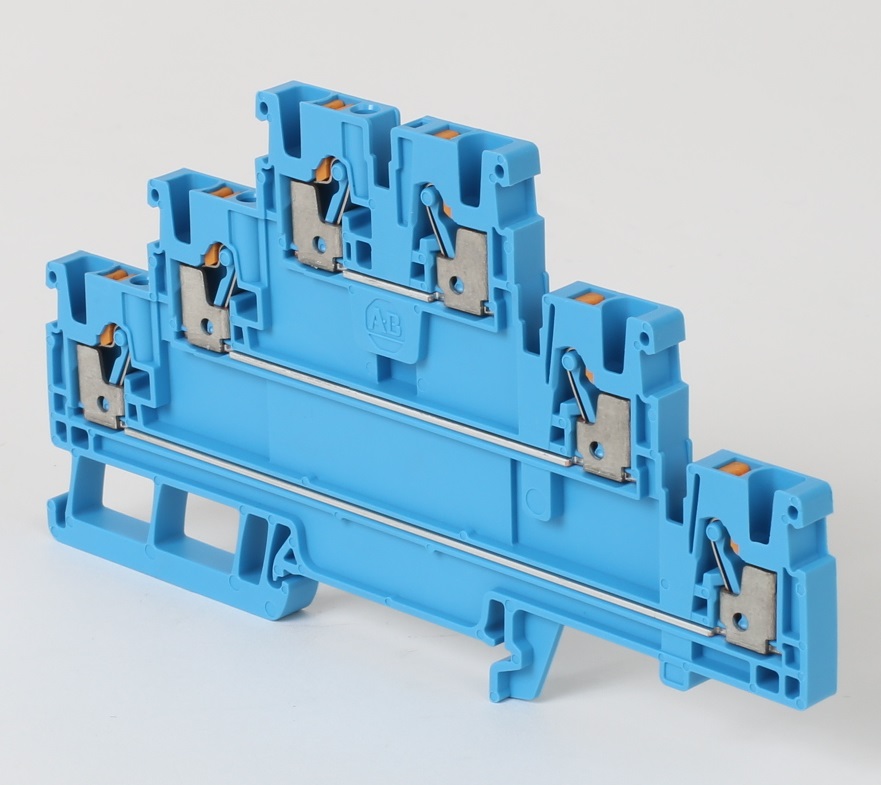
Are you looking for a schematic terminal symbol, or footprint symbol?
The schematic terminal symbols that come with the software include 4 contact points, so there is really no need for a special terminal. See below:

If you wish to show each wire connection as a separate terminal symbol in 4 separate places throughout the schematic, you can connect the individual symbols with a wire type layer called JUMPER. Bear in mind though that the Terminal Strip Editor will see this as 4 separate terminals and will therefore try to insert 4 separate footprints. I posted an idea to the idea station to allow the same terminal be shown multiple times in a project and marked as a duplicate. You can vote for this idea at: https://forums.autodesk.com/t5/autocad-electrical-ideas/allow-the-same-schematic-terminal-symbol-to-...
Another option you can use to document the internal jumper is to use the Edit Jumper utility to create an invisible link between the separate terminal symbols.
The simplest way to handle your scenario is to connect wires to the top, bottom, left, and right wire connections of one schematic terminal symbol. Use source/destination arrows if wires must continue to another drawing. This workflow will avoid the confusion I mentioned earlier, when the Terminal Strip Editor interprets each schematic terminal symbol as a separate physical terminal block.
Yet another thing you can do is edit the record for the 1492-L3Q in the Catalog Database and convert it to a 4-level terminal. You can even define the jumper between all 4 "levels", as shown below.

The software will then allow you to insert 4 separate schematic terminal symbols and assign each one to a different level of the same physical terminal.
If a footprint is what you need for the 1492-L3Q, there is a simple stock footprint included with the software. The block is named ABTBK090.DWG, located in the Panel\AB\C:\Users\Public\Documents\Autodesk\Acade 2019\Libs\panel\AB\TRMS-TERMINAL BLOCKS folder. You will see this footprint block when you open the Terminal Strip Editor to prepare to insert the graphical terminal strip into your panel layout, as shown in the screen capture below.

Doug McAlexander
Design Engineer/Consultant/Instructor/Mentor
Specializing in AutoCAD Electrical Implementation Support
Phone: (770) 841-8009
www.linkedin.com/in/doug-mcalexander-1a77623
Did you find this post helpful? Feel free to Like this post.
Did your question get successfully answered? Then click on the ACCEPT SOLUTION button.