Hi @Beka_Tchigladze
No problem, we all start as beginners at some point in everything. So now that I understand what you are trying to do, there is a MUCH better way to do this in Max.
Essentially you will use the unaltered image plane as a guide for your poly modeling on a separate editable poly. This is a simple and classic modeling technique in max that gives you complete freedom form any worry about the UVs of your image plane guide. The steps are below:
1. Create the plane with the image as you did before and Name it "Image Guide Plane" or something similar.
2. Clone the plane as a copy (not an instance)to create an exact copy in the same place and name it "Door".
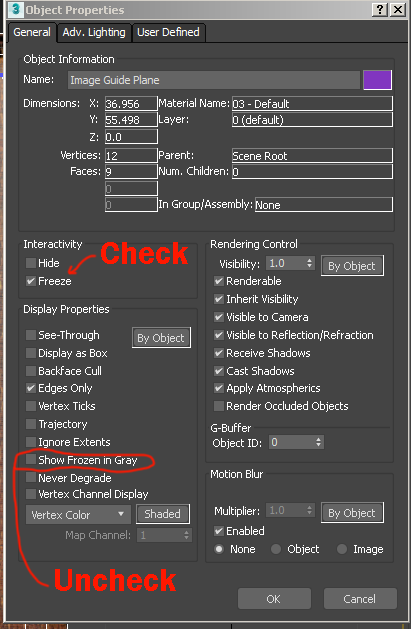
3. Select the Image Guide Plane and right click to select Object Properties; Select "Freeze" and make sure that show frozen in grey Is not selected (uncheck it if it is), (see image below); This will make sure that your guide plane will be visible but that you do not accidentally move it while modeling.
4. Select the "Door" Plane and convert to an editable poly if not already. Assign a new standard grey material to it ( to remove the image of the door). Right click on the Door poly and select Object Properties. Then select See-Through under Display properties.
Now you should be able to model freely with all of the poly modeling tools adding edges where you want using the image guide plane as a guide. This gets around the limitations of the preserve UVs option and is a much better way to create new geometry. When you are done modeling just uncheck See-Through under display properties of the door and you are ready to Unwrap UV and assign a texture. I hope this solves your issue.


