Error while trying to Login to Vault through API

Error while trying to Login to Vault through API

Anonymous
Not applicable
18,761 Views
10 Replies
Message 1 of 11

Error while trying to Login to Vault through API

Anonymous
Not applicable

Hello All,


I am new to using the Vault API. I have been developing a lot of iLogic code over the last few years and things have evolved to the point where I want to have some Vault interaction as well.


I was trying to recreate a demo that Doug Redmond did where you log into Vault with the VDF, and display the folders from the root folder in Vault. I have recreated the code and I am getting an error when I try to get logged into Vault. I am running Vault Pro 2017.


Here is the code where I pop up the login screen:


using ACW = Autodesk.Connectivity.WebServices;
using Framework = Autodesk.DataManagement.Client.Framework;
using Vault = Autodesk.DataManagement.Client.Framework.Vault;
using Autodesk.DataManagement.Client.Framework.Vault.Currency.Connections;

namespace VaultExperiments
{
    static class Program
    {
        /// <summary>
        /// The main entry point for the application.
        /// </summary>
        [STAThread]
        static void Main()
        {
            Application.EnableVisualStyles();
            Application.SetCompatibleTextRenderingDefault(false);

            Connection conn = Framework.Vault.Forms.Library.Login(null);

            Application.Run(new frmVault(conn));
        }
    }
}


So when I fire up the application the Vault login screen comes up like it should. But when I try to log in it just sits there and tries to connect until I cancel it. If I try to browse the "Vaults" on the server I get the following error.


Vault Error.jpg


I did find a knowledge base article about this error and it said to delete a restrictions folder in the programdata folder. I do not have a restrictions folder there.


I am working over a VPN which is connected. If I try to just fire up Vault and login, everything works fine.


Any help would be greatly appreciated.


Thanks,

Chad


0 Likes
Accepted solutions (1)
18,762 Views
10 Replies
Replies (10)
Message 2 of 11

psaarloos
Collaborator
Collaborator

Hi Chad,


The code looks fine, but Vault 2017 is using a new licensing mechanism called Clic. You can read more about this in the Vault SDK help. Did you install Vault SDK? There are some samples in there as well. The VaultBrowserSample might get you started.


Regards,

Pim Saarloos

Regards,
Pim Saarloos
Product Manager
If my post answers your question, please click the "Accept as Solution" button. Kudos are much appreciated!
0 Likes
Message 3 of 11

Anonymous
Not applicable

Pim,


Thanks for your response. I have indeed installed the SDK, and have been using the Browser Sample as a reference. I have been trying some other things to try and help figure out what is causing this issue. I replaced the 2017 reference dll files. The Autodesk VDF dlls, with the 2016 dll files. I can get it to work when I use those. That's still then logging into the 2017 Vault, so I don't see why the license authentication system would be a problem.


When I run with the 2017 dll files, I get the login box to pop up. And when I try to browse the "Vaults" on the server, I get the error. I would think if it was a license issue, it wouldn't have allowed me to get to the login dialog at all, or would throw the license error after I try to log in.


I have tried to use the API to login into Vault directly without bringing up the dialog box. This works just fine.


Thanks again for your help,


Chad

0 Likes
Message 4 of 11

psaarloos
Collaborator
Collaborator
Accepted solution

Hi Chad,


I did a quick test and had the same exception popping up. Adding a reference to 'Autodesk.Connectivity.WebServices.WCF' fixed the issue.. Don't ask me why though.. 🙂


Regards,

Pim Saarloos

Regards,
Pim Saarloos
Product Manager
If my post answers your question, please click the "Accept as Solution" button. Kudos are much appreciated!
Message 5 of 11

Anonymous
Not applicable

Pim,


Thanks for the help, I do appreciate it. You did guess my next question, but since you asked me not to ask it, I won't....


Chad

0 Likes
Message 6 of 11

psaarloos
Collaborator
Collaborator

Hi Chad,


Thanks for the kudo's :). It's probably because you referenced the Vault dll's from the Vault SDK folder instead of copying the dll's manualy to the ouput folder of your application. If you remove the reference to Autodesk.Connectivity.WebServices.WCF and make sure the Autodesk.Connectivity.WebServices.WCF, Autodesk.Connectivity.WebServices.Interop and clmloader are located in the output folder it should also work.


Regards,

Pim Saarloos


Regards,
Pim Saarloos
Product Manager
If my post answers your question, please click the "Accept as Solution" button. Kudos are much appreciated!
Message 7 of 11

Anonymous
Not applicable

Okay, thanks again.


Chad

0 Likes
Message 8 of 11

jlane
Advocate
Advocate

I would like to automatically log into Vault using Windows Authentication for the user.


This worked like a charm in Vault Pro 2016:

VDF.Vault.Results.LogInResult VaultLoginResults = VDF.Vault.Library.ConnectionManager.LogIn("cm-vault-wpg", "Vault", "", "", VDF.Vault.Currency.Connections.AuthenticationFlags.WindowsAuthentication, null);


VDF.Vault.Currency.Connections.Connection connection = VaultLoginResults.Connection;


But after upgrading to Vault Pro 2018, and redirecting all the .dll references to 2018, my program returns an error that my connection login result is null:

connection was null.PNG


What else am I missing?


Thx!


0 Likes
Message 9 of 11

jlane
Advocate
Advocate

ah, I read the solution more carefully.


I manually copied the clmloader.dll into the build folder, and it worked.


Very happy to be up & running, but curious why this had to be done manually.


Shouldn't this be automatically copied?

0 Likes
Message 10 of 11

Boorda
Advocate
Advocate

I realize this is an old question, but just in case anyone else is wondering the same thing as @jlane  .....


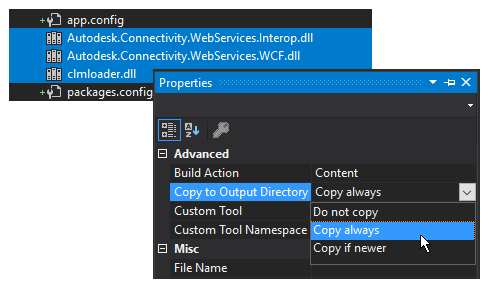
Like @psaarloos mentioned you don't need to add a reference to the Dlls in your project, but you do need to make sure they are in your project and copied to the output folder during a build. In order to make sure the Dlls are copied to the right place even when changing the build from Debug to Released etc.. copy the files to the top level of your project. Putting them in a sub folder of the project will cause them to be copied to that directory under the root output directly and they will not work. Once you've added the files you need to select them all then change the "Copy to Output Directory" option in the file properties to either "Copy Always" or "Copy if Newer".


There are other ways to do this using the Post Build Events and XCOPY, but this to me is the easiest method.


Automation is key!
0 Likes
Message 11 of 11

siddhartha.sudhir
Explorer
Explorer

Still facing same issue unable to connect it!

0 Likes