Import foundation with anchor bolts into Robot

Import foundation with anchor bolts into Robot

Anonymous
Not applicable
2,290 Views
21 Replies
Message 1 of 22

Import foundation with anchor bolts into Robot

Anonymous
Not applicable

To save modeling effort, I'm attempting to import a foundation from AutoCAD 2015 into Robot 2015. The foundation consists of 16ft x 16ft x 5.5ft concrete mat with a 20 point polar array which represents the anchor bolt locations for a tank that will be mounted on top of the foundation. When I attempt to import this into Robot only the array appears and the box representing the foundation. Is there a particular setting that will allow the importation of both? I'm hoping I can import them and then apply material properites.

0 Likes
Accepted solutions (1)
2,291 Views
21 Replies
Replies (21)
Message 2 of 22

Anonymous
Not applicable

Can I adjust my prior statement. A prior post here on the forum stated that points can't be imported from AutoCAD into Robot and lines must be drawn. I have done that and now the lines drawn between the points and the top of the foundation come through in the import. How can I separate these objects and apply material properties and thickness to the imported box? I have attached both the AutoCAD and Robot file if it helps.


0 Likes
Message 4 of 22

Anonymous
Not applicable

Thank you Rafal; I'll go through these links.


The big issues I have first is how to get geometry from AutoCAD into Robot. I'll look through your links to see if this was attempted. Do you know of any tutorials for how to do this?

0 Likes
Message 5 of 22

Rafal.Gaweda
Autodesk Support
Autodesk Support
Accepted solution


Rafal Gaweda
Message 6 of 22

Anonymous
Not applicable

Thank you very much Rafal! This was extremely helpful. Can I ask, why did you make the foundation -50 thick in your video?

0 Likes
Message 7 of 22

Rafal.Gaweda
Autodesk Support
Autodesk Support

 Can I ask, why did you make the foundation -50 thick in your video?


Just for nice look :-).

Of course you have to specify correct thickness.


Rafal Gaweda
0 Likes
Message 8 of 22

Anonymous
Not applicable

Thank you Rafal,


I notice when importing from Autocad the dimensions are multiplied by 6. In Autocad the foundation is 16ft x 16ft. In Robot the dimensions become 96ft x 96ft. Is there a way to specify a 1:1 import scale? I've left the scale coefficient as 1 in the merge structure dialog box.


When importing a 3D solid from Autocad a parameters box first appears and the various options seem to not affect the import. I found this prior topic but it does not describe the affect the options have on the model:

http://forums.autodesk.com/t5/robot-structural-analysis/autocad-dwg-files-import/m-p/3181550/highlig...


If importing a single 3D solid from Autocad of a simple (mat foundation) or complex (wind turbine foundation) geometry is it useful to:

1. Explode the object or solid into finite elements?

2. If exploding the foundation solid I assume volumetric elements are the correct choice. If 8 nodes are the outer points on a cube (or 4 points per face) what does 24 nodes represent (9 points per face would be 26 points on a cube)?

2. What does the automatic normalization of point coordinates do or what affect does this have on importing a 3D solid?

3. The bottom of the dialog box gives the option of automatic or some specification of mesh generation.


After this dialog box is cleared another dialog box appears titled: "Merge structure:Structure" At the bottom there is a radial button for "add as object?". Selecting Yes or No seems to have no effect on the imported 3D solid. What effect should this have?

0 Likes
Message 9 of 22

Rafal.Gaweda
Autodesk Support
Autodesk Support
See webinar 6, slides 11 12 13

Complex solids should be exported as SAT files and opened in Robot enabling Solid Modeler

https://knowledge.autodesk.com/support/robot-structural-analysis-products/troubleshooting/caas/sfdca...


Rafal Gaweda
0 Likes
Message 10 of 22

Anonymous
Not applicable

Thank you Rafal,


Exporting from Autocad as a .sat file and then opening in Robot eliminates the first dialog box and brings only the second dialog box (Merge strcuture:Structure) where there is an option to add a merged object. It also appears to maintain the correct scale of the imported concrete mat. How can I add a material to the imported volume? You can see in the two attached images I have attempted to add the panel properties as you did as well as create a solid with concrete properties to no avail.


With a .sat file is it possible to include the anchor locations while exporting/importing?


Webinar 6 slides 11, 12, & 13 are the slides I was referencing in my prior post that don't describe the import options well. Is it possible to hear the audio from the webinar or is there resource that describes the various options and their impacts on importing models from Autocad?

0 Likes
Message 11 of 22

Anonymous
Not applicable

It appears the .sat file won't allow the points or lines that describe the positon of the anchor bolts because they aren't solids. If the position of the anchors is required that leaves opening a .dwg file in robot as the only option. I've tried seemingly all the available options for importing a dwg. file; how can the scale of the imported drawing be adjusted? All autocad models are imported at 12x their original scale. Is the only option to draw the model at 1/12 of their proper size in Autocad?

0 Likes
Message 12 of 22

Rafal.Gaweda
Autodesk Support
Autodesk Support

scalecoeff.jpg


Rafal Gaweda
0 Likes
Message 13 of 22

Rafal.Gaweda
Autodesk Support
Autodesk Support

Example with sat file:


Rafal Gaweda
0 Likes
Message 14 of 22

Anonymous
Not applicable

Thank you very much Rafal, this was very helpful.

0 Likes
Message 15 of 22

Anonymous
Not applicable

In the attached Robot file I've defined a soil support (the soil properties are called Mosinee). I've applied this support to all of the nodes of the volumetric object and run the analysis with loads at the anchor locations (the 20 points along the ring at the top of the foundation). My goal with this model and analysis is to determine the required reinforcement. Unfortunately the analysis results incorrectly show zero bending about the X or Y axis.


Is the zero bending moment about the X and Y because the soil support has been improperly applied to the volumetric object? How can the soil support be applied to this volumetric solid such that the bottom is supported by the soil and lateral movement is resisted by soil 5ft up the sides of the foundation?

0 Likes
Message 16 of 22

Rafal.Gaweda
Autodesk Support
Autodesk Support

My understanding of your goal:


mosinee.jpg


You will not get any reinforcement results for solids

Internal forces : http://help.autodesk.com/view/RSAPRO/2016/ENU/?guid=GUID-6E4F6EE6-7D7C-4A85-A118-BCE6C5717E7D

Example:

solidinternal.jpg


Rafal Gaweda
0 Likes
Message 17 of 22

Anonymous
Not applicable
Thanks Rafal, your first picture shows the bottom being supported. How is this done and can it be extended up the sides of the foundation?

If I'm looking for reinforcement results should this be modeled as something other than a solid?
0 Likes
Message 18 of 22

Rafal.Gaweda
Autodesk Support
Autodesk Support
 How is this done and can it be extended up the sides of the foundation?
I just selected these nodes and applied support (I do not know whether kz is correct in this case)
If you want to use planar support you have to create solid as on my video in post 5 then apply palanr support to bottom side

If I'm looking for reinforcement results should this be modeled as something other than a solid?
Shell structure type this as panel or panels.


Rafal Gaweda
0 Likes
Message 19 of 22

Anonymous
Not applicable

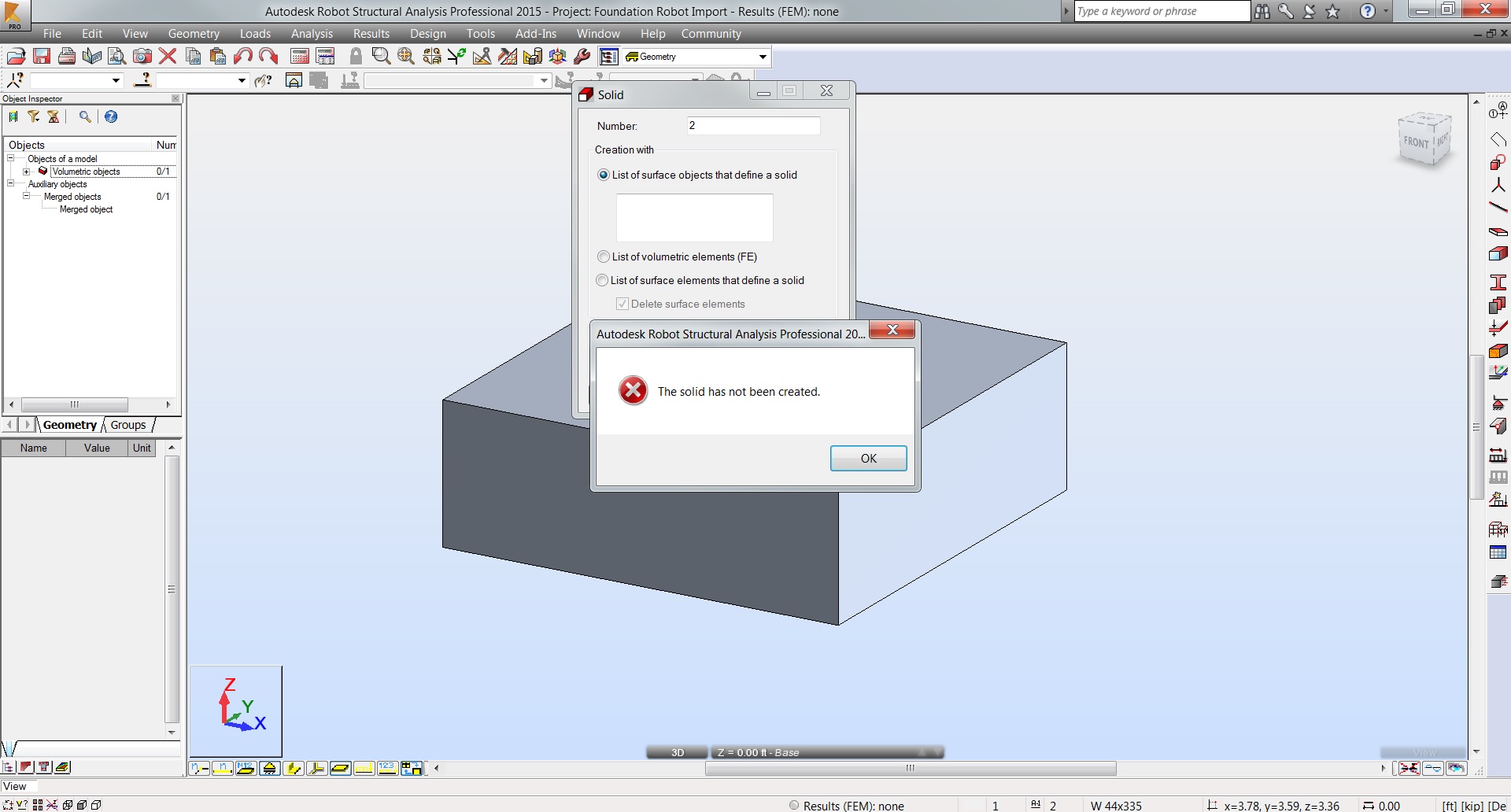
After converting the structure to a shell I recieve the following error. Is there something else that must be done before converting to a panel?


I know you're 7 hours ahead of me so I'm racing to ask questions.

0 Likes
Message 20 of 22

Rafal.Gaweda
Autodesk Support
Autodesk Support
I wrote in previous post : you have to do it as on my video in post 5


Rafal Gaweda
0 Likes