Schedule - Wall Material calculate problem (for Wall Layer)

Schedule - Wall Material calculate problem (for Wall Layer)

Anonymous
Not applicable
4,239 Views
14 Replies
Message 1 of 15

Schedule - Wall Material calculate problem (for Wall Layer)

Anonymous
Not applicable

Hi Forum Users,


I have just done "Edit Assembly for a wall" as you see the attachment.

I was edited layers by use "Modify Verticel Structure/Split, Reveal,Assign Layer and Modify"

I make Terracotta layer's Top and bottom level. Section view was right but Schedule didn't calculate this top and bottom terracotta level.

Only calc. wall hight (1510mm.) => 1,51mt x 1,00mt. (lenght) = 1,51m2

But it must be this => Total lenght of terracotta (0,36+1,51+0,4)mt x lenght (1,00mt) = 2,27m2


Help me  plaese, thank you.

0 Likes
Accepted solutions (3)
4,240 Views
14 Replies
Replies (14)
Message 2 of 15

Anonymous
Not applicable
Anybody dont know ?
0 Likes
Message 3 of 15

Alisder.Brown
Collaborator
Collaborator

Hey swstk


You are going to have to explain in more detail what you have done and what you are looking to do.


It is not very clear from your description or image what the problem is.


Thanks

Alisder Brown
Senior BIM Coordinator
Scotland, UK

0 Likes
Message 4 of 15

Anonymous
Not applicable

Hi Alisder,

Thank you, for your answer.


My problem is simple actually. I want to a wall edit and calculate finish layer area.
Finish layer (like terracotta or aluminium cover) have "top and bottom swap/turn" like attachement.
But schedules calculate area only wall's (length X height => 1000x1510= 1,51m2) area.
Schedules does not calculate "top and bottom swap/turn". (360+400)x1000=0,144m2
Section view is right but calculate is wrong.


Right result => 1,51m2 + 0,144m2 = 1,654m2
Schedule resutl => Only 1,51m2


I hope to be describe.

0 Likes
Message 5 of 15

constantin.stroescu
Mentor
Mentor

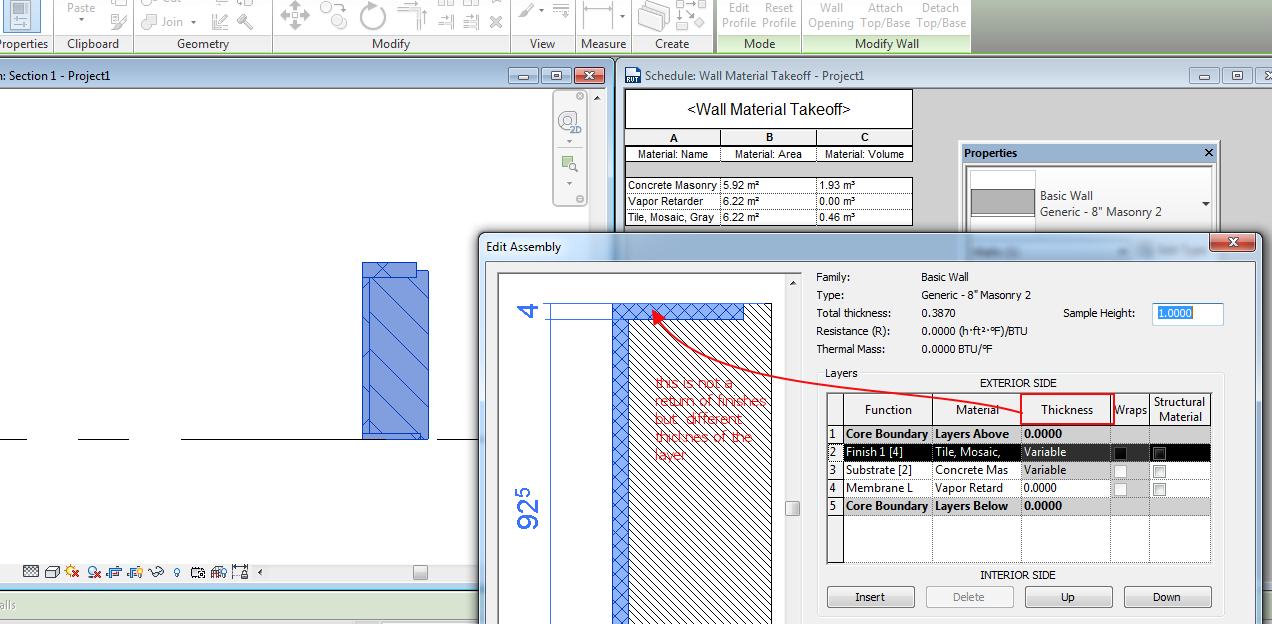
I think here is a misunderstand..it is not a return of the finish material on the bottom and on the top of the wall as it seems to be, but a simple different -variable thicknes of the material..

As you can see in my first screen capture , in material Takeof Schedule Areas a not changed but Volume are 

In my second screen capture I used Modify > Unlocked Layer and then moving the arrow of the layer you will see that both Area and Volume are changing..


Image 1.png


Image 2.png

Constantin Stroescu

EESignature

Message 6 of 15

Anonymous
Not applicable

Thank you, for your answer Constantin.


I understant this method does not run i want to way. 

Your explain very helpfull for how unlock layer work.


Well, Is there a different method i want to calculate? I think my section view clear. My wall (or different method) is "C type".

It have "Front+Bottom+Top" measure and i want to calculate (all of them measure) x (total length) = Area.


Hoe do you think use method. Wall (does not run), Curtain wall, Generic Model etc.


Thanky you.


0 Likes
Message 7 of 15

constantin.stroescu
Mentor
Mentor
Accepted solution

A U shaped wall with scheduled Layers can be obtained using Component > Model in Place with Sub Categories , Materials and Parameters.....

The result is something like in the attached file..

Changing parameter values will do changes into Area and Volume values of the wall materials- as can be seen in my screencast:

https://screencast.autodesk.com/Main/Details/a6fd938c-bb58-44df-aee9-6dd5901db38d


I'll make a description of the process aftter office time.....

Constantin Stroescu

EESignature

Message 8 of 15

Anonymous
Not applicable

Thank you for your answer Constantin,

It is very helpfull. Im happy to be explain for my problem. 😄


I will be waiting look forward to your description of the process.


Thank you.


0 Likes
Message 9 of 15

constantin.stroescu
Mentor
Mentor
Accepted solution

I've made a screencast on the subject of the C shaped wall. I've considered the hight of the wall between two levels.

The screencast begins with the  already made wall and continues with the construction of it  from scratch....

I hope it will help you...

https://screencast.autodesk.com/Main/Details/21cbbc65-ae14-478e-b9d5-5c4b956bcfb4


Constantin Stroescu

EESignature

Message 10 of 15

Anonymous
Not applicable

Your work is very helpfull.

Thank you for your attention Master 😄


0 Likes
Message 11 of 15

Anonymous
Not applicable

I have a question. Material Area calculate's is not work right.
Revit calculate total surface area for a material object.

exp. 1mt x 1mt x 1mt cube single view area' is 1mt2, but revit total material area calculate 1m2 x 6 surface = 6m2

Unfortunately i need to a single/seciton view area.


As your project U-wall (attached). "Tile,Mosaic,Gray" 's is Material area is 8,78m2 (as you see project material take off)


Finish cover section view is total dimension (70+2,70+70=4,1mt) and wall length (1,0mt)
Use the this dimension and calculate area is 4,1mt x 1,0mt = 4,1m2 Right result. (Not 8,78m2)


Have you a solution for this situation, thank you.

0 Likes
Message 12 of 15

Anonymous
Not applicable

I have a question. Material Area calculate's is not work right.
Revit calculate total surface area for a material object.

exp. 1mt x 1mt x 1mt cube single view area' is 1mt2, but revit total material area calculate 1m2 x 6 surface = 6m2

Unfortunately i need to a single/seciton view area.


As your project U-wall (attached). "Tile,Mosaic,Gray" 's is Material area is 8,78m2 (as you see project material take off)


Finish cover section view is total dimension (70+2,70+70=4,1mt) and wall length (1,0mt)
Use the this dimension and calculate area is 4,1mt x 1,0mt = 4,1m2 Right result. (Not 8,78m2)


Have you a solution for this situation, thank you.

0 Likes
Message 13 of 15

constantin.stroescu
Mentor
Mentor

yes,you are right. Revit calculates the area as the whole perimeter of the finish layer multipled with Wall Length

Image 2.png

In order to make a usable area calculation as you want, we need to make a slight adjustment:

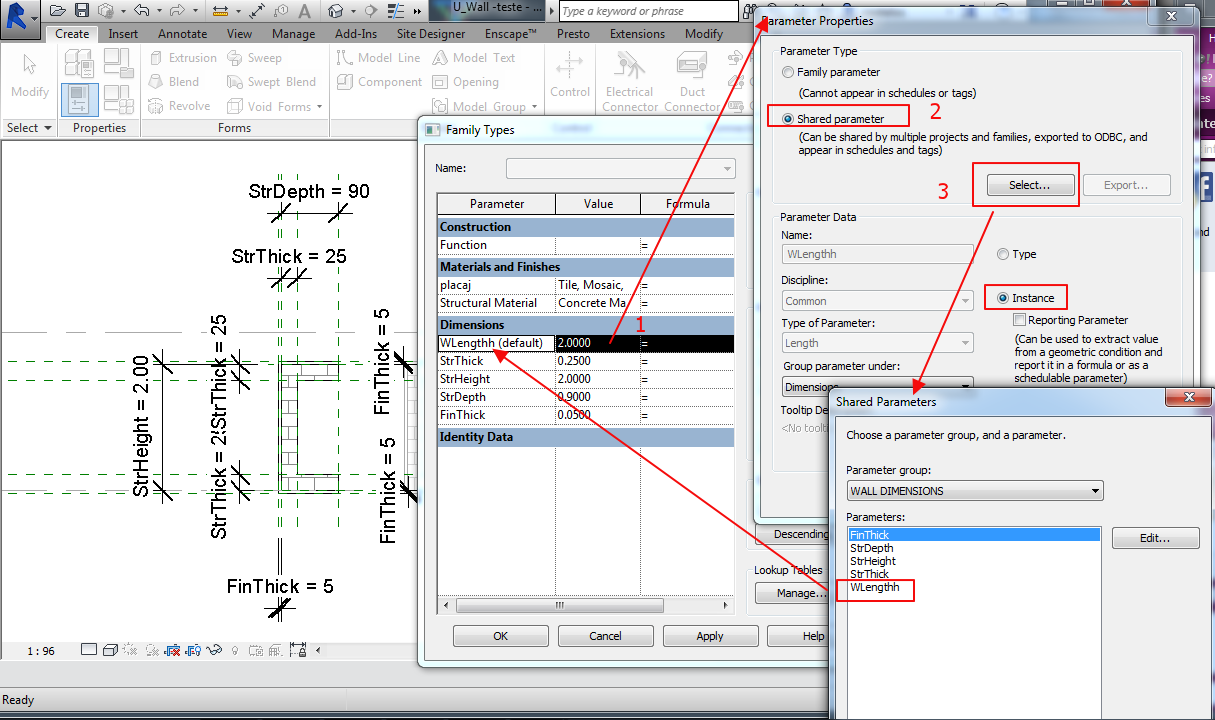
  • change parameters into Shared Parameters ( so to be able to list them into schedule)
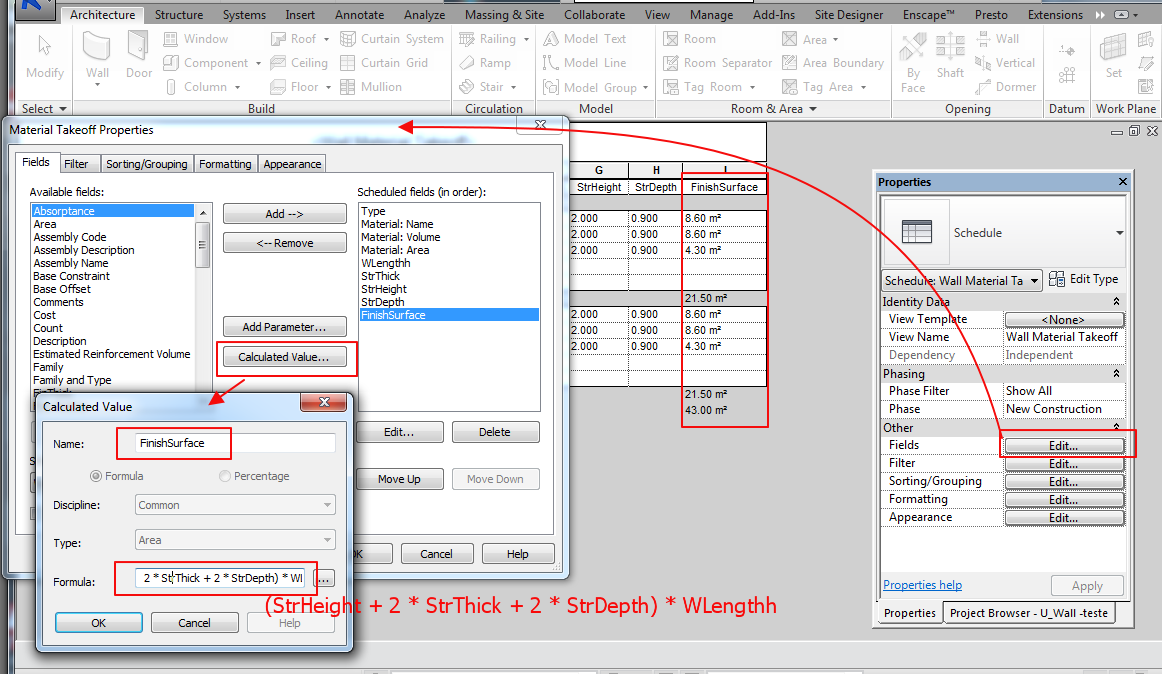
  • in schedule, make a Calculated Value Field - something like this: [Level Height + 2*(Wdepth+FinThick)]*Length

I'll make a screencast after office time....


Constantin Stroescu

EESignature

Message 14 of 15

Anonymous
Not applicable
I see and thank you answer.
I was hoping to have a different solution. 🙂
0 Likes
Message 15 of 15

constantin.stroescu
Mentor
Mentor
Accepted solution
  •  a Field called FinishSurface using the formula : (StrHeight + 2 * StrThick + 2 * StrDepth) * WLengthh  in which the parameters are Shared Parameters will control the surface of the finishes for the Wall created by Model in Place
  • for Basic Walls , the Material Area calculation is OK 
  • for these reasons, I suggest using two different material schedules ( in fact it is the same one but controled by filters)


Create Shared Parameters:

Image 4.png


Image 5.png


Create Calculated Value - FinishSurface:

Image 6.png


The basic Material Takeoff will look like this:

Image 7.png


After Duplicating the schedule and applieng Filter , results two lists - one for Basic Walls and one for special C Walls:

Image 8.png


Image 9.png


I have attached the work file....

Constantin Stroescu

EESignature