Revit 2019 Library location

Revit 2019 Library location

ToanDN
Consultant Consultant
69,420 Views
34 Replies
Message 1 of 35

Revit 2019 Library location

ToanDN
Consultant
Consultant

I have successfully installed Revit 2019 without a hick up so Kudos to the team on that (it would be weird to replace Kudos with Likes in this case).  However, the entire Libraries is put under Autodesk main folder instead of inside Autodesk\RVT xxxx folder like before.  Does it happen to anyone else?


See below for a comparison between 2019 and 2018.


Capture.PNG

Accepted solutions (1)
69,421 Views
34 Replies
Replies (34)
Message 2 of 35

ToanDN
Consultant
Consultant

Off topic but I just want to shout out to a few welcome improvements at a quick glance:

- tabbed windows

- 3d levels (maybe 3d grids in SP1???)

- 2-pattern materials


Capture.PNG

Message 3 of 35

DarrenP
Consultant
Consultant

this is where mine was installed for 2019

C:\ProgramData\Autodesk\RVT 2019\Libraries

for 2018: C:\ProgramData\Autodesk\RVT 2018\Libraries

DarrenP
Did you find this post helpful? Feel free to Like this post.
Did your question get successfully answered? Then click on the ACCEPT SOLUTION button.

0 Likes
Message 4 of 35

ToanDN
Consultant
Consultant

Thanks!  I guess it is just me then.  Can't think of anything I had done differently when installing it.

0 Likes
Message 5 of 35

barthbradley
Consultant
Consultant

Hip, hip, horray! 3D Levels! 'bout time! 


Think I wait for the first hotfix to get released before I install 2019. Not saying there is one; just anticipating one based on history.  


Too much of a buzzkill? Sorry. 


Thanks for sharing, @ToanDN

0 Likes
Message 6 of 35

Anonymous
Not applicable

my library installed in the correct location under RVT 2019.... 

Message 7 of 35

-FDC-
Advisor
Advisor

Correct location over here too.


I had a huge problem when restarting my laptop!

Took more than an hour to restart.

Maybe because I started installing when I was on battery power.

Had to manually shut down and after the second restart everything worked perfect.


Being able to put windows on a second screen is indeed a very welcome feature!

Message 8 of 35

pieter.zeenaeme
Enthusiast
Enthusiast

Mine is installed different too. (C:\ProgramData\Autodesk\Libraries)


screenshot.PNG

0 Likes
Message 9 of 35

Viveka_CD
Alumni
Alumni

Hi @ToanDN and @pieter.zeenaeme


I checked and it is located on C\ProgramData\ Autodesk\ RVT 2019 Libraries

Not sure why your library is installed in the general folder, let me look around if this happens to anyone else on the team.


You can try posting on the installation forum for further feedback.


Thanks,

Message 10 of 35

marioguttman
Participant
Participant

I have experienced the same problem.  I see that others have too.  Would somebody from Autodesk please give use the steps to correct this problem.  Has anyone tried just moving the files to the correct location?  Are there other settings that need to be fixed?

0 Likes
Message 11 of 35

Viveka_CD
Alumni
Alumni

Hi @marioguttman


Causes:

  • If installed, the folder may have been installed in a different location than the default location path.

Solution:

First, check if the library is installed.
  1. The default location of the files should be: C:\ProgramData\Autodesk\Product (Revit 20xx), unless a different location is specified during installation.
  2. If the files are not there, search your entire drive, not just Program Files, for your content files.
  3. Check whether "Show hidden files, folders, and drives" is selected. By default "program data is hidden."
    Click Start > Control Panel > Folder Options > View tab.
  4. If the option is not selected, then select it and go back to the C:/ProgramData folder to see if the folder contains the files.
  If the libraries are installed:
  1.  Create a new path from Revit to this folder location:
    1. Click the Big R upper left corner > Options > File locations.
    2. Click Places > the Plus sign.
    3. Find the path.
  2. Change the default path.
    1. Click the Big R upper left corner> Options > File locations.
    2. Click Browse under the “Default path for family template files.”
    3. Find the path.
If the libraries are not installed:
  1. Ensure that you have internet connection.
  2. Make sure that Autodesk sites are not being blocked by your firewall or anti-virus.
  3. Repair and install the library

Let me know if this helps.


Please select the Accept as Solution button if my post solves your issue or answers your question. Kudos welcome!


Regards,

0 Likes
Message 12 of 35

Anonymous
Not applicable

Good day


I've just installed Revit 2019 and did what was suggest.


When check control panel it shows Content Libraries 2019 unavailable.

The repair / uninstall function is not available when I try to to this, but the preinstall requirements check shows that it installed 

When search for it, it was not found 


Please helpRevit Content Libraries 2019 pic.jpg

0 Likes
Message 13 of 35

Paul_F_Aubin
Collaborator
Collaborator

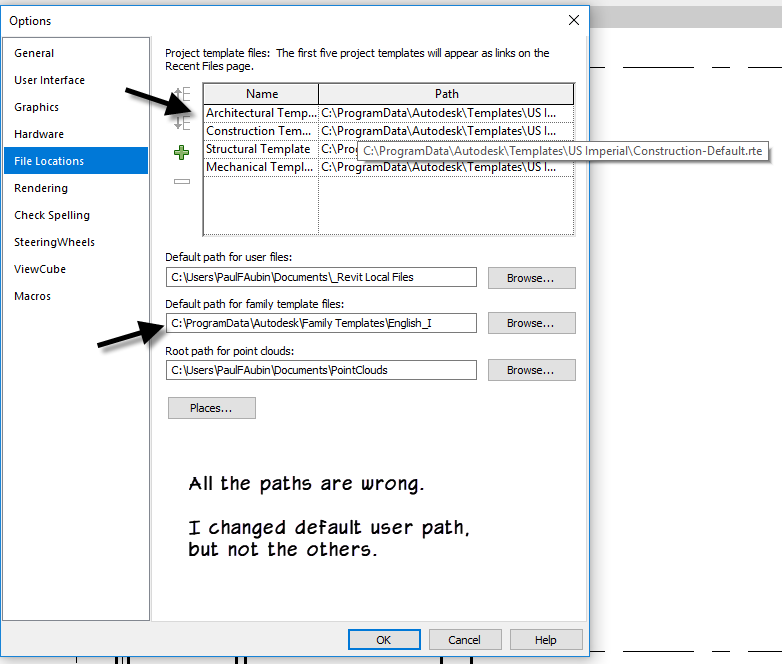
Mine installed wrong too. The only thing I changed during installation was the default path for user files. 


Not only did it install the content in the wrong folders, but it is all 2018 format. 


Paths.pngPaths2.png

Paul F Aubin
Author/Consultant

EESignature

Check out my books and training videos
paulaubin.com

0 Likes
Message 14 of 35

Viveka_CD
Alumni
Alumni

Hi @Anonymous


Did you try a repair of Revit?


If not, please install the content again: This article: Autodesk Revit 2019 Content comprises of links that represent the Family Templates, Project Templates and Family Libraries provided within the Revit 2019 product installation for all supported languages and locales.


To apply the content files:

  • Download the desired content executable to a local location
  • Launch the content executable from the saved local location
  • Specify the desired content location (Default destination folder “C:\Program Data\Autodesk\RVT 2019”) and choose Extract.

Please let me know if this helps resolve your issue.


Regards,

0 Likes
Message 15 of 35

Viveka_CD
Alumni
Alumni

Hi @Paul_F_Aubin and @ToanDN


Thanks for reporting this issue with the install and library location.


Let me discuss this with our domain experts and see if they have more feedback on why this occurs.


Regards,

0 Likes
Message 16 of 35

Paul_F_Aubin
Collaborator
Collaborator

I tried repair and nothing changed. (I have never seen repair actually repair anything, but i always try just in case). 


So, I completely uninstalled (both 2019 and 2019 LT) deleted all remaining folders (like RVT2019, Revit 2019, etc), rebooted. Then I reinstalled. I got 2019 versions of the content this time instead of 2018 like before, so that's an improvement, but it still installed in the root location instead of the RVT2019 folders. 


Soooo, I just moved it manually and re-pathed in Options. I only did Revit 2019, I have not reinstalled Revit LT. I'll wait till I actually need it. 

PIA, but at least I'm all set now. 

Paul F Aubin
Author/Consultant

EESignature

Check out my books and training videos
paulaubin.com

Message 17 of 35

marioguttman
Participant
Participant

Paul, Good to see you on this forum.  I posted some more detail on how to move the files on the installation forum: https://forums.autodesk.com/t5/installation-licensing/revit-2019-libraries-in-wrong-location/m-p/796... Mario

0 Likes
Message 18 of 35

Viveka_CD
Alumni
Alumni

Hi @Paul_F_Aubin@marioguttman@ToanDN, @Anonymous, @pieter.zeenaeme


Here is feedback from the team:

The folder location change is a known issue when installing from ADA. (Autodesk desktop App)

The Content path setting in ADA needs to be set to C:\ProgramData\Autodesk\RVT 2019 or equivalent.


Related information:

  • Download files can also be installed from the Autodesk desktop app, as described in the video on this article (scroll down on this page to see the video)
If you find posts have solved your problem, please click on 'Accept as solution' to help others with similar questions. 
 
Thank you,
 
 
0 Likes
Message 19 of 35

Paul_F_Aubin
Collaborator
Collaborator

So if it's a "known issue" does that mean they are working on a fix? 

Paul F Aubin
Author/Consultant

EESignature

Check out my books and training videos
paulaubin.com

0 Likes
Message 20 of 35

ToanDN
Consultant
Consultant

@Viveka_CD wrote:


The folder location change is a known issue when installing from ADA. (Autodesk desktop App)

The Content path setting in ADA needs to be set to C:\ProgramData\Autodesk\RVT 2019 or equivalent.


The Content path is for multiple applications, not just Revit 2019, how does that work?

Capture.PNG

0 Likes