Revit Architecture Forum
Welcome to Autodesk’s Revit Architecture Forums. Share your knowledge, ask questions, and explore popular Revit Architecture topics.
abbrechen
Suchergebnisse werden angezeigt für 
Anzeigen  nur  | Stattdessen suchen nach 
Meintest du: 

Re: Revit 2019 Material Library not working

29 ANTWORTEN 29
Antworten
Nachricht 1 von 30
Anonymous
1342 Aufrufe, 29 Antworten

Re: Revit 2019 Material Library not working

This is insane that AutoDesk is unavailable to help find a solution to this problem. Obviously,,,,,, many people are having the issue with the materials library and they are doing nothing to solve it.


GET ON IT AUTODESK!!!!!

29 ANTWORTEN 29
Nachricht 2 von 30
barthbradley
als Antwort auf: Anonymous

I'm sure there's a solution. What's the particulars of your issue?  

Nachricht 3 von 30
Anonymous
als Antwort auf: barthbradley

Most of my materials do not show. I can create a new one, apply it, and then it disappears into gray when I change the view. My Revit standard library does not appear in realistic view either and the materials library all have an orange ! in them.
Nachricht 4 von 30
barthbradley
als Antwort auf: Anonymous

By "orange", are you referring to the Legacy Materials icons?  


LegMat.png

https://knowledge.autodesk.com/support/revit-products/downloads/caas/CloudHelp/cloudhelp/2019/ENU/Re...


What do you mean when you say the Material "disappears into gray when I change the view"?  


Also, I'm not sure what you mean when you say "library does not appear in realistic view".   


To help me help you, could you please share with me your level of experience in working with Materials?  Beginner, Intermediate or Advanced?    


Nachricht 5 von 30
Anonymous
als Antwort auf: barthbradley

I have an intermediate level with Revit in general. Materials have been weird throughout my 2019 upgrade. I re-installed the software and it did not repair the issue. I followed the lints in the video suggesting the 2019 library content did not load. That did not fix it.

-I will edit a family by applying a new material I created. It looks fine in the family and when I place it into the model. When I save and re-open the file, all materials are gone. Walls are gray with no materials showing. Floors are the same. I need to get this fixed. DYING...

Can I send my file somewhere?


Nachricht 6 von 30
barthbradley
als Antwort auf: Anonymous


@Anonymous wrote:

I have an intermediate level with Revit in general. Materials have been weird throughout my 2019 upgrade. I re-installed the software and it did not repair the issue. I followed the lints in the video suggesting the 2019 library content did not load. That did not fix it.

-I will edit a family by applying a new material I created. It looks fine in the family and when I place it into the model. When I save and re-open the file, all materials are gone. Walls are gray with no materials showing. Floors are the same. I need to get this fixed. DYING...

Can I send my file somewhere?


The reason the Family materials don't match with the Project Materials, is because the Project Materials rule.  In other words, the Family Materials won't override the Project Materials. The best way to assign Materials to Family Geometry when it's inside a Project is via a Family Material Parameter.  Don't assign a Material directly to geometry in the Family. Instead, associate the Family geometry's Material Parameter to a Material Parameter in the Family, and then assign a Project Material to that Family Material Parameter inside the Project. 


Is that a clear explanation, or do I need to do better? 

Nachricht 7 von 30
Anonymous
als Antwort auf: barthbradley

But it doesn’t just happen with edited families. Basic 2x4 ceiling grid shows up gray.
Nachricht 8 von 30
barthbradley
als Antwort auf: Anonymous


@Anonymous wrote:
But it doesn’t just happen with edited families. Basic 2x4 ceiling grid shows up gray.


Shows up gray in what View and Visual Style? What are the Material's Graphic and Appearance settings?  You see, there's a lot of questions needed answered in order to "troubleshoot" -- or determine if there is a trouble to be shot.   

Nachricht 9 von 30
Anonymous
als Antwort auf: barthbradley

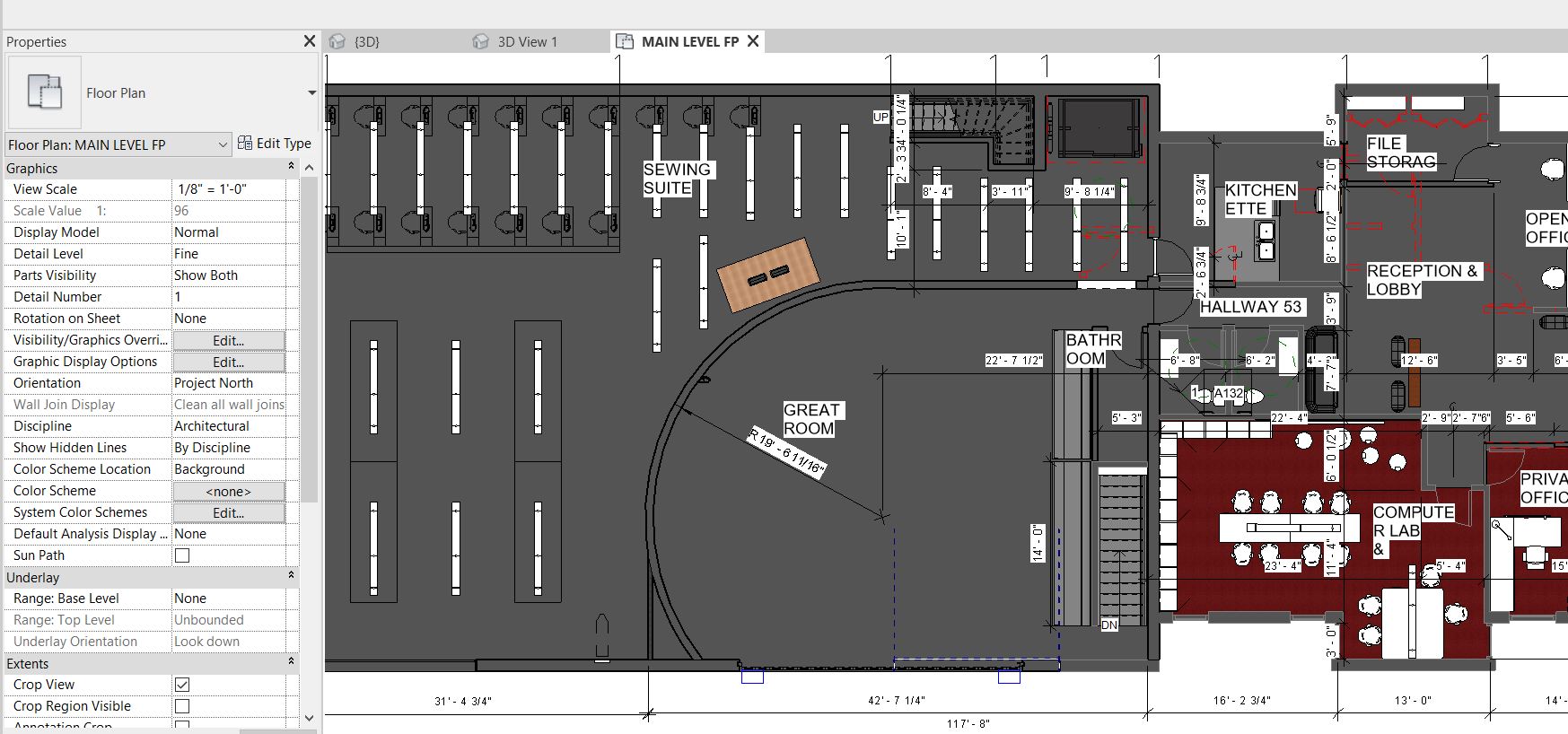
Can you be more specific on what visibility settings you need? In the Visibility/Graphic Overrides drop down, the walls are selected to show, but they are gray.

Nachricht 10 von 30
barthbradley
als Antwort auf: Anonymous

I'm confused by what you are showing in your screenshots.  I thought this about the Material Library not working. The Material Library is accessed and managed via Materials on the Manage Tab -- not through the Views' Visibility/Graphics Overrides. 

Nachricht 11 von 30
Anonymous
als Antwort auf: barthbradley

I thought you asked about the visibility settings in the last post
Nachricht 12 von 30
Anonymous
als Antwort auf: Anonymous

Yes, it is. I'm trying to cover all bases here so we can come to a resolution. Attached are the ceiling details in the material browser settings for 24x48 ceiling tiles as an example. What do I need to change to get the visibility? I have never had to add "use rendered appearance" in a pre-loaded material before. Same for walls and flooring. Regardless, some floors show, some walls do too. Other walls, ceilings, furnishings, etc do not.

Nachricht 13 von 30
barthbradley
als Antwort auf: Anonymous

Want to post your file for me to take a look at? 


..if you do, please tell me what views and elements you want me to examine.  

Nachricht 14 von 30
Anonymous
als Antwort auf: barthbradley

its too large.  Even zipped it was too big of file


Nachricht 15 von 30
barthbradley
als Antwort auf: Anonymous

You don't need to send the entire project.  Just save out and send a portion of it. 

Nachricht 16 von 30
Anonymous
als Antwort auf: barthbradley

how do I do that?


Nachricht 17 von 30
andybrack
als Antwort auf: Anonymous

I know I'm jumping in without understanding the whole problem here, but could the issue simply be one of the view settings?  When you are using Phases, if the view parameter called Phase Filter is set to 'Show Previous', the elements created in the Existing phase will show up gray.  One of the snips had the view settings set to 'Show All'  which will normally cause the behavior described. 


The red floor that was shown was probably modeled in a New Construction Phase which is why they show correctly.  Try changing the view parameter for Phase Filter to 'Show Complete'. 


Andy

Nachricht 18 von 30
Anonymous
als Antwort auf: andybrack

Andy, is there a way to select everything in the project and change it to the same phase? I do have a few phases and I feel this could be a contributing factor.


Nachricht 19 von 30
barthbradley
als Antwort auf: Anonymous

Phase Filter is a View setting -- not an element setting.  


You could do a View List Schedule and check/change the Views' Phase Filter collectively.  


View List.png

Nachricht 20 von 30
Anonymous
als Antwort auf: Anonymous

The floor was created in NEW CONSTRUCTION just as the walls and ceiling that is not showing :enttäuschtes_Gesicht:

Sie finden nicht, was Sie suchen? Fragen Sie die Community oder teilen Sie Ihr Wissen mit anderen.

In Foren veröffentlichen  

Autodesk Design & Make Report