Material Browser Site Grass and Site Asphalt missing

Material Browser Site Grass and Site Asphalt missing

octavio2
Collaborator Collaborator
51,369 Views
19 Replies
Message 1 of 20

Material Browser Site Grass and Site Asphalt missing

octavio2
Collaborator
Collaborator

In the Materiol Browser of version of Revit 2014 I do not see the  Site- Grass and the Site - Asphalt of previous years. 

Is this something that I have to put there downloading from where?  Or it is hidden there somewhere?

Please advise.

Thnks in advance.

0 Likes
Accepted solutions (1)
51,370 Views
19 Replies
Replies (19)
Message 2 of 20

octavio2
Collaborator
Collaborator
Accepted solution

I found these and the grass was under the AEC Materials, it took me some doing to find these, apparently since I do not use the Materials Library often.

Thanks.

Message 3 of 20

Anonymous
Not applicable

where did u find that cus i have the same problem n i can'd find it anywere

0 Likes
Message 4 of 20

Anonymous
Not applicable

ive searched and cant find the AEC material folder for getting a grass site. I was wondering if you found a solution to your problem?

0 Likes
Message 5 of 20

cbcarch
Advisor
Advisor

Take a look here (see attached image).

Cliff B. Collins
Registered Architect The Lamar Johnson Collaborative Architects-St. Louis, MO
Message 6 of 20

apiper
Explorer
Explorer

I have a similar problem.  I found the AEC material library and all are present but I'm not able to use any of the materials in my model.


I select them and click ok with no warnings but my object hasn't actually changed.  I can change it to another 'Project Material' with no problem.


Help?


Edit: I am trying to change the material of a Toposurface.

0 Likes
Message 7 of 20

apiper
Explorer
Explorer
Of course, I figured it out right after posting.
For anyone with the same problem: Hover over the material you want to use and click on the small arrow button that appears next to the material name.
0 Likes
Message 8 of 20

diegordzdeita
Community Visitor
Community Visitor

I solved this going to my site plan. Hope it helps. Regards

0 Likes
Message 9 of 20

PaxtonBudd
Explorer
Explorer

THANK YOU! I was trying to find Terrazzo flooring for a 1" finish on a concrete floor! This was a life-saver! I spent 10 minutes repeating steps over and over trying to figure out why I wasn't able to find the mat'l i was looking for haha!


Kudos to you.

0 Likes
Message 10 of 20

Anonymous
Not applicable

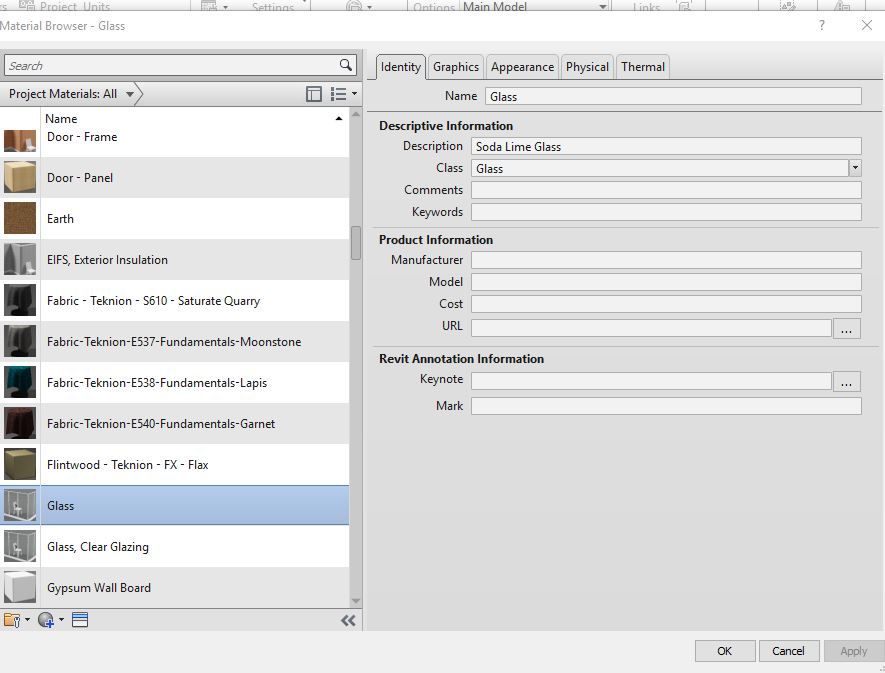
I am very frustrated because I cant seem to find out why my materials library does not have AEC materials .I am specifically looking for "glass brick" which I have noticed is in the AEC materials folder but again, It is no where to be found. someone please help.materials.JPG

0 Likes
Message 11 of 20

PaxtonBudd
Explorer
Explorer

https://www.youtube.com/watch?v=B4-fAj54XoI


Does this video help? 


From your screen shot, I cannot see your AEC folder within your Material Browser.

Message 12 of 20

Anonymous
Not applicable

Thank you for the video. The problem is that I also cannot see the AEC folder. When I open "Materials" from the "Manage" tab, the only window that pops up is the one I took a screen grab of. There are no split sections like the one from the youtube video. I cannot seem to find a AEC folder anywhere. I am using Revit 2017.

0 Likes
Message 13 of 20

PaxtonBudd
Explorer
Explorer
Go to the bottom left of your screen. You should see a little tan pinned folder. Open that and tell me what it is. It looks like your AEC folder is minimized in your screen shot.
Message 14 of 20

Anonymous
Not applicable

I found it! My library panel was hidden. Thank you so much for your help and quick response!

0 Likes
Message 15 of 20

PaxtonBudd
Explorer
Explorer
No problem! Glad you got it figured out. That’s what the forum is for! 😊
0 Likes
Message 16 of 20

Anonymous
Not applicable

may i ask why there isn't site-grass material in my AEC folder?

please see the screenshot in attached files

0 Likes
Message 17 of 20

PaxtonBudd
Explorer
Explorer

Try this forum here, and when I have more time this afternoon I will get back with you! At the moment I am super busy...


https://www.revitforum.org/architecture-general-revit-questions/15302-missing-revit-materials.html


This will walk you through finding hidden materials. Apparently sometimes when you first install Revit Out-Of-The-Box it only comes with a few pre-installed options for materials. The rest you may have to download. Also, check your service packs and be certain that your program is 100% up to date!


I'll get back with you as fast as I can!


good luck!


- Paxton Budd

CAD/BIM Modeler

Shelley Electric, INC.


0 Likes
Message 18 of 20

PaxtonBudd
Explorer
Explorer

Also, when sending us a screen shot, please don't crop your image down. Make sure your entire Materials Browser is open so that we can see everything in the window. If you look above, I helped another user because I was able to see that their AEC folder pin was minimized and they simply weren't looking in the correct place.


thanks!

0 Likes
Message 19 of 20

Anonymous
Not applicable

Big help! Thanks for looking 🙂 

0 Likes
Message 20 of 20

Anonymous
Not applicable

BIG help, thanks for looking 🙂 

0 Likes