Revit Architecture Forum
Welcome to Autodesk’s Revit Architecture Forums. Share your knowledge, ask questions, and explore popular Revit Architecture topics.
abbrechen
Suchergebnisse werden angezeigt für 
Anzeigen  nur  | Stattdessen suchen nach 
Meintest du: 

Gypsum finish on bulkhead as one continuous line

11 ANTWORTEN 11
GELÖST
Antworten
Nachricht 1 von 12
dicky
4512 Aufrufe, 11 Antworten

Gypsum finish on bulkhead as one continuous line

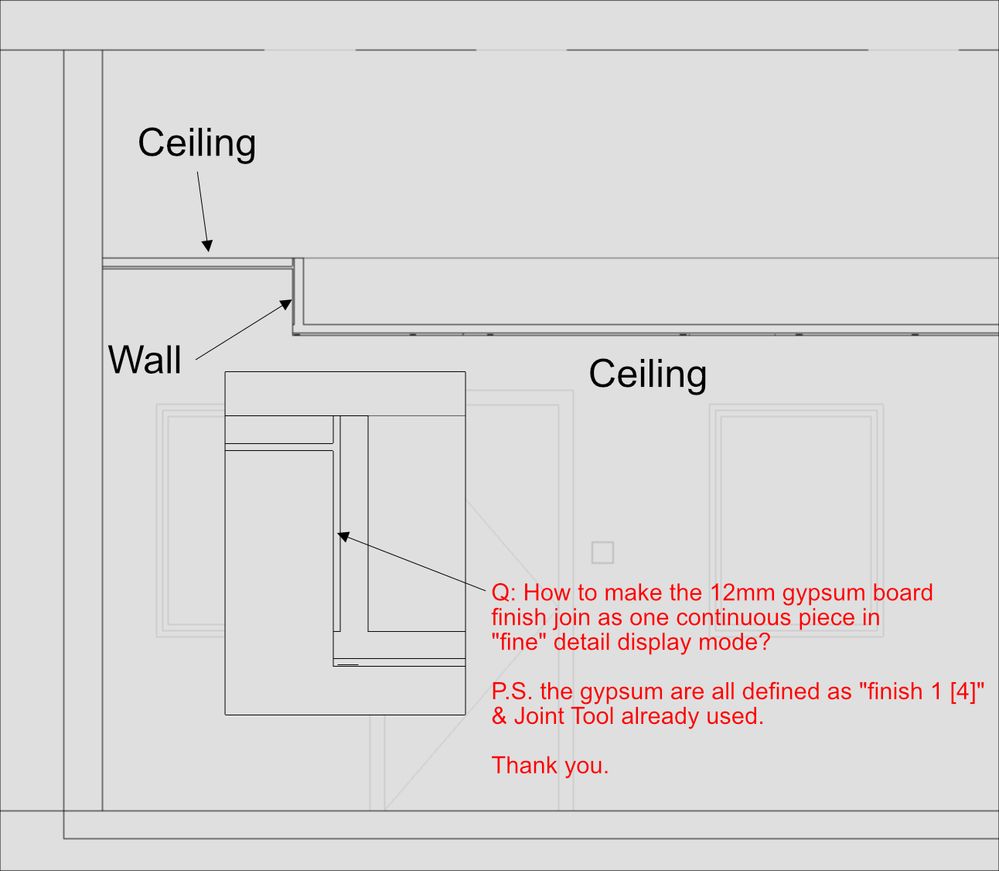
With ceiling bulkheads, how do I make the finishing (assuming all to be gypsum board) run continuously?


Joint tool as been used and all the gypsum finish is on "finish 1 [4]"  Thanks.


20201006-Ceiling bulkhead finish.jpg

Tags (2)
Beschriftungen (4)
11 ANTWORTEN 11
Nachricht 2 von 12
bin
Advisor
als Antwort auf: dicky

Model both ceiling using pick walls and extend to wall core.

Nachricht 3 von 12
barthbradley
als Antwort auf: dicky

Just use Join Geometry tool.  


Soffit 4.jpgSoffit 3.jpgSoffit 2.jpg

Nachricht 4 von 12
dicky
als Antwort auf: barthbradley

With this, did you unlock the top/base extension distance?  otherwise I join geometry did not work for me

Nachricht 5 von 12
dicky
als Antwort auf: bin

This only works if the side of the ceiling is right against an actual wall, but does not when I am modelling a bulkhead where there are no physical wall underneath right?   Thanks

Nachricht 6 von 12
martijn_pater
als Antwort auf: dicky

What @barthbradley is showing above actually. Set the bottom of your 'wall' to bottom of ceiling and similarly overlapping the heigher ceiling and wall (edit sketch), then join geometry. If your function priorities are set correctly that should do it... 

Alternatively you could also do some in-place modelling in ceiling category, two extrusions or sweeps with material parameter i.e. and join that.

Nachricht 7 von 12
dicky
als Antwort auf: dicky

Thank you all, Now I understand all three of you guy's comments, @bin extend to the wall is a must if I am treating the vertical "bulkhead" as a wall type, then after defining the location of this wall the ceiling outline needs to be RE-defined to extend into the core of this "bulkhead" wall piece.  After this @barthbradley joint too will work to provide a continuous gypsum board line in the section view if the Rules for Layer Joins @martijn_pater is correctly defined in terms of their joining hierarchy.


FOLLOW UP QUESTION


Now that the section is correct, from the ceiling plan I am getting a double line as REVIT is projecting the "thickness" of the gypsum board on the "bulkhead" wall on to the ceiling plan, (see screenshot).  So in the ceiling plan the gypsum board is not appearing  continuous.  Any good method of getting around this apart from making the linework invisible?


Below is ceiling plan on the left, section on the right.

20201008-Ceiling plan.jpg


Nachricht 8 von 12
ToanDN
als Antwort auf: dicky

Paint the bottom surface of the wall with the ceiling material.
Nachricht 9 von 12
barthbradley
als Antwort auf: dicky

Frankly, this forum doesn't deserve anybody as intelligent as you.  Just saying.  

Nachricht 10 von 12
dicky
als Antwort auf: ToanDN

Thank you, for others reading this post, after I painted the ceiling and the gypsum board edge on the vertical "bulkhead" portion, I had to unjoin and rejoin the bulkhead and the ceiling to get rid of the "double line" to reflect how the ceiling plan should actually be drawn.


Would be nice if REVIT can simplify this "bulkhead" process. :grinsendes_Gesicht_mit_Schweißperlen:

Nachricht 11 von 12
ToanDN
als Antwort auf: dicky

Here is the workflow I always do:

- Draw the soffit wall with base offset = ceiling height, gyp bd. on the outside only
- Draw the ceiling using pick wall, extend to core and choose the outside face of the wall core (meaning the ceiling overlapping the wall stud)
- Paint the bottom of the wall with the ceiling material
- Join geometry
Nachricht 12 von 12
dicky
als Antwort auf: ToanDN

Perfect :strahlendes_Gesicht_mit_lächelnden_Augen:

Sie finden nicht, was Sie suchen? Fragen Sie die Community oder teilen Sie Ihr Wissen mit anderen.

In Foren veröffentlichen  

Autodesk Design & Make Report