Revit Architecture Forum
Welcome to Autodesk’s Revit Architecture Forums. Share your knowledge, ask questions, and explore popular Revit Architecture topics.
abbrechen
Suchergebnisse werden angezeigt für 
Anzeigen  nur  | Stattdessen suchen nach 
Meintest du: 

Custom Wall Tag on Exterior Face Issues

5 ANTWORTEN 5
Antworten
Nachricht 1 von 6
Anonymous
1866 Aufrufe, 5 Antworten

Custom Wall Tag on Exterior Face Issues

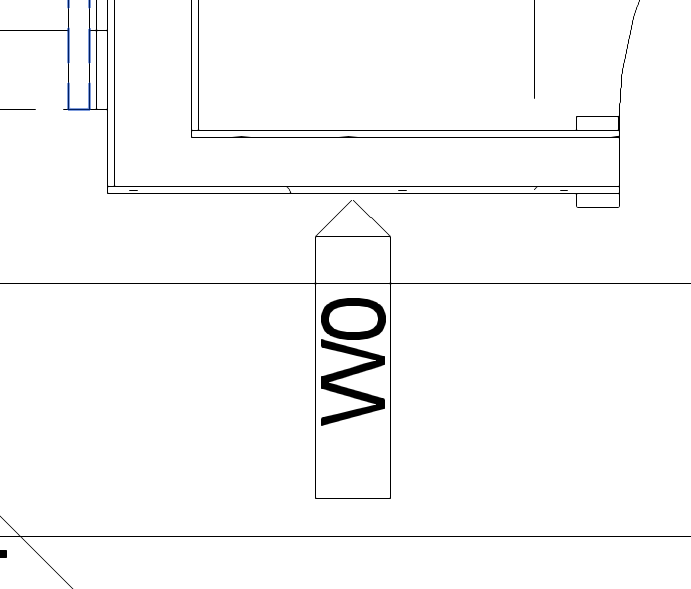
My office is transitioning to Revit and I have been working on creating families of annotations to match our office standards. I am having trouble getting my custom wall tags to attach to the exterior face of walls. Also if it is possible can I create a parameter that will flip the "arrow head" from the right to left side of the tag for different conditions in the model? The screen shots below should help clarify. 


Thank you!

5 ANTWORTEN 5
Nachricht 2 von 6
Alfredo_Medina
als Antwort auf: Anonymous

Welcome to the forum.


No. Usually, Tags are created in the family editor without a specific direction, which works well because elements in the model can be in multiple orientations. So, the advice is to create your tags as simple rectangles, and then attach leaders to the tags (and arrows, optionally) in the project. 


Alfredo Medina _________________________________________________________________ ______
Licensed Architect (Florida) | Freelance Instructor | Profile on Linkedin
Nachricht 3 von 6
Anonymous
als Antwort auf: Alfredo_Medina

Thank you for clarifying Alfredo. I will have to figure something else out. 

Nachricht 4 von 6
David_W_Koch
als Antwort auf: Anonymous

You could create two visibility (Yes/No type) parameters in your family, one for "arrow left" and one for "arrow right".


Duplicate the graphics you have and place them to the right side of the reference plane intersection, but flip the arrow to the left side.

wall tag - family_modified.PNG

Link the visibility of the graphics on the left side to the "arrow right" parameter.

Link the visibility of the graphics on the right side to the "arrow right" parameter.

Create two types in your family, one for "arrow right" and one for "arrow left".

Enable the "arrow right" parameter and disable the "arrow left" parameter for the "arrow right" type.

Enable the "arrow left" parameter and disable the "arrow right" parameter for the "arrow left" type.


Load the family in a project (overwrite parameters if prompted).  Place your tags.  If the arrow is on the wrong side, change to the other family type.


David Koch
AutoCAD Architecture and Revit User
Blog | LinkedIn
EESignature

Nachricht 5 von 6
Anonymous
als Antwort auf: David_W_Koch

David, 


I found this post quite some time after you have posted it. I am too trying to sort out office standards, but I am not advanced enough to understand what you are explaining. My intentions are to create a wall tag leader that picks the most exterior and interior faces of walls (see below). If this is not an option, Could you further explain how to create your version of the tags? I am unsure of how to link with parameters. 


thanks


Capture.PNG

Nachricht 6 von 6
David_W_Koch
als Antwort auf: Anonymous

My apologies for the late reply - I am a bit behind in my reading of the Revit Architecture Forum.  For future reference, if you include an "at" reference to an individual whose attention you desire, that person will get an email notification of your post, which may speed a response.  All you have to do is type the @ symbol, and a pop-up list will show.  It should show those involved in the thread at the top of the list, and you can pick the desired person from it.  For example, I am doing so here, so that you know that I finally replied:  @Anonymous


I am not certain that you can easily do what you show in your image.  The family I had posted is not intended to have both items displayed at the same time, and the "arrow" parts of each are set at the tag insertion point - even if both were on, they would not point to opposite sides of the Wall.


Tags are limited to one leader each.  You could place two tags for each Wall, setting the tag parts on top of each other, and then edit one tag's leader to point to the near side of the Wall, and the other tag's leader to point to the far side of the Wall.


Otherwise, you would have to add graphics to the tag family to point to one side of the Wall and use the tag's leader to point to the other side.  It may be possible to use a parameter to allow you to adjust the position of the graphics defined in the tag to give some flexibility.  And if you need those graphics to extend from any of the four sides of your tag, that will likely require four sets of graphics, with visibility parameters to control which one is show.  That may or may not provide a satisfying workflow.  Unfortunately, I do not have time at the moment to experiment with that to see if something close to what you show could be done.


As for linking parameters, that is fairly easy to do.  You need to have at least one Yes/No type parameter in your family.  If you need independent visibility control for more than one group of graphics, then you will need one Yes/No type parameter for each such group.  With the Yes/No parameter in place, you can select the graphics in your family and, on the Properties palette, under the Graphics category, find the Visible parameter.  This parameter has a toggle to turn visibility on and off, but what you want to do is select the button at the far right.  The tool tip for this button is Associate Family Parameter, and selecting that button will open the Associate Family Parameter dialog.  In that dialog, choose the Yes/No parameter you want to use to control the visibility of the selected graphics.  (If you did not already make one, you can use the Add parameter button to add one.)  Select the OK button to ratify your choice, and you will see that the toggle is now grayed out, as the Visible parameter is now controlled by the value of the Yes/No parameter you chose.2017-09-25_Revit2016_AssociateFamilyParameter.png


David Koch
AutoCAD Architecture and Revit User
Blog | LinkedIn

EESignature

Sie finden nicht, was Sie suchen? Fragen Sie die Community oder teilen Sie Ihr Wissen mit anderen.

In Foren veröffentlichen  

Autodesk Design & Make Report