My apologies for the late reply - I am a bit behind in my reading of the Revit Architecture Forum. For future reference, if you include an "at" reference to an individual whose attention you desire, that person will get an email notification of your post, which may speed a response. All you have to do is type the @ symbol, and a pop-up list will show. It should show those involved in the thread at the top of the list, and you can pick the desired person from it. For example, I am doing so here, so that you know that I finally replied: @Anonymous
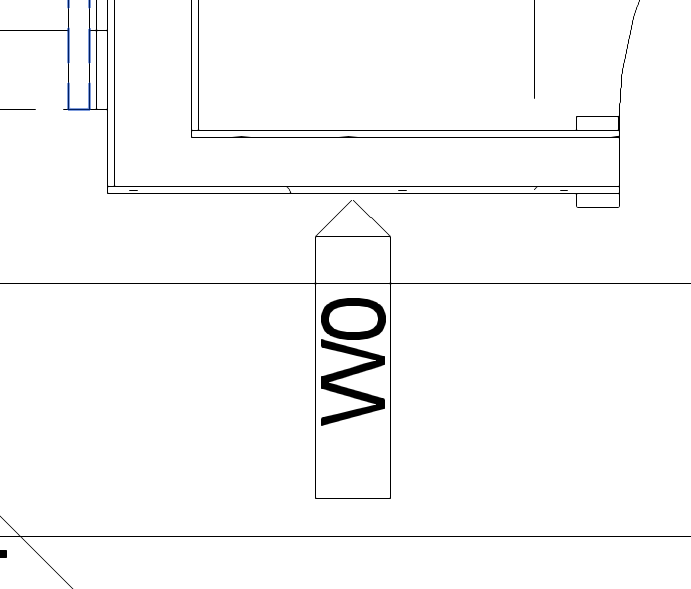
I am not certain that you can easily do what you show in your image. The family I had posted is not intended to have both items displayed at the same time, and the "arrow" parts of each are set at the tag insertion point - even if both were on, they would not point to opposite sides of the Wall.
Tags are limited to one leader each. You could place two tags for each Wall, setting the tag parts on top of each other, and then edit one tag's leader to point to the near side of the Wall, and the other tag's leader to point to the far side of the Wall.
Otherwise, you would have to add graphics to the tag family to point to one side of the Wall and use the tag's leader to point to the other side. It may be possible to use a parameter to allow you to adjust the position of the graphics defined in the tag to give some flexibility. And if you need those graphics to extend from any of the four sides of your tag, that will likely require four sets of graphics, with visibility parameters to control which one is show. That may or may not provide a satisfying workflow. Unfortunately, I do not have time at the moment to experiment with that to see if something close to what you show could be done.
As for linking parameters, that is fairly easy to do. You need to have at least one Yes/No type parameter in your family. If you need independent visibility control for more than one group of graphics, then you will need one Yes/No type parameter for each such group. With the Yes/No parameter in place, you can select the graphics in your family and, on the Properties palette, under the Graphics category, find the Visible parameter. This parameter has a toggle to turn visibility on and off, but what you want to do is select the button at the far right. The tool tip for this button is Associate Family Parameter, and selecting that button will open the Associate Family Parameter dialog. In that dialog, choose the Yes/No parameter you want to use to control the visibility of the selected graphics. (If you did not already make one, you can use the Add parameter button to add one.) Select the OK button to ratify your choice, and you will see that the toggle is now grayed out, as the Visible parameter is now controlled by the value of the Yes/No parameter you chose.
David Koch
AutoCAD Architecture and Revit User
Blog | LinkedIn