Can't Hide in View

Can't Hide in View

Anonymous
Not applicable
27,606 Views
16 Replies
Message 1 of 17

Can't Hide in View

Anonymous
Not applicable
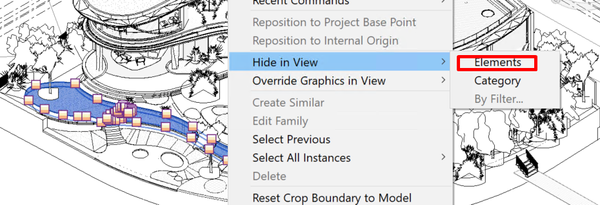
When I go to View -> Hide in View ->

the Elements and Catagory are grayed out. Does anyone know why? Something probably simple but can't figure it out.

Thanks,
Chris
0 Likes
Accepted solutions (2)
27,607 Views
16 Replies
Replies (16)
Message 2 of 17

jason.martin
Autodesk
Autodesk
Nothing is selected, so there is no category or element to hide?

(guessing?)

jason

"cdeweese" wrote in message news:5918340@discussion.autodesk.com...
> When I go to View -> Hide in View ->
>
> the Elements and Catagory are grayed out. Does anyone know why? Something
> probably simple but can't figure it out.
>
> Thanks,
> Chris
Message 3 of 17

Anonymous
Not applicable
Well, I'm trying to hide different elements that are on the linked model. I select the linked model as a whole and element is NOT grayed out but when I tab thru to select different elements and not the whole model it is grayed out.
0 Likes
Message 4 of 17

jason.martin
Autodesk
Autodesk
Accepted solution
Hi Chris -

I tried this in 2008 and 2009, and in both cases got it to work, but I think
I figured out what the problem might be.

If you have your view configured so that the link is displaying with a view
definition from the "link" rather than by host view, the options to override
the view settings for the items in the link "locally" (i.e. hide specific
elements or categories in this view) becomes disabled, because you're
telling the application to use a specific set of view settings defined in
the linked file, rather than the view settings defined in the "host" view.

You can still override the visibility of things that are in the "local"
project, but you've told the link to display exactly as it is displayed in
the linked file, and it's going to display that way (which is why you can't
override it).

hth

jason

"cdeweese" wrote in message news:5918363@discussion.autodesk.com...
> Well, I'm trying to hide different elements that are on the linked model.
> I select the linked model as a whole and element is NOT grayed out but
> when I tab thru to select different elements and not the whole model it is
> grayed out.
Message 5 of 17

Anonymous
Not applicable
Accepted solution
That is correct in VG I have the linked view: Floor Plan Level 1 that way the room names are visible. I changed it back to none and tried it and it worked. I guess I want the best of both worlds. Thanks man.

Chris
Message 6 of 17

Anonymous
Not applicable

OMG!!!!! I have been trying to figure that out for years!!! That just made my week, this has bothered me and I have had to do so many things to get around that.. Even to the point of going into other models and deleting the objects!. Thank you so much

0 Likes
Message 7 of 17

Anonymous
Not applicable

I am having a similar problem. I am able to hide by category in other views but it's not an option in when I'm in 1 particular view.

Thank you,

Lynda 

0 Likes
Message 8 of 17

m.voss.alvine
Advocate
Advocate

do you have a view template set?

Revit MEP 2015 Certified Professional
Revit Architecture 2015 Certified Professional
AutoCAD 2015 Certified Professional


remember to 'accept as solution' if this helped
0 Likes
Message 9 of 17

Anonymous
Not applicable
I believe I was trying to hide things that appear on a schedule? Could that be the problem?
Thank you,
Lynda
0 Likes
Message 10 of 17

fabiosato
Mentor
Mentor

Hello,


The only way I know to remove items only from a schedule is through filters.

Fábio Sato
Did you find this post helpful? Feel free to Like this post.
Did your question get successfully answered? Then click on the ACCEPT SOLUTION button.

EESignature

0 Likes
Message 11 of 17

Anonymous
Not applicable

Hello,

I had the same problem. Somehow I changed my view the plate from "none" to "Architectural Plan." When it was using the Architectural Plan template I could not hide any imported CAD lines. Then I changed it back to none and I was able to hide CAD lines. So click on the view and see what view template it is using in the properties dialog box.

Message 12 of 17

taylorBUVBW
Community Visitor
Community Visitor

What exactly should our VV be prompted to ? I tried to make sure my link was local and not custom but I still think I am doing something wrong.


Thank you 

0 Likes
Message 13 of 17

s.borello
Advisor
Advisor

Are you trying to hide something in a link?  If your views are set to a linked view it can mess with you. 

0 Likes
Message 14 of 17

Dronov.Dmitry
Advocate
Advocate

Якщо створити новий вигляд і не накладати шаблон - елеметни лінкованого файла можуть бути сховані.Як тількі накласти шаблон - ця можливість втрачається і навіть якщо шаблон зняти - елемент не можна знову ховатиТреба зробити новий 3D вигляд і не накладати шаблон

If you create a new look and do not overlay a template - items of link file can be hidden.
As soon as you apply a template - this opportunity is lost and even if you remove the template - the item can not be hidden again
It is necessary to make a new 3D look and not to impose a template

DronovDmitry_0-1651755829749.png


0 Likes
Message 15 of 17

stephensmandac
Community Visitor
Community Visitor

In Identity Data

Click View Template

Choose "None"

0 Likes
Message 16 of 17

jbrr27
Advocate
Advocate

Had this pop up today in Revit 2024, never encountered it before.  No links but I did have a view template.  Removing the view template, the object was automatically hidden, and stayed hidden when reapplying the view template.  Thanks to anonymous from 2008 for the idea, I was stumped!  Still don't know why it happened but at least it's fixed now.

Message 17 of 17

lasteele
Observer
Observer

Seems like it's a glitch, this works for me as well. Also in Revit 2024.3. Unassigning and reassigning the view template fixes the problem. 

0 Likes