Maya 2018 Constantly Freezing

Maya 2018 Constantly Freezing

Anonymous
Not applicable
1,681 Views
9 Replies
Message 1 of 10

Maya 2018 Constantly Freezing

Anonymous
Not applicable

Hey All. I had the 2016 Student Version on my Mac and it worked perfectly...but when I updated and downloaded the 2018 student software, I encountered a lot of "freezing" issues. Most predominantly is anytime I zoom in and out. I'll be able to zoom in a few clicks but then it freezes and I am unable to click anywhere in the object or around for quite a few seconds and then it is back. Try to zoom in (or out) again and the same thing. 


The same is happening when I try and build a cube or sphere (or any polys). I click on it and when I am supposed to click on the grid to set the size it won't let me. I click anywhere and everywhere around the graph but yet nothing happens. In 2016 I was able to make the size of the cube on the graph in one click and then extrude it up to make the cube in the next click. This isn't happening in 2018 and is similar to the zoom freezing issues. 


I am running the newest version of Mac OS - Mojave 10.14. Any help would be much appreciated! 

0 Likes
Accepted solutions (1)
1,682 Views
9 Replies
Replies (9)
Message 2 of 10

sean.heasley
Alumni
Alumni

Hi @Anonymous


What kind of Mac are you using? Can you please post the hardware specs here?


Also, 

Recently there have been a lot of crashes occurring with Maya on Apples new Mojave OS. While you aren't experiencing crashes, its possible this workaround may help you out a bit:


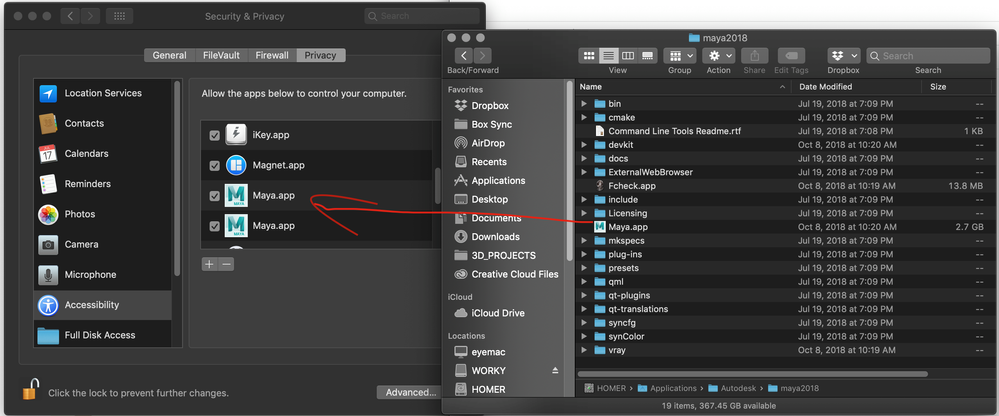
We’ve just been looking at the forum posts about Maya crashing in macOS Mojave and just wanted to give you the heads up that Maya crashes can be avoided by dragging and dropping Maya into the application well in Accessibility > Privacy. Maya 2017-2019 beta has been very thoroughly tested on Mojave so rest assured that this should solve its issues until the developers resolve the underlying issue.


apple.png


0 Likes
Message 3 of 10

Anonymous
Not applicable

Thanks! I will try this once I get home and see if it helps with the issue I have been having. 


For the specs of my iMac, please see below: 


2017 iMac Retina 21.5

3.4GHz quad-core Intel Core i5 (Turbo Boost up to 3.8GHz)

8GB of 2400MHz DDR4 memory

Radeon Pro 560 with 4GB of VRAM


Message 4 of 10

sean.heasley
Alumni
Alumni

Hi @Anonymous


Just wanted to check in to see how things were going. Are you still having this issue?


If your issue is resolved, please click Accept as Solution on the posts that helped you so others in the community can find them easily.


0 Likes
Message 5 of 10

Anonymous
Not applicable

Thanks so much for the reply and checking in. I actually had Maya already in the Accessibility Folder, so that was a good thing. I actually just downloaded 2018.5 update and it has been a bit better in terms of not crashing. Although I am running into the same issue I had before in which when I try and zoom in and out and then go to rotate or then move tool it is like I have to click out of the object, then back into it in order to control it. It isn't as smooth as just pressing the "w" or "e" key and then being able to control the object immediately. It is like it is thinking and not recognizing my mouse clicks unless I click off of it and then back on. 


Seems like a bug in my system as you said previously. 

0 Likes
Message 6 of 10

sean.heasley
Alumni
Alumni

Hi @Anonymous


Glad update 5 helped a bit!


This does seem unusual though and may not be reproduce able, when you get a chance could you possibly post a video of the issue?

If you need a video capturing program, Screencast is a great option that we use here at Autodesk


0 Likes
Message 7 of 10

Anonymous
Not applicable

Thanks Sean. Okay I managed to take a screencast. Volume is low but if you turn it up I tried to dictate what was happening. Hopefully it makes sense and you can see what is going on. Let me know if the link doesn't work! 


https://autode.sk/2EfurPs

0 Likes
Message 8 of 10

sean.heasley
Alumni
Alumni
Accepted solution

Hi @Anonymous


Thanks for attaching the screencast!


Generally an issue like this is with GPU drivers but since you're on a Mac this can be a bit more annoying to test.


One thing you can try is: select your object in the outliner > go to attribute editor for the object > Drawing overrides > enable overrides > set display type to: normal.


If that doesn't help, you may want to check through apples options/drivers and see if there are any updates for your GPU.


0 Likes
Message 9 of 10

Anonymous
Not applicable

Okay thanks for the help. I can try those and see if it works.


It's weird though because the 2016 Extension 2 version I initially had the free trial for worked with no issues...it seems to just be with the 2018 version. I will see if this could help and report back. 


I really appreciate the  timely responses and troubleshooting! 

Message 10 of 10

Anonymous
Not applicable

Hey Sean


Wanted to follow up with this. I ended up resetting my Mac to High Sierra and tried Maya with that and everything worked just fine. I had absolutely no issues...so it seems like it stems from the Mojave update and overall issues Maya 2018 had with Mojave. 


Just wanted to update you so you could loo