Ray Trace with a Transparent Background?

Ray Trace with a Transparent Background?

Anonymous
Not applicable
4,568 Views
6 Replies
Message 1 of 7

Ray Trace with a Transparent Background?

Anonymous
Not applicable

To my surprise, I have not found much usable information on this topic.


The only transparent background setting is in the Render Studio, but the image quality is best in Ray Trace (in my opinion). 


Will I have to settle for non-optimal quality, (and re-writing all settings) and use the transparent .png alpha-checked setting for my model? 


Why can we not use Ray Trace with a transparent background? 


I even placed a transparent background as the background image to see if it would work, but alas, it comes up white and flattened with no option of transparency.

Please send me an option if available.


I am going to need this so much in the future, and it pains me to consider that these images may have to look lower quality to be used.

Accepted solutions (1)
4,569 Views
6 Replies
Replies (6)
Message 2 of 7

david.wager
Participant
Participant

Which inventor version are you using?

Have you tried this?
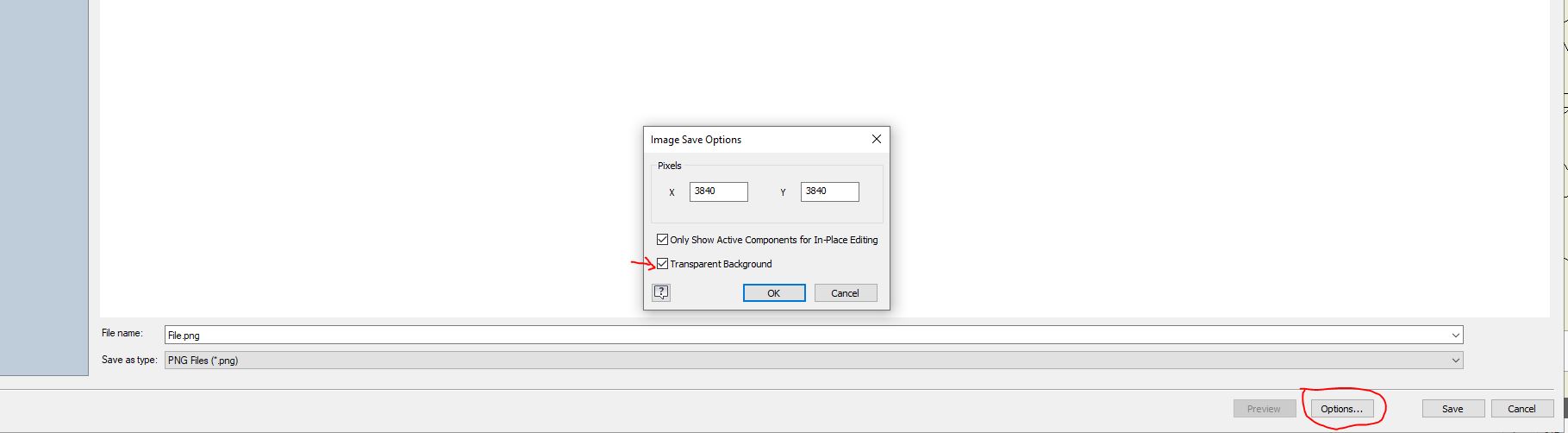
1. Use the ray trace outside of the rendering environment.

2. Use the Export the file as an image function.

3. In the "save as" browser select .PNG file type then go to options and check "Transparent Background"
4. Save file in desired location


0 Likes
Message 3 of 7

Anonymous
Not applicable
Thank you for showing me that option! Your instructions were very clear and easy to implement. I was not previously aware of that action path. I will continue to try this method again in different ways to use this file and see if anything works. So far, it is still coming up with an opaque background. If I get it to work somehow, I will try to update this post to reflect that. Until then, I am still open to any input on this topic.
The version of Inventor is 2019 and I have Adobe CC (Photoshop, Illustrator etc. to work with the image after generating it.) I have even tried using a transparent background image as the background in the scene and raytracing then, but even so, once I open the .png file in the next application, even if there were 2 layers generated, they are only reading as one layer and are showing as opaque white.
This is a feature that seems like a useful one not only for product line BIM people like me, but for many others. This is something that would be very helpful for presentation and marketing settings. It is very difficult to generate a great presentation another way, but whatever works is what I will have to do. We all have deadlines.
0 Likes
Message 4 of 7

mcgyvr
Consultant
Consultant

@Anonymous wrote:
Thank you for showing me that option! Your instructions were very clear and easy to implement. I was not previously aware of that action path. I will continue to try this method again in different ways to use this file and see if anything works. So far, it is still coming up with an opaque background. If I get it to work somehow, I will try to update this post to reflect that. Until then, I am still open to any input on this topic.
The version of Inventor is 2019 and I have Adobe CC (Photoshop, Illustrator etc. to work with the image after generating it.) I have even tried using a transparent background image as the background in the scene and raytracing then, but even so, once I open the .png file in the next application, even if there were 2 layers generated, they are only reading as one layer and are showing as opaque white.
This is a feature that seems like a useful one not only for product line BIM people like me, but for many others. This is something that would be very helpful for presentation and marketing settings. It is very difficult to generate a great presentation another way, but whatever works is what I will have to do. We all have deadlines.

@Anonymous  Its working for me in 2019.3.. 

I can open the file in an image processing software (I'm using GIMP) and it comes through with a single layer of the image and the background is transparent.. 

Can you post a png file that you think doesn't have a transparent background?

I have attached a simple image that is working for me also for you to test. 


-------------------------------------------------------------------------------------------
Inventor 2023 - Dell Precision 5570

Did you find this reply helpful ? If so please use the Accept Solution button below.
Maybe buy me a beer through Venmo @mcgyvr1269
Message 5 of 7

Anonymous
Not applicable

Alright, I am attaching a small assembly .png with Draft Ray Tracing and a transparent background set as the background. I just grabbed this one to test it as you requested. I hope there is a solution out here somewhere.

0 Likes
Message 6 of 7

rui_wang
Autodesk
Autodesk
Accepted solution

Hi, now, Inventor did not support export a transparent background with Ray Tracing ON.  If you want to get transparent effect with ray tracing, please go to Inventor Studio. Thanks. 

And please go to idea station and submit one topic if you want this function. 


Thanks,

-Rui

Message 7 of 7

rui_wang
Autodesk
Autodesk

https://forums.autodesk.com/t5/inventor-ideas/save-ray-traced-image-with-transparent-background/idi-..., here is link for Save ray traced image with transparent background. You can vote here. Thanks.