

My assembly joints are broken after I updated Fusion 360, now what?

- Mark as New
- Bookmark
- Subscribe
- Mute
- Subscribe to RSS Feed
- Permalink
- Report
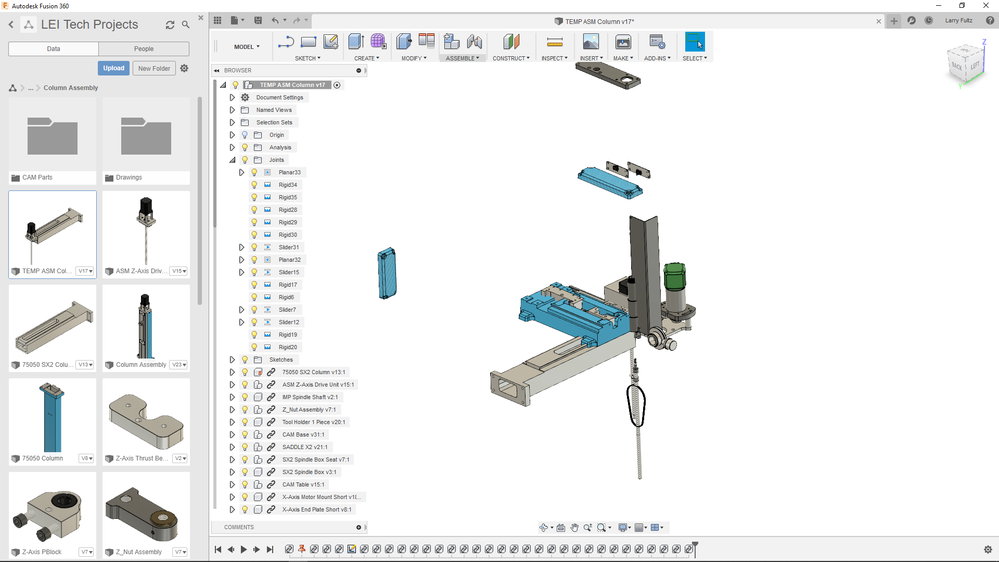
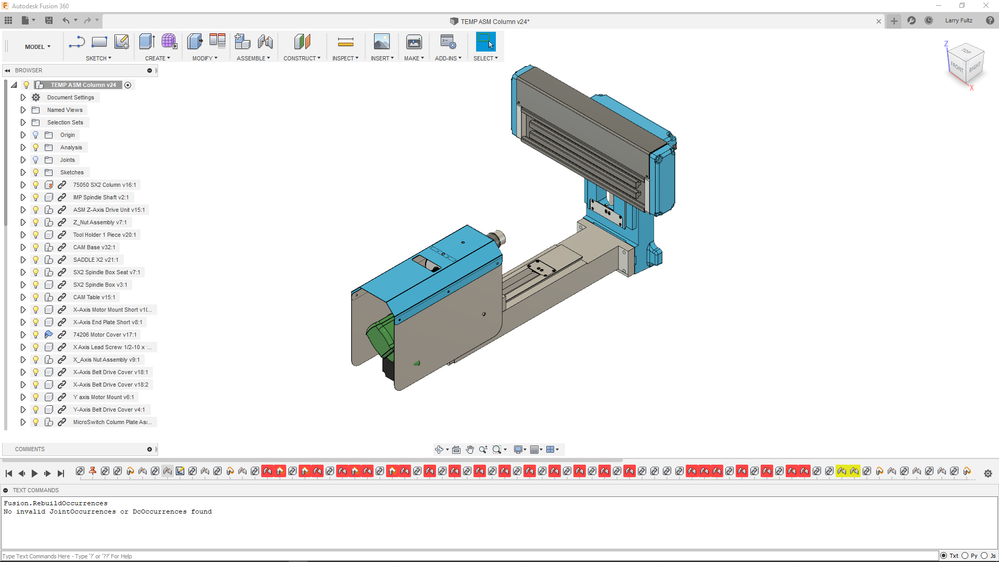
We heard issues of some of you experiencing unexpected "sick" joints (highlighted in red in the timeline) in your assemblies and then a crash after you updated Fusion 360 with the last June update. We just pushed a fix that takes care of the crash, but due to the complexity of how things rebuild in Fusion 360, bringing those sick joints back to tip-top shape will need some elbow grease on your end.
We updated our what's new with a few options to try:
Option 1

1. Promote a previously saved version of your assembly pre-June update and work off of that version. You can do this by clicking on the version number on your design via the data panel, hover over the version you want to promote, and then click on the promote button.
*OR*
Option 2
2. Delete your sick joints and re-apply them with fresh ones.
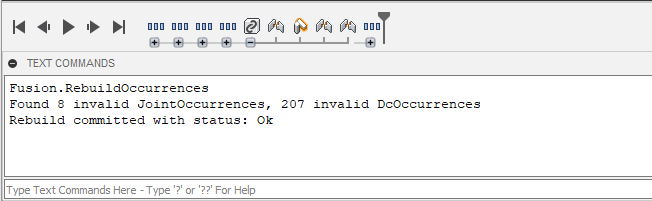
A third option is to run a text command
1. Go to the file menu > View > show text commands
2. Make sure that the "TXT" is selected as the command type
3. Copy and paste: Fusion.RebuildOccurrences
This will repair some occurrence info, and report on the results. If it returns OK, save your design, and it should be better.We apologize for the inconvenience this has caused. We'll continue to monitor and test best ways to get this sorted so it doesn't happen again in the future.