Connect two components so that one moves if the other grows?

Connect two components so that one moves if the other grows?

drew
Advocate Advocate
2,024 Views
9 Replies
Message 1 of 10

Connect two components so that one moves if the other grows?

drew
Advocate
Advocate

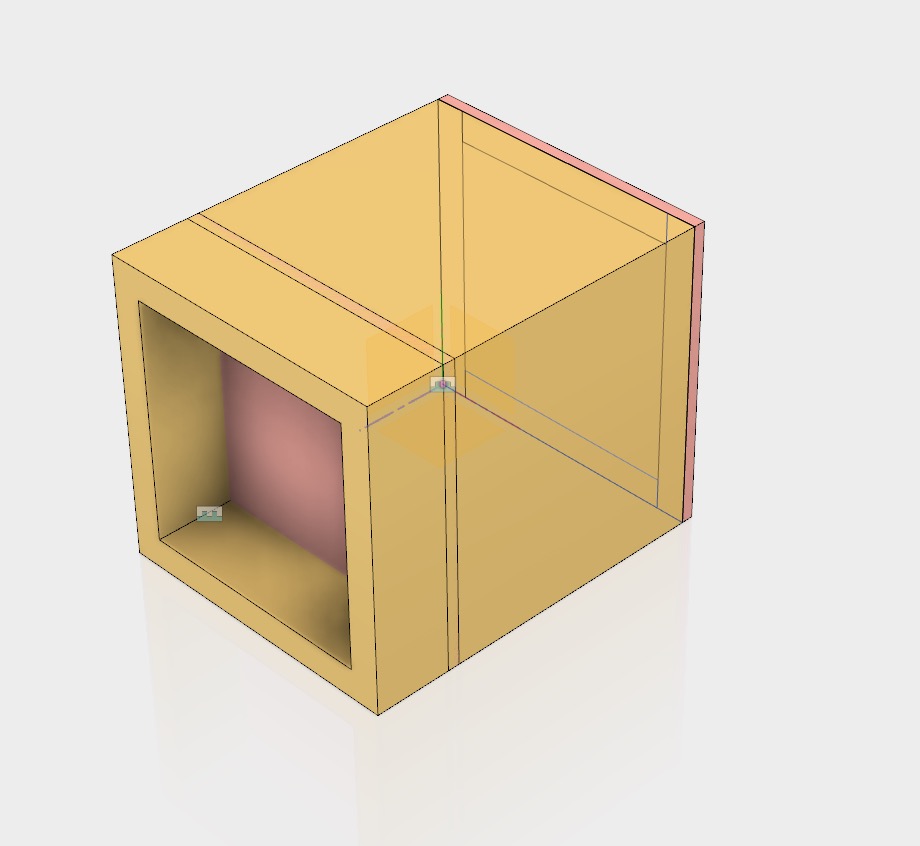
Please see both the attached f3d and the attached screencast.


Trying to make "Component 1:2" move along the Z axis when I change the user parameter controlling "Component2:1" size along Z.


Have tried applying a rigid joint between the two. Nope.


Have searched the web for controlling component locations with user parameters, but all I seem to find is how to control a specific component, not a component in contact with the one being controlled.

I think I just don't know what to search for. "Ya don't know what ya don't know."

Searching is very hard due to my inability to memorise all the Fusion terminology.

To me it is "How do I make this component stay glued to the front of this other component when I make the other one wider?"

LOL. Not useful for Fusion's many many names for ways to make thing stay stuck to other things.


I am guessing that maybe I can control an offset construction plane's distance from the origin plane with that same user parameter and somehow lock Component1:2 to that construction plane?


I did read plenty about using sketches to control locations, but that doesn't seem to apply to this situation.


I KNOW you can do this. I just can't figure out how.


Please:

What is the best way to make  Component1:2 stay stuck to the front of Component2:1 no matter how much Component2:1 grows or shrinks along the Z axis?


0 Likes
Accepted solutions (2)
2,025 Views
9 Replies
Replies (9)
Message 2 of 10

etfrench
Mentor
Mentor
Accepted solution

Create a rigid joint between Component1:1 and Component2:1 and another between Component1:1 and Component2:1.  Ground Component2:1.  Modify user parameter at will Smiley Happy

ETFrench

EESignature

Message 3 of 10

Anonymous
Not applicable

Please see attached video. Create a rigid joint between the components.

Message 4 of 10

TrippyLighting
Consultant
Consultant

The question was already answered.

There was no video attached or linked or embedded.


EESignature

0 Likes
Message 5 of 10

drew
Advocate
Advocate

See attached screenshot for the results of:


Begin with user parameter at 90

1)create rigid as-built joint between Component1:2 and Component2:1

2)ground Component2:1

3)create rigid as-built joint between Component2:1 and Component1:2

4)alter user parameter to 120


Still leaves Component1:2 in its original location.


Did I misinterpret or follow along wrong?


(edited to increase clarity of steps)

0 Likes
Message 6 of 10

drew
Advocate
Advocate
Accepted solution

AH-HA!!!!


You can't just create ANY rigid jpoint!


It MUST NOT be an as-built joint.


A "Rigid Joint" and an "As-Built Rigid Joint" are NOT the same thing according to Fusion's internal logic.

Note: This is not at all apparent to a user, since there seems no difference in the names other than the idea that "in as-built I don't have to move any of them to say where they go" and in normal joints "I tell it where it should be because it may not be there right now".


But whatevs. I'm in the minority of users that struggles with the nomenclature.


So, etfrench is correct but I think he assumed I would understand he meant a specific type of rigid joint. Assumptions when the names for joints are so similar make for confused novices.


Here is the process that made Component1:2 move when the user parameter controlling Component2:1 is changed:


Begin with user parameter at 90 (or whatever your starting value is)


1) Ground Component1:1

2) Create rigid joint between Component1:1 and Component2:1 -  Either 'as-built' or 'standard' joints will work.

3)Create rigid joint between Component2:1 and Component1:2 - this MUST NOT BE an as-built joint


Alter user parameter, and gleefully watch Component1:2 shift position as it needs to!


Thanks @etfrench ! 

Want to mark yours as answering so you get credit, but I am worried that if I do that - anyone finding it will follow you literally and not note the significance of my additions about joint-creation types.

How do we address that?


0 Likes
Message 7 of 10

etfrench
Mentor
Mentor

Easy way is to mark both as solutions.  I rarely, if ever, use an as-built joint, so it's good to know they behave differently.


ETFrench

EESignature

0 Likes
Message 8 of 10

drew
Advocate
Advocate

A followup question, if that's ok?


In my example used above it is only three components.


In my actual project:

Component1:1 is actually three separate components making up the same sort of thin 'skin'.

Component2:1 is... I think 22 components all controlled by that user parameter for length along Z.

Component1:2 is actually three copies of the Component1:1's three components.


I have attached the real design file - feel like taking a look and see if you see a faster way to do this?


Becuase to use the method that solves the example with only three components, I will be very busy later today adding 132 joints - all one at a time.

Each one is many mouse-points and mouse-clicks and the insufferable wait while the joint 'shakes' itself. Ugh.


"Rigid Group" seems to act the same way as "As Built" does, in that it doesn't bind the components in an "end" relationship and yields the same effect as an As Built joint. (Not sure how to say that in Fusion-ese)


I think I can get the frontside skin to move using one-off joints by merely adding one joint per moving component to any expanding component - so that will only be six joints to create... But that seems like I would be looking for trouble later on because while it works it will leave 63 joints left un-made on the front panels and the same for back panels. total 6 joints made out of 132...  just seems unwise since I cant ever tell what will happen...


So...

Any thoughts on how I can add these joints quickly?


@TrippyLighting please chime in if you have time.

0 Likes
Message 9 of 10

drew
Advocate
Advocate

Just tried to gather all the components into three new components, so I could use the method on just three things.

Apparently trying to move the frame components into a new component name Frame creates errors on the widowsill component FrameHorizFullWidth:5.


Fusion tries to be helpful by highlighting it in Timeline, but error just provides "Some positions cannot be resolved due to joint conflicts". Who the heck know WHICH joints are the problem... Ugh.


Anyway, still trying to do this.


0 Likes
Message 10 of 10

drew
Advocate
Advocate

Update:


Found the solution to the error by random experiment. Apparently moving the timeline box for the error-highlighted 'copy/paste' operation two timeslots to the right resolved the error.


Moved it two spaces on accident, actually... was trying to move it one spot. But f*** it. It worked.


Now I have three components that hold all the rest. FRAME, SKIN FRONT, and SKIN REAR.


But, Ha ha ha ha ha ha ha ha...


Can't create a rigid joint between FRAME and SKIN REAR. LOL. Great.


Can only select the components inside FRAME to make joints on. Which is no different to the situation before I moved them all into the three new components. So would still have to make a bazillion individual joints.


Square 1.


0 Likes