Excerpt from an upcoming book:
Text Styles
AutoCAD Isometrics can be customized to use your own text style. However, three different styles must be used in order for text to display correctly.
- Normal AutoCAD objects
- Annotations
- Skewed Annotations
Like dimension styles, annotations are stored in the isometric template.
Examining the bill of materials shows you that that the table uses the AdskIsoImperial text style.
The text on the drawing uses the AdskIsoAnnotation text style.
However, the skewed text displays smaller than it should.
The AdskIsoImperial text style may be set to any value desired. However, you should set the value in the text style. The AdskIsoAnnotation text style is set to 1.
The isoconfig.xml contains a variable that is used to scale the text used in annotations. The ScaleFactor setting indicates the size of the text height, and whether or not the size of the annotation is imperial or metric. For example, if the Scale factor is set to 1, all the symbols are also scaled up 25.4 units.
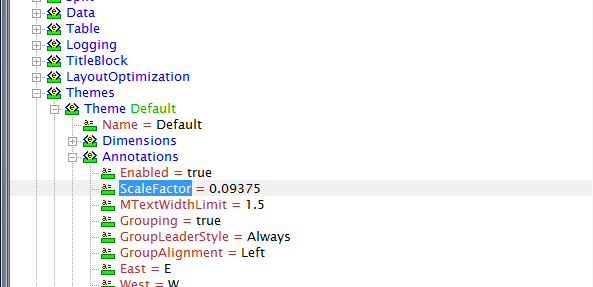
Using a little math, you can find the ratio needed to output the skewed text at the correct size.
Create a text style called AdskIsoSkewed and set the text height to 1.4140 to have your text drawn at 3/32”.

The input value necessary for the text height is given by the formula:
X = T / 0.0663 where T is the desired text height, and X is the input value required.
In order to implement the skewed text style, you have to create an annotation style that utilizes it, and then reference the text style where you used skew alignment.
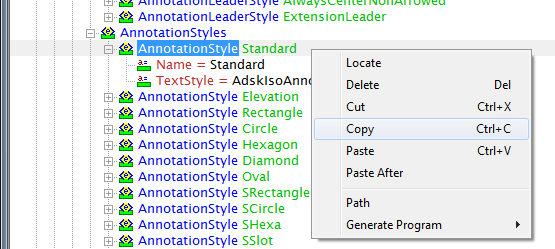
Locate the Standard Annotation Style, copy it and paste a new one below it. Call the copied version Skewed. Set the Text Style to AdskIsoSkewed
The final step is modifying any annotation scheme that uses skew alignment to use the Skewed Annotation Style.
By default these annotation schemes use the Standard Annotation Style and should be change to use the Skewed annotation style:
- Line Number Scheme
- Field Weld
- Field Fit Weld
You may want to evaluate how these items appear to see if you want to change the text height for them:
- Elevation Extended
- Insulation
- Insulation With Tracing
In the screen shot below, a value of 1.8853 was entered so that a text height of .125 would be used for the line number. Also, the text styles were set to use an Arial font (True-Type fonts are searchable in pdfs).

Note that the text size for the slope callouts must be changed in the isosymbolstyles.dwg as well. The same formula applies.