Measurements and O-Snap Ext jerky on high-end cert GPU

Measurements and O-Snap Ext jerky on high-end cert GPU

Anonymous
Not applicable
4,187 Views
47 Replies
Message 1 of 48

Measurements and O-Snap Ext jerky on high-end cert GPU

Anonymous
Not applicable

AutoCAD LT 2011

Title says it all really.


My laptop is HP 8740w with ATI FirePro M7820 which is a certified GPU (and about as powerful as you can get on a laptop for now). When I use the measurement tool, it gets very jerky and slow b/c it has a hard time updating the dynamic text. I use o-snap extension a lot and that gets jerky when it tries to use the dynamic text too.


I am using the most recent drivers released by HP for the GPU. My CPU is i7-820qm and I have 4GB RAM (at 65% utilization).


Any ideas on how this might get fixed? I'm pretty bummed this powerful of a mobile workstation is choking on AutoCAD LT.

0 Likes
Accepted solutions (1)
4,188 Views
47 Replies
Replies (47)
Message 21 of 48

Anonymous
Not applicable

Thanks for contributing LaneLizard. I am curious if this is somehow an issue for HP workstations now. I'm going to ask around on a laptop forum I use and report back if I find anything out.

0 Likes
Message 22 of 48

LaneLizard
Participant
Participant

I'm also noticing significant slowdowns when working with some hatches, gravel being one. Have you tried using any complex or custom hatches?

0 Likes
Message 23 of 48

Anonymous
Not applicable

Yes, hatches are realy bad until you turn off the setting that gives you hatch properties when floating over them. Sorry, I can't remeber which specific setting this was.


Check this link out:

http://www.tomshardware.com/reviews/2d-windows-gdi,2539-11.html


I know you have Nvidia, but my ATI card is based on Radeon 5000 series. It seams 2D performance is exceptionally terrible accross the board. I am wondering if this is directly related to our issues.


Also, here is more evidence that the drivers on my machine are pathetic.


Tom2D benchmark on stock M7820 drivers

http://forum.notebookreview.com/hp-elitebook-probook/470406-official-hp-elitebook-8740w-owners-loung...


Results after installing Dell drivers for M7820

http://forum.notebookreview.com/hp-elitebook-probook/470406-official-hp-elitebook-8740w-owners-loung...


Results after installing Radeon 5870 drivers (gaming gpu identical to M7820...gets better driver updates)

http://forum.notebookreview.com/hp-elitebook-probook/470406-official-hp-elitebook-8740w-owners-loung...


Those results after installing the 5870 drivers are only a 10% increase over last generatino Intel integrated graphics.


How did my card get certified? Is that done on blind faith becuase it is labeld FirePro? What kind of testing went into making it a "Certified Card" that is "Supported, recommended" on Autodesk's Graphics Harware List?

0 Likes
Message 24 of 48

LaneLizard
Participant
Participant

I'm running an  Nvidia Quadro FX 880. I downloaded the latest drivers from HP but now I'm thinking I may want to go directly to Nividia for the very latest drivers. My card is not certified for Autocad but that doesn't mean much as they haven't gotten around to many of the newer cards and platforms. I've loaded Civil 3D 2011 and have the exact same problems so it's not confined to Autocad LT 2011.


The search continues...

0 Likes
Message 25 of 48

Anonymous
Not applicable

I've installed the update and it didn't help. At this point I'm still convinced it is a driver prolem, specifically a 2D driver problem. I unsertand that Autodesk doesn't make the drivers, but I am still puzzed as to how my GPU recieved certification given its abysimal 2D capablities (worse than old integrated graphics even).

0 Likes
Message 26 of 48

LaneLizard
Participant
Participant

The latest update made mine worse, everything flickered when I moved the mouse.

I did however find a solution to the tooltip issue. If you navigate to the install folder and right click the executable and select properties. Check the box to have the program run as administrator. The hesitation should go away even with Dynamic Input turned on. I was also having some issues with larger drawings taking their sweet time refreshing when changing from a layout tab to model space. Turning off the Hardware Acceleration in Autocad corrected that issue.


Good Luck!

0 Likes
Message 27 of 48

denispecek
Participant
Participant

I have an HP latest generation desktop, i5 3.2Ghz, 4GB, Ati HD5570 graphic card, Win7 64bit, latest drivers installed and experience similar issues, sometimes just moving the cursor over the screen without any active comand. The cursor just "jump" and slow down in some drawings, even trying all the workarounds.


On another XP 32bit machine it worked nice and smoothly while I was using AutoCAD LT 2011 in "try" mode, before activating the product. Once activated I started to experience these problems.

Called my local AutoDesk office and they said they never heard of such an issue.


I'm using AutoCAD LT 2005 again now, till these issues are solved.

0 Likes
Message 28 of 48

Anonymous
Not applicable

I have been running it as Admin, that hasn't helped. I think my new GPU (FX5000M) is actually worse than the ATI. When I uncheck the dynamic input stuff, it doesn't actually turn off. The box remains unselected (and yes I pressed Apply) but he dynamic input is always there.


Also, how do  I turn off hardware acceleration in LT? The 3DConfig command isn't recognized for obvious reasons and I can't find another way to do it.


This is getting really old. It would be nice to hear some acknowledgment from AutoDesk that this issue is being fixed.

0 Likes
Message 29 of 48

DouglasLauritsen
Alumni
Alumni

AutoCAD LT 2011 is not supported on Windows 7 Home Basic. I don’t know if this version of Windows is missing features required for AutoCAD LT as I am not an expert in Windows versions or support. Windows 7 Home Premium is the lowest level version that is tested by Autodesk. It may work but as it was not tested it is not supported. You can find AutoCAD LT 2011 System Requirements here.


On the Compatibility tab for the Shortcut properties you should try these checkmarks filled:

  • Disable visual themes
  • Disable display scaling on high DPI settings
  • Run this program as an administrator

In Personalization and Display settings (Right click the Desktop, Choose Personalize, and Choose Display) set it to Medium -125% (default). Then click Set custom text size (DPI), and set it to 100%. I have seen many applications have problems with these settings in Windows XP, Vista, and 7. I think the Disable display scaling on high DPI settings check mark from recommendation above overrides this DPI setting for the application. Also set Windows to the Windows 7 basic theme or something that is not an Aero. Aero uses a large amount of system resources and many users, regardless of the applications they use, disable it.


Some display adapters and drivers may have trouble with multiple monitors, especially with large display settings. This doubles the number of pixels the adapter is managing and uses more display adapter or shared memory.

Also, Check out the Video Card Configuration Troubleshooting Guide from Autodesk Support and this Without A Net blog post on graphics, and the new Hardware database.


One way to rule out driver and software issues is to reboot the computer using MSCONFIG. You eliminate Windows Services, foreground applications, background applications, drivers (including display drivers) and other applications or services. If it works here start troubleshooting the display adapter drivers then everything else that Windows did not load in this special boot but are loaded when starting normally.


Douglas Lauritsen
Support Specialist
Product Support
Autodesk, Inc.

0 Likes
Message 30 of 48

Anonymous
Not applicable

Hi Douglas, I greatly appreciate your detailed reply. It appears to be generalized for use by any user, so let me address several points that are specific to my system. Most of this information was covered earlier in the thread, though I understand that if you read the entire thread, you'd have less time to help others.


HP 8740w Win7x64 Pro

1920x1200 DreamColor (currently not using any external monitors)

i7-740qm quadcore CPU

Nvidia Quadro FX5000M GPU with 2GB GDDR5 memory

8 GB RAM

500 GB HDD (currently 358 GB free)


I believe you will agree that my system exceeds minimum recommendations.


Regarding the Compatibility tab (addressed earlier in this thread) I am unable to check the 1st two  recommended boxes. These options are only available in the FULL version of AutoCAD 2011. They are impossible to select in LT, they are "grayed out". I took a screen shot which you can see below.
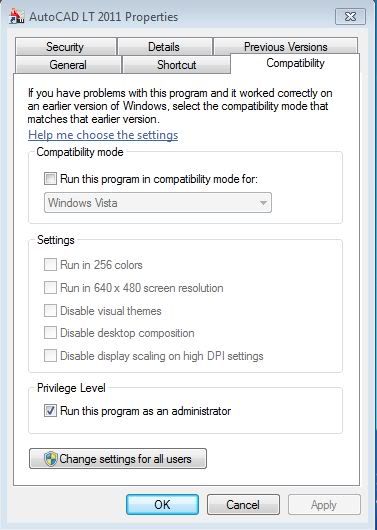


Unable to select those boxes, I proceeded to your next recommendations. Changing DPI scaling had no effect. Reverting to Win7 Basic does resolve the performance issues. However, there are many flaws with this "solution".


You state correctly that Aero is a drain on system resources. However, my system has plenty of resources to spare. I have interacted with users of AutoCAD 2011 Full version (another 8740w owner in fact) who did NOT have to neuter Windows 7. He did not experience any of my issues. So clearly my system is capable of running AutoCAD 2011 full version with no problems...so why is LT running so crappy with Aero enabled? One would assume the "lite" version of a program would be less demanding and actually perform its limited tasks more efficiently than the full version.


I refuse to accept running my system in Win7 Basic as the permanent solution. If I had an older system, I'd understand making the compromise. But clearly the problem is with AutoCAD LT, when AutoCAD Full can be run on a nearly identical system without need for such measures. The first thing AutoDesk must do is to unlock the Compatibility settings (again, I know that these options are not locked in the Full version). That would be an acceptable temporary solution. After this, AutoDesk needs to figure out which "off switches" they yanked to create LT that are causing problems with Window 7 x64 Professional....specifically Aero.

0 Likes
Message 31 of 48

DouglasLauritsen
Alumni
Alumni

Windows 7 Professional is a supported operating system for both 64-bit and 32-bit versions of AutoCAD LT. Somewhere in the long string of threads it looked like you said you were using Windows 7 Home Basic. I am, kind of, using a shotgun method to try and cover all bases and users as this is the forum and many users read the topics.


My properties dialogs for AutoCAD LT 2011 and AutoCAD 2011 are:

 2213i8A050516C9BE5A75


Not being a Windows support technician I am unsure why you have these options grayed out for AutoCAD LT 2011. There are ways of doing this in the Windows Registry; see the links from my Google and Bing research bellow. Normal cautions about editing the Registry and causing permanent performance degradation or other damage to your computer apply.


Run As Administrator can be chosen on the Shortcut tab by clicking the Advanced button.


This really does sound like a display adapter problem. What was the result of trying Diagnostic startup as described in the Video Card Configuration Troubleshooting Guide? You might have something installed that is causing the conflict, bad hardware or memory, or maybe a thousand other things. Diagnostic startup allows you to start Windows and eliminate drivers, services, background applications, foreground applications, system utilities, etc. If it works better or does not fail in Diagnostic startup something from one of these categories is causing a conflict. You may need to disable or uninstall the Nvidia or ATI desktop managers.


If your display adapter manufacturer allows it try using the troubleshooting feature of the Windows display system. Try with the hardware acceleration slider set to none and full. Go to your display adapter properties, choose the Troubleshoot tab, click the Change Settings button. If it is grayed out making changes is forbidden by display adapter manufacturer.


Also, does DxDiag report any problems?


Does .NET check out?


Douglas Lauritsen
Support Specialist
Product Support
Autodesk, Inc.

0 Likes
Message 32 of 48

LaneLizard
Participant
Participant

My options menu looks the same as Knight's but I'm using Civil 3D 2011 64 and Windoes 7 Professional.

Our Tech  was in earlier and believed it was Autocad that was controlling the availability of the options that are greyed out.

I opened Excel and the same radio buttons are available.

0 Likes
Message 33 of 48

LaneLizard
Participant
Participant

I did some surfing and discovered that the options I mentioned in my above post are greyed out in 64 bit applications.

Thanks Windows...


0 Likes
Message 34 of 48

Charles_Shade
Mentor
Mentor

Douglas, no shotguns needed here. Specific info for the specific question should suffice well. Most posters don't take the time to use Search anyway and will probably ask the same again in a new thread.


And it is easy to get threads and previous posts mixed up along the way.

And knight427 you did say your OS was Win 7 Basic on 7/31 at 2:33 AM (You may have meant that after turning off Aero and such that the interfaces was "basic").

0 Likes
Message 35 of 48

Anonymous
Not applicable

Douglas,


I did everything but the registry stuff. I went through the  Video Card Troubleshooting guide. Appending "/nohardware" to the Target had no effect. I then went through solution TS1054234 and ran msconfig as described. That smoothed out the performance, but it turns off Aero, which I already knew worked (by running in Win7 Basic Mode). I then tried the Troubleshooting tab in the display adapter, but it is locked. DxDiag reports no errors and .NET runs all avaiable tests successfully.


Based on lanelizard's feedback, it sounds as if Win7 is blocking those options for 64-bit applications in Win7Pro64. Are you running 64-bit or 32-bit?


Also, I clicked on your first link under Registry

http://www.sevenforums.com/tutorials/316-compatibility-mode.htm

Here is step 3:

3. Click on the Compatibility tab. (see screenshot below)
NOTE: If the Compatiblity options are grayed out, then it is a 64 bit program and cannot be changed.


This seams to suggest the problem is not the display adapter, but is instead an intentional "feature" of Windows. I saw in another of your links some RegEdit stuff for WinVista. I assume it would be similar for Win7, but I'm really not comfortable messing with that stuff. It is over my head and I don't want to risk the down time of messing something up.


So for now, I'm stuck running Win7 Basic Mode when I'm using AutoCAD. It seams that the only possible fix is to hope that AutoDesk is going to fix whatever problems are caused by Aero in a future update. Do you agree with my assessment?


I am also wondering if it is possible to run 32-bit AutoCAD in Win7x64. Win7 should treat it like any other 32-bit application and then presumably allow me access to the currently blocked compatibility options...no? I have the 32-bit disk in my case, but I want your opinion before uninstalling x64 and replacing it with x32. If I did this, would have to xfer the license like I did when I switched laptops? Are there any consequences of running 32-bit AutoCAD I should consider before trying it?


0 Likes
Message 36 of 48

DouglasLauritsen
Alumni
Alumni

Hi knight427,

My Windows is the 64-bit version of Windows 7 Enterprise. I can edit these settings and Product Support regularly makes recommendations to modify them for AutoCAD LT with successful results. Disabling Aero is also the solution for a lot of display problems with applications from many vendors. 32-bit AutoCAD cannot be installed on a 64-bit OS.


Douglas Lauritsen
Support Specialist
Product Support
Autodesk, Inc.

0 Likes
Message 37 of 48

Anonymous
Not applicable

Douglas,


It seems clear to me that Aero is causing the problem (though I admit that I am clearly not a computer expert). I currently have 1 way to work around that, but I don't think running my supported OS in its "Basic Theme" is acceptable as a permanent solution. As you know I am unable to adjust compatibility settings. Based on the very limited data presented here, I currently suspect that Win7Prox64 is doing something different than Win7Entx64. Do you have any further suggestions? Perhaps I should seek out other Win7Prox64 users running AutoCAD LT2011 (and maybe FULL 2011 too) and see if this is consistent.


It also sounds as if Autodesk has no intentions to directly address whatever problems are being caused by Aero, at least not for LT2011. Is this a correct assumption?

0 Likes
Message 38 of 48

Anonymous
Not applicable

One more data point. Another 8740w owner is running AutoCAD 2011 (full) in Win7 Ultimate x64 and he has access to the compatibility options.

0 Likes
Message 39 of 48

Anonymous
Not applicable

I am running a newer high end Dell machine and had the same problem.  It was so aggrivating that I was switching back to an old laptop running AcadLT08 to do my drafting.


Thanks Douglas.  Changes to the Acad property window you suggested worked.  I am running Windows 7 Pro.

0 Likes
Message 40 of 48

LaneLizard
Participant
Participant

Jimmotes,

Are you runniing the 64 bit version of autocad?

If so, were you able to access the check bokes shown above in the "Settings" section?

0 Likes
