Disabling the variable that when you accidently double click on an xref AutoCAD

Disabling the variable that when you accidently double click on an xref AutoCAD

MatTheDrafter
Advocate Advocate
2,975 Views
9 Replies
Message 1 of 10

Disabling the variable that when you accidently double click on an xref AutoCAD

MatTheDrafter
Advocate
Advocate

My company just converted from AutoCAD 2013 to AutoCAD 2016. It seems that a few of the CAD operators are seeing a pop-up messaged when they accidentally double click on a xref if they want to open it. They wish to disable that feature. Because we are using Merdian, a data management system, to store all our CAD files and if they accidentally select yes means that drawings may be signed out and unable to sign back in. Which if the drawings is not sign back in correctly all the changes they have done wouldn’t be saved.  


If anyone knows what variable control that or what option that has to be turned off to prevent that message from popping up that would be helpful.


Thank you.

0 Likes
Accepted solutions (1)
2,976 Views
9 Replies
Replies (9)
Message 2 of 10

rkmcswain
Mentor
Mentor
+ Go into the CUI
+ Find the location where Double-Click action is assigned to Xref. (It may not be your main CUI file)
+ Remove the command assigned to it.

Alternatively, you could disable double-click actions globally (DBLCLKEDIT), but of course this will prevent all double-click actions.
R.K. McSwain     | CADpanacea | on twitter
Message 3 of 10

MatTheDrafter
Advocate
Advocate

Where would I locate the CUI file?

0 Likes
Message 4 of 10

rkmcswain
Mentor
Mentor
Sorry, I should have been more specific.

Run the CUI command to edit your loaded CUI(x) files.
R.K. McSwain     | CADpanacea | on twitter
0 Likes
Message 5 of 10

MatTheDrafter
Advocate
Advocate

What would I be exactly looking for when editing the CUI? 


Would it just the double click editing?

0 Likes
Message 6 of 10

Anonymous
Not applicable

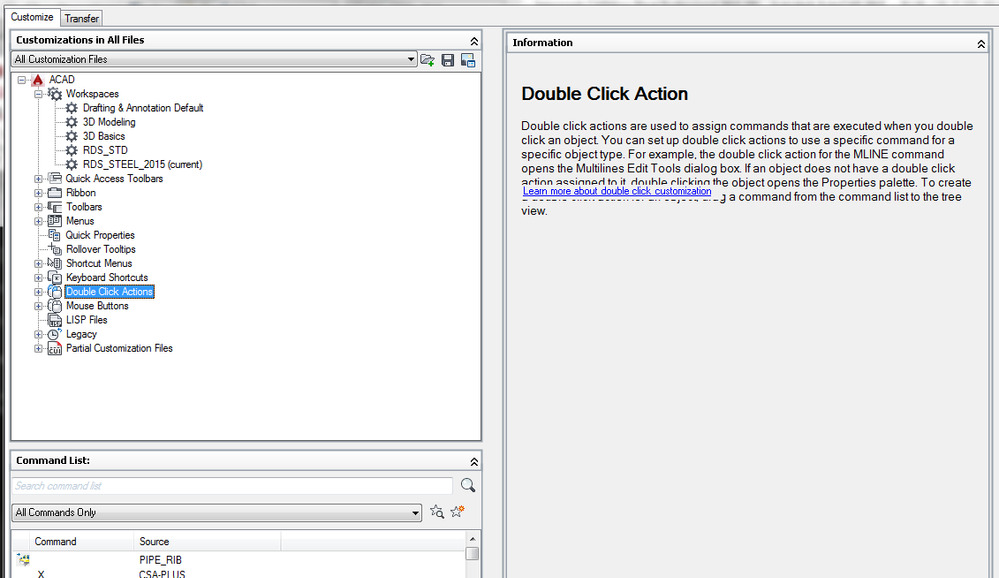
once you enter the CUI editing tool it'll look like:

db1.PNG


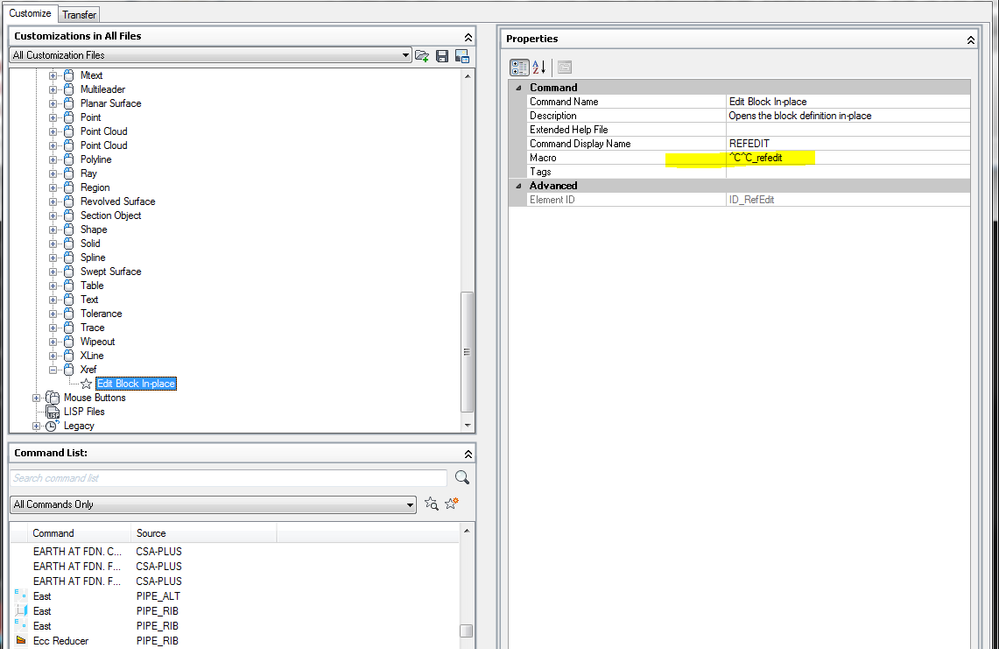
Click the little + (plus sign) to expand the list, navigate to the bottom of the list for XREF and select it:


db2.PNG


In the right hand pane next to macro you can replace the current macro with your choice of options like CLASSICXREF, so when dbl-clicking an XREF it opens CLASSICXREF dialog box, or runs a lisp function ... or anything you desire.

Depending on where the menu is stored in your environment changing yours may have no affect on anyone else in the organization.  If your corporation has a corporate CUIX located on a network that everyone uses it probably write-protected by an admin and he'll have to make that change.  But if you're like most folks the CUIX is local and you can monkey it up all you like.

Message 7 of 10

rkmcswain
Mentor
Mentor
Accepted solution
My only differing thought is:

...you can just highlight "Edit Block In-Place" and right-click and delete it. You don't need to edit the macro

If you want to place something there in the future, it's just a simple drag+drop from the bottom right pane.

R.K. McSwain     | CADpanacea | on twitter
Message 8 of 10

Anonymous
Not applicable

Very true Mr. McSwain, I had intended to say something like that but its been a loong day.

0 Likes
Message 9 of 10

rkmcswain
Mentor
Mentor

Long one for me too @Anonymous - I obviously should have said "lower left" pane... where the commands live... 

R.K. McSwain     | CADpanacea | on twitter
0 Likes
Message 10 of 10

MatTheDrafter
Advocate
Advocate

Thank you for your assistance. I haven't done much configuring with the CUI yet but I am slowly becoming the CAD Guru of the office because I sadly play with the software.


Thank you all for your assistance.