Symbol Table

Symbol Table

Anonymous
Not applicable
5,528 Views
12 Replies
Message 1 of 13

Symbol Table

Anonymous
Not applicable

I was asked by my company to start putting a symbol definition table on the first page of all of our drawings.


Is there an easy way to make a table that has the symbol itself in one column and definitions in the next column?

0 Likes
Accepted solutions (1)
5,529 Views
12 Replies
Replies (12)
Message 2 of 13

TRLitsey
Advisor
Advisor

Hi there,


Lots of ways to do that.  The attached PDF is what I use on a lot of projects.  One note, if you set yours up like this make one huge block of all the symbols so ACE does not look at the nested symbols when you do project wide updates to your schematic.


Good luck

Please mark as a solution if this works for you, kudos are always welcome
Message 3 of 13

Anonymous
Not applicable

This looks great. Just a couple follow up questions though.


Did you just bring in all of the symbols and text into a drawing like you normally would then edit them?

Did you turn all of this into a big block or a symbol?

0 Likes
Message 4 of 13

TRLitsey
Advisor
Advisor

Hi again,


It is a normal drawing sheet in the schematic sheet set.  Insert symbols from symbol library.  Edit the symbol with details you want.  Mtext to add the verbage definitions.  Once the symbols have been inserted and commented use plain AutoCAD block builder tool, select everything except the title block itself and make the a block called Symbols or something like that.  You don't want that to be a Symbol, you want ACE to ignore it.  Other ways to do that but this is just my work flow.  Nice thing is once that is created it can be copy/paste to future project.


Good luck


Please mark as a solution if this works for you, kudos are always welcome
Message 5 of 13

TRLitsey
Advisor
Advisor

Sorry if my use of the term Symbol got confusing.  You want the big block to be a plain AutoCAD block, does not matter what you name it.  Just tuck all those ACE symbols into a nested block.


Good

Please mark as a solution if this works for you, kudos are always welcome
Message 6 of 13

Anonymous
Not applicable

No worries, I am very thankful for the help and advice.

I am a bit confused though. I have copied items as a block with Ctrl+Shift+C then pasted them as a block with Ctrl+Shift+V. Is this what you mean by AutoCAD block builder tool?

0 Likes
Message 7 of 13

jseefdrumr
Mentor
Mentor

I have several standard drawings that go into every project. I attached an example of the one I use to show symbology.


As TRLitsey said, there's lots of ways to do this. I thought I'd post my example because it shows a different way to do this.


For my symbols, I placed them all like normal. I left out all of the symbol information, even the tag. Once I had them all in place, I then used the command Special Explode to remove their ACADE functionality. This does the same thing as blocking the whole drawing, as TRLitsey did: it prevents these symbols from being identified as valid components of your project.


After that, it's just a matter of adding text and notes until you have the basic info. Theoretically, this is a drawing you should only have to do once.


Hope this helps,


Jim


Jim Seefeldt
Electrical Engineering Technician


Message 8 of 13

TRLitsey
Advisor
Advisor
Accepted solution

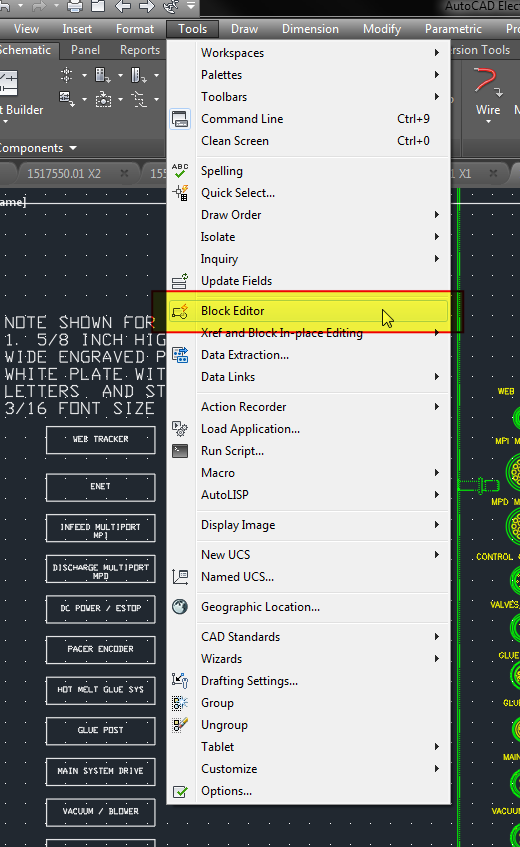
You can type block on the command line to start the tool.  After you have created the block you can use the Block Editor tool to edit the block.  If you do not see the Tools tab, type menubar and the command line and set the value = 1.


Good luck


Screenshot - 12_14_2017 , 8_19_41 AM.png 


Screenshot - 12_14_2017 , 8_16_36 AM.png

Please mark as a solution if this works for you, kudos are always welcome
Message 9 of 13

Anonymous
Not applicable

Awesome, thank you for the help

0 Likes
Message 10 of 13

jseefdrumr
Mentor
Mentor
TRLitsey was referring to the Vanilla ACAD process of creating a block. Simply type WBLOCK in the command line and make it a normal block.

The Symbol Builder is really just a tool that helps you get the proper attributes into a symbol. You're not creating a symbol. For what you're doing, you don't want ANY attributes...those are used by ACADE's automated functions and identify things as symbols.

If you are pasting things as blocks, you may run into issues with too many nested blocks. Over-nesting can cause drawings to behave badly because you are making the software's internal database (not to be confused with the ACADE Scratch Database), sort through multiple levels (nests) of information when it runs commands. Normally this is only a concern for when you're using Vanilla ACAD, but I would consider it a genreal 'best practice' for cad. If it were me, regardless of whether you make a big block at the end of it all, I would explode all of the symbol blocks first. Do this using Special Explode. After that, block them all together if you wish. But if you can avoid nested blocks, you probably should.

Jim


Jim Seefeldt
Electrical Engineering Technician


0 Likes
Message 11 of 13

Anonymous
Not applicable

This is very informative thanks you.


You are the second person that mentioned Special Explode. Is that the actual command?

I tried typing it in as such but got nothing. I did however find the command AEEXPLODE

0 Likes
Message 12 of 13

jseefdrumr
Mentor
Mentor

They're the same command. AEEXPLODE is the command line entry. You can find Special Explode at Conversion Tools>Tools>Special Explode.

This command is actually very different from the Vanilla explode. The Vanilla version reduces a block to the original geometry and the attribute definitions - basically, all the stuff that you would see if you went and opened that block file as a drawing.

AEEXPLODE, in comparison, maintains the data that exists in the attributes. Or, another way to think of it is, this command will maintain the visual appearance of the block. Any attributes that are empty or hidden are deleted. Any attributes that hold data are exploded into normal text (rather than attribute definitions).

Jim


Jim Seefeldt
Electrical Engineering Technician


Message 13 of 13

TRLitsey
Advisor
Advisor

and if you have installed the Express tools ...


Screenshot - 12_14_2017 , 10_18_25 AM.png

Please mark as a solution if this works for you, kudos are always welcome