AutoCAD 2015 - Grid and Snap Mode

AutoCAD 2015 - Grid and Snap Mode

Anonymous
Not applicable
17,488 Views
14 Replies
Message 1 of 15

AutoCAD 2015 - Grid and Snap Mode

Anonymous
Not applicable

Hi,


I recently installed AutoCAD LT 2015 and I am missing Grid and Snap mode on Status Bar. I tried restoring it from drafting settings but it failed. I am only getting dotted grid ( where as I am looking for lined grid [ major and minor] by pressing F7. I tried going through some online tutorials as well but apprently nothing was helping much. Any tip or help would be appreciated.


Please refer to the attached image for reference.

0 Likes
Accepted solutions (2)
17,489 Views
14 Replies
Replies (14)
Message 2 of 15

Icemanau
Mentor
Mentor

Try left or right clicking on the far right icon (Three horizontal bars).

This may bring up the settings for the bottom row of icons.


If it does not show a list of the Status Toggles which includes Snap & Grid, look for a flyout menu titled Status Toggles.


Once you find them, place a check mark in front of Sanp and Grid.

This should bring them up in the display.


Then all you need to do is change the settings in grid until you get the display you wish.


Regards Brad

>

Brad Coleman, Electrical Draftsman
Did you find this post helpful? Feel free to Like this post.
Did your question get successfully answered? Then click on the ACCEPT SOLUTION button.

EESignature

0 Likes
Message 3 of 15

Anonymous
Not applicable

Thanks Brad for your reply.


Apprently non of the solution is working out for me.


I tried left or right clicking on the far right icon (Three horizontal bars) and there is no settings for Snap & Grid. Refer the attached image 1.

I also tried looking for menu titled " Status Toggles " but I couldn't find it anywhere. All I found was draft setting menu in which Snap and Grid are already check marked. Refer the attached image 2. 


I would really appreciate your help on this.


regards,


ppatel

0 Likes
Message 4 of 15

Icemanau
Mentor
Mentor

Ok. I will check when I get home on my ACADE 2015 and find out how to bring up the status icons for snap and grid.


However, the drafting setting in your Image 2 has what you need to get lines as the grid instead of dots.


Image 2.jpg


Remove the checkmark from the first item I circled and set you spacing in the second group of circled items.

This will give you the lines your mentioned in the first post.


Regards Brad

>

Brad Coleman, Electrical Draftsman
Did you find this post helpful? Feel free to Like this post.
Did your question get successfully answered? Then click on the ACCEPT SOLUTION button.

EESignature

0 Likes
Message 5 of 15

Anonymous
Not applicable

Brad,


By removing the first iteam circled and by setting up the spacing in the second iteam circled , did not give me the lines . Also the dotted grids are disappeared now.


ppatel

0 Likes
Message 6 of 15

jalger
Collaborator
Collaborator

I got Backlash for this once already today but here it goes...


Try changing to "ACADE & 2D Drafting and Annonations" with the ribbon.  (temporarily, to see if the issue is the custom workspace)

I see from the Screenshot you are using Classic toolbars (probably imported the Classic mode).

If it was not migrated properly it will be missing some commands.


Let me know after switching it over of the commands come back.

You can also Try Opening the "Vanilla" profile to see if the options are there.


Let me know,


James

James Alger
(I'm on several hundred posts as "algerj")

Work:
Dell Precision 5530 (Xeon E 2176M)
1tb SSD, 64GB RAM
Nvidia Quadro P2000, Win10
0 Likes
Message 7 of 15

Anonymous
Not applicable

Hello James,


The tip that you have provided didn't work. 


ppatel

0 Likes
Message 8 of 15

jalger
Collaborator
Collaborator

Hi Ppatel,


That's ok it tells me its not limited to one workspace (so not an import issue).


I can check if its the drawing, Post a copy of your template file (or an empty dwg) with the issue.


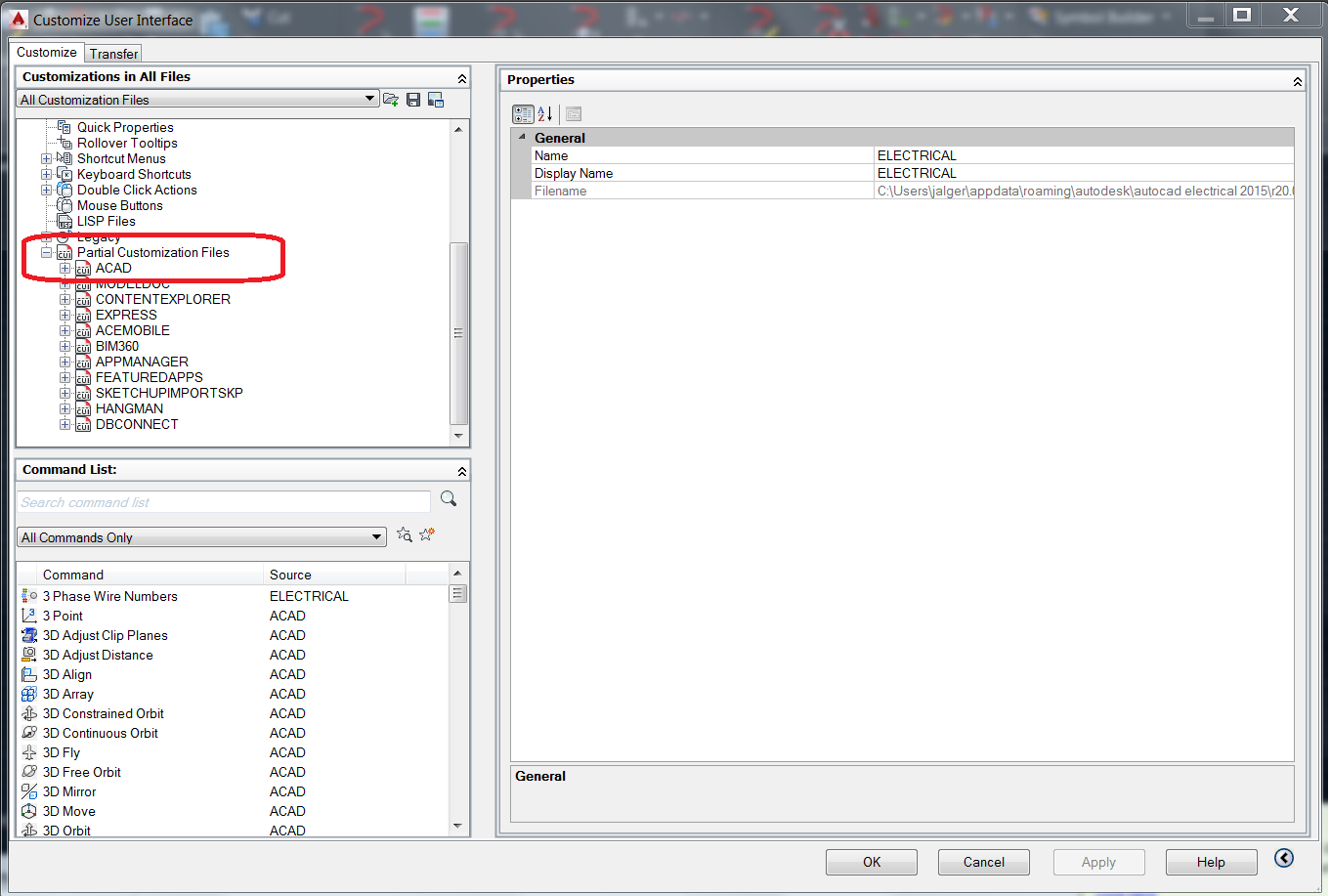
You can also Check to see if you have ACAD in the Partial file section in the CUI.

ACAD_Partial_Customization file.png


If you can, try opening different templates to see if it makes a difference. (ACAD.dwt, ACAD_Electricial.dwt, ACAD_Electrical_IEC.dwt, etc)

(It probably won't but I want to see if the change was somehow saved to your template, or if the template is affecting your drawing settings)


If its not showing up in any of these situatations (and Switching your Profile Didn't work) then the Install may be corrupt.

But lets check the file template first to make sure its nott he issue.


Regards,


James

James Alger
(I'm on several hundred posts as "algerj")

Work:
Dell Precision 5530 (Xeon E 2176M)
1tb SSD, 64GB RAM
Nvidia Quadro P2000, Win10
0 Likes
Message 9 of 15

Anonymous
Not applicable

Hi James,


I do not have ACAD in the Partial file section in the CUI.

I also tried different templates but the result was the same.


Regards,

PPatel

0 Likes
Message 10 of 15

jalger
Collaborator
Collaborator

Hi ppatel,


Somehow I missed that this was for AutoCAD LT... (It was posted in the Electrical forum...)

Ok to change from Dots to lines you must change your Shademode to Hidden. (LT is the only AutoCAD that Requires this for the Grid to display).


If you go to the View tab change the Visual Style to "Hidden".

Or Type in "Shademode" then H for hidden.


I hope this helps,


James

James Alger
(I'm on several hundred posts as "algerj")

Work:
Dell Precision 5530 (Xeon E 2176M)
1tb SSD, 64GB RAM
Nvidia Quadro P2000, Win10
0 Likes
Message 11 of 15

Anonymous
Not applicable

Hello James,


The last suggetion didn't work either.


When I try to change the visual style from the view tab, I am getting " Image 1 " message.

and when I tried it doing from command window, its giving me " Image 2 " message. However, I was able to get lines in Model Space according to the message.


Regards,


PPatel

0 Likes
Message 12 of 15

jalger
Collaborator
Collaborator
Accepted solution

Hi ppatel,


Well you can get grid lines in a viewport, But not in paperspace by itself. So the second error message makes sense to me.

The first error message however is interesting... How much RAM do you have installed?


The System spec for LT can be found here:

http://knowledge.autodesk.com/support/autocad-lt/troubleshooting/caas/sfdcarticles/sfdcarticles/Syst...


If you have the required amount (2Gb... I would be surprised if you didn't have at least 4gb)

Try cleaning out the %TEMP% location, you can clean it out one of two ways throught the windows Diskspace cleanup (buried in the control panel), or type in %temp% in windows explorer and wipeout everytthing in there (its supposed to clean itself out once it gets to big). If you are installing something, or have a log pushed out to the Temp folder you should back them up,(or Stop the install) otherwise everything is temp data that can be purged.


Other than that I'm not sure what you would need to do.


Regards,


James


James Alger
(I'm on several hundred posts as "algerj")

Work:
Dell Precision 5530 (Xeon E 2176M)
1tb SSD, 64GB RAM
Nvidia Quadro P2000, Win10
Message 13 of 15

Anonymous
Not applicable
Accepted solution

Jame,


I am using 8GB RAM.  I appreciate your help.


Regards,


PPatel

0 Likes
Message 14 of 15

Anonymous
Not applicable
Hey. I was having the same issues and finally figured out that it is because the grid dots options were selected in my Snap Settings. So the solution for me was to go to Snap Settings, and deselect all 3 "Display dotted grid in:" "2D Model Space", "Block Editor", and "Sheet/Layout" I highlighted the options in the attached photo. Hope that helps! -Ben
0 Likes
Message 15 of 15

Anonymous
Not applicable

I know this is an old post, but all you had to do was go onto the layout and type in “grid” and you set the spacing, to be followed by typing “snap” to set the snap mode spacing. Sometimes the simplest answer is the least obvious…

0 Likes