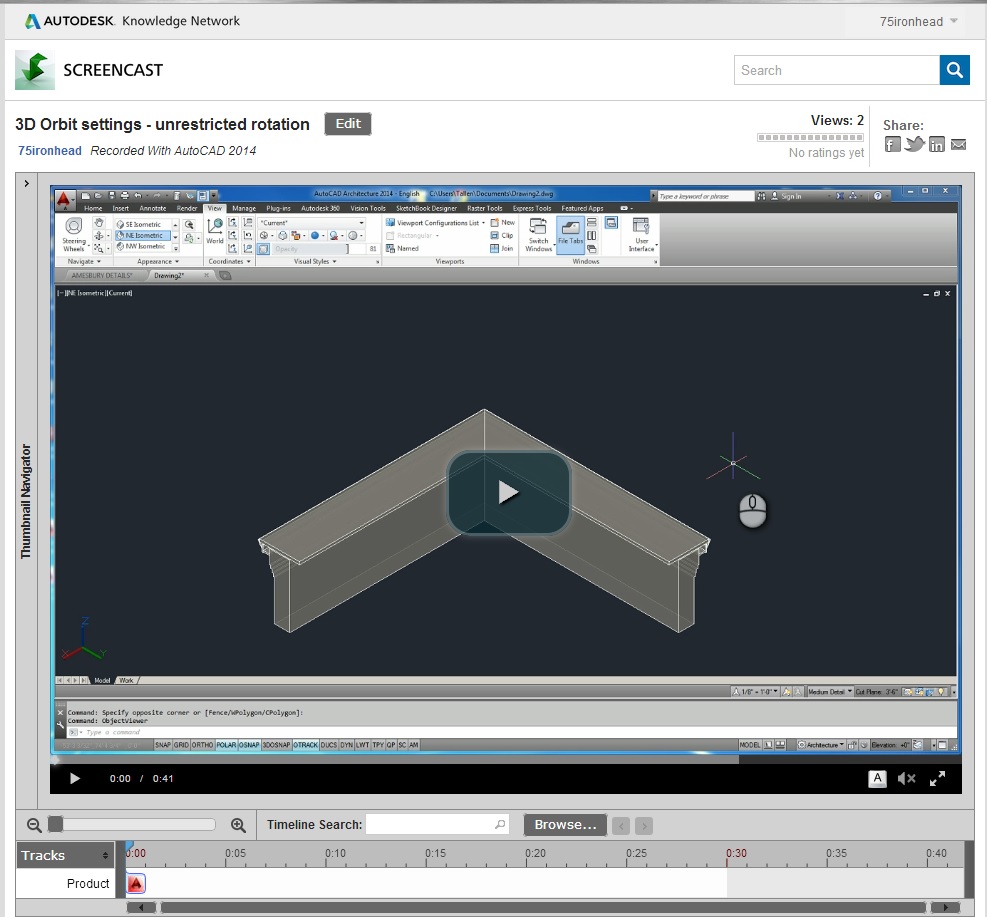
I see what you are looking for now. I believe that the 3DORBIT command is intentionally limited that way (any one orbit is constrained to a horizontal or vertical plane) to prevent an architectural model (or any other type of model that has a defined "ground" plane) from getting too far out of "whack" (pardon the technical term) when orbiting.
The Free Orbit tool (3DFORBIT command) allows for full orbiting, but you have to pay attention to where your cursor is at the start of the orbit, as different locations have differet effects. This version shows an "arcball" (that is what the Help calls it), which is a green circle that fills a good part of the screen, with its center at the center of the drawing canvas and which is adorned with smaller green circles at the quadrant points. The cursor icon changes, based on where you are relative to the arcball. If you are inside the arcball, you get the free orbit icon and dragging inside the arcball allows for free orbiting. Outside the arcball, the cursor changes to a roll icon, and dragging outside the arcball limits the orbit to a "roll," or a rotation about an axis at the screen center, perpedicular to the screen. If you position the cursor in the small circles at the left or right quadrant points of the arcball, the cursor changes to the vertical rotation icon, and the orbit will be limited to a rotation about a vertical axis passing through the center of the arcball. Finally, positioning the cursor in the small circles at the top or bottom quadrant points changes the cursor to the horizontal rotation icon, and the orbit will be limited to a rotation about a horizontal axis passing through the center of the arcball. There is also a right click context menu while in the command, presenting various options related to the view.
You may find the Orbit available from the Full Navigation Wheel comes closest to the Object Viewer experience. No arcball here, but you do get a graphical indication of the pivot point, which you can reposition to a point on your model (must be on an object, not just somewhere in space). While orbiting, you are in full free orbit at all times, and if your desk is big enough, you can keep moving the mouse in one direction and the orbit will keep going - no stopping when the cursor gets to the edge of the drawing canvas - it just hops to the opposite side of the screen and keeps going.
Here is a Screencast showing these two options in action.
David Koch
AutoCAD Architecture and Revit User
Blog | LinkedIn