Cant see edges when i select an object 3ds max 2013

Cant see edges when i select an object 3ds max 2013

Anonymous
Not applicable
49,187 Views
12 Replies
Message 1 of 13

Cant see edges when i select an object 3ds max 2013

Anonymous
Not applicable

I know about F3 and F4, but usually when i used maya and 3ds max 2014, i could see edges when i select an object....now i cant. When i go into edge mode, i cant even see edges at all unless i blindly select them. This image i show has a box of 2 segments and i selected the middle edges....can only see what i selected in red.


Any help?

Accepted solutions (4)
49,188 Views
12 Replies
Replies (12)
Message 2 of 13

Steve_Curley
Mentor
Mentor
Accepted solution
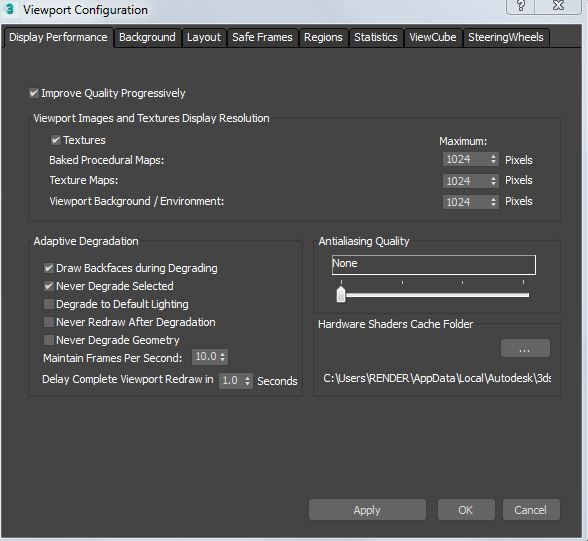
Viewport Configuration Dialog (click the "+" viewport label then Configure Viewports) > Visual Style and Appearance (tab) > Display Selected with Edged Faces.

Max 2016 (SP1/EXT1)
Win7Pro x64 (SP1). i5-3570K @ 4.4GHz, 8Gb Ram, DX11.
nVidia GTX760 (2GB) (Driver 430.86).

Message 3 of 13

Anonymous
Not applicable

O M G! thank you soooo much! ive been trying to find this online for 5+ hours and noone had the answer! U are the best thanks!

0 Likes
Message 4 of 13

Anonymous
Not applicable
thank you too!
0 Likes
Message 5 of 13

Anonymous
Not applicable
I agree with all the thank yous!
0 Likes
Message 6 of 13

Anonymous
Not applicable

I can't find it in Max 2017

1.JPG

help please 🙂 

Thanks!!!


Message 7 of 13

Anonymous
Not applicable

I'm currently having the exact same problem. So frustrating! Did you figure out where this was in the 2017 version? 

0 Likes
Message 8 of 13

Anonymous
Not applicable
Accepted solution

I also encountered this issue in 3DS Max 2017. Couldn't find the option in the preferences, but it seems to help if you select the following from within the viewport (see image in attachment) in the shading options (not on the [+] but the rightmost option [Default Shading] in my case)


Display Selected ==> Display Selected With Edged Faces


That's actually the same setting that was mentioned in the first solution, I guess they just changed the location in the menus.
 

Hope this helps! Bruno

Message 9 of 13

prashantmakwana16
Explorer
Explorer

Yes it is "Display selected with edged faces"

For 3DS MAX 2017 now it is under Pre-View Preference, (3rd option right to the plus sign)


Pre-View Preference.png

Message 10 of 13

Diffus3d
Advisor
Advisor
Accepted solution

I don't mean to necro a dead thread but this came up for me today and the posted fix didn't solve it for me.  I was doing some work with soft selection and then I attached it to a part that didn't have soft selection enabled.  Then my edges didn't show the selection in red.  To fix the problem for me, I just had to check soft select on and then off and the problem resolved.  Marking this as another solution.  


Best Regards,

0 Likes
Message 11 of 13

Anonymous
Not applicable
Accepted solution

I have a 2019 3dmax version I solved this problem by going to views menu in the top of 3d max window:

Views > show materials in view port as > override with fast shader. 


0 Likes
Message 12 of 13

lauracatalinaperezrodriguez
Community Visitor
Community Visitor

THANK YOU SO MUCH!!!!!

0 Likes
Message 13 of 13

Diffus3d
Advisor
Advisor

Looks like there are a couple things in here that worked for people but aren't marked as solutions, I'm going to mark the latest 2 so folks like Laura have an easier time in the future.


Best Regards,

0 Likes