Automatically assign unique diffuse colors to scene materials

Automatically assign unique diffuse colors to scene materials

Anonymous
Not applicable
7,587 Views
19 Replies
Message 1 of 20

Automatically assign unique diffuse colors to scene materials

Anonymous
Not applicable

Hi! Does anybody know the way to assign automatically unique diffuse colours to scene materials, maybe some script? I've downloaded some obj model which has a lot of scene materials applied (more than 60) and each of them has the same diffuse color so I see the model in the viewport with the same color and don't know what material applied to polygon or object. Manually picking material from each object and changing its color is a too long operation. So I just need to do some manipulations with applying new unique materials or mixing existing and then export it as vray proxy to another software, where I will deeply work with vray materials properties.

0 Likes
Accepted solutions (1)
7,588 Views
19 Replies
Replies (19)
Message 2 of 20

10DSpace
Advisor
Advisor

@Anonymous 


Yes, I wrote the attached script that does exactly what you are asking (primarily to quickly generate color ID maps for use in Substance Painter).  The script creates a new multi/sub-object material based on the number of material ids in the selected object and then randomly generates colors for each ID and assigns the material to the selected object.  It is written for a single object selection which is the case you have described.  For more details open the script and read the comments in the beginning.   Please let me know if you find it useful.  


0 Likes
Message 3 of 20

Anonymous
Not applicable

Thanks for the reply. But there are 3389 separate objects in the model that's why making it with every single object will take even more time)

0 Likes
Message 4 of 20

Richard.Vivanco
Advisor
Advisor

Try with this, press F11 and copy:

for i in geometry do i.material = StandardMaterial name:("MAT_" + i.name)


Richard Vivanco V.
Arq. BIM Manager + Autodesk Certified Instructor
Youtube | LinkedIn

autodesk 3DS pro

EESignature

0 Likes
Message 5 of 20

10DSpace
Advisor
Advisor

@Richard.Vivanco 


The line of script you provided will just assign a separate standard material to each of the 3389 separate objects in the scene without making the colors different.   If I understand the OP's response to my original post, they do not want to change material assignments on the objects but rather to change the color of each of the 60 materials currently assigned to make them unique.   


@Anonymous 


Thank you for the clarification.  As I understand it, the 60 existing materials in the scene are assigned to 3389 separate objects and you only want to change the color of each of the current 60 scene materials to be a different color.  You do not want to reassign any new materials to any of the objects, right?  The following line of script will generate a random color for each of the 60 materials that are currently assigned.  Just select all of the 3389 objects and run the script.


for o in selection do(
o.material.diffuse = random (color 0 0 0) (color 255 255 255)
)


 Since some of the color differences randomly generated may be subtle, you can run the script a few times to get a variety that works for you.  The above will work for standard materials and vray materials.  I wasn't sure from your post, whether all of the 60 materials are currently vray materials or whether they are standard materials now (or some other material type) but that you eventually plan to convert them to vray materials for further work.  In any case, this particular line works for either standard or vray materials.

0 Likes
Message 6 of 20

10DSpace
Advisor
Advisor

@Anonymous 


And if you don't mind applying a random color to all materials in the scene (you didn't say whether there were other materials in the scene beyond the 60 materials applied to the 3389 objects that you do not want to change the color of) the following line of script will run quicker since it directly changes all scene materials and does not iterate through all 3389 objects to derive the materials applied to them.    


for mat in sceneMaterials do (
mat.diffuse = random (color 0 0 0) (color 255 255 255)
)


0 Likes
Message 7 of 20

Anonymous
Not applicable

@10DSpace wrote:

@Richard.Vivanco 

As I understand it, the 60 existing materials in the scene are assigned to 3389 separate objects and you only want to change the color of each of the current 60 scene materials to be a different color.  You do not want to reassign any new materials to any of the objects, right? 


 Yes, you understood me right, thanks) I've just checked your script line and somehow it doesn't work. Look at my simple test scene with a cube where 6 different standard materials applied to each of the face and with the same diffuse colour. (unfortunately, I'm not allowed to demonstrate here the model I'm working with).


Screenshot_39.jpg


0 Likes
Message 8 of 20

10DSpace
Advisor
Advisor

@Anonymous 


The script assumes that the objects already have an assigned material.  That is the use case you described. You cannot jut run it on boxes without an assigned material.  Try assigning a standard material to all of the boxes and it will work.  I have used this countless times so I know it works. 

0 Likes
Message 9 of 20

Anonymous
Not applicable

Yes, I see it. And in my this test scene the materials as I said has been applied.

0 Likes
Message 10 of 20

10DSpace
Advisor
Advisor

@Anonymous 


Each of the boxes has to have a separate material applied.  This is what it should look like when you run the script on any objects where each object has a separate material applied to it. 

Multicolor_Random.png

0 Likes
Message 11 of 20

Anonymous
Not applicable

I understand that it works in your case but I'm trying to figure out what is wrong in my case. Could you, please, inspect this test scene I've attached? Because each of the cube's face has been attached, they've got separate materials and I don't see where I'm wrong. Of course, the same problem is in my general file where are 3389 objects.

The scene can be downloaded by the link https://dropmefiles.com/Yb4AK


0 Likes
Message 12 of 20

10DSpace
Advisor
Advisor

@Anonymous 


You did not have a unique material assigned to each object.  You had multiple instances of materials applied across all the objects. (To be honest, I am not sure how you would have done this.)   As soon as I manually assigned a different material to each object the script worked as expected. (see below your scene with a unique material applied to each object).  You should be able to easily reproduce this on your end by 1 at a time, selecting an object and then in the material editor, selecting a standard material and clicking the "assign material to selection" button.  Make sure that after each object is selected, you select a different standard material in the material editor and then apply it to the next object.   6 unique objects and 6 unique materials.   


Multicolor Random_2.png


0 Likes
Message 13 of 20

10DSpace
Advisor
Advisor

@Anonymous 


Now I see what the issue was with your test scene.  You must have assigned a multi/sub-object material and then split the faces into separate objects without changing the material assignments.    Ironically, the first script I had sent in an attachment to my first post was written for a single object with a multi-subobject material applied to it.     But the current line of script grew out of my understanding that you have 60 separate materials which I interpreted to be single materials and not multi-subobject materials.   So the current line of script works on individual standard materials but not multi/Sub-object materials. 


0 Likes
Message 14 of 20

Anonymous
Not applicable

So what does it means? In my case, it is not possible to do such a simple operation?

0 Likes
Message 15 of 20

10DSpace
Advisor
Advisor

@Anonymous 


To put it simply, the script works with standard materials but not multi/sub-object materials.   Were you able to assign a unique standard material to each of the 6 objects in your test scene and confirm the correct operation of the script? 


Since I do not know your level of knowledge in max, I have to ask, do you know the difference between a multi/subobject material and a standard material?  

0 Likes
Message 16 of 20

Anonymous
Not applicable

My knowledge of 3ds max is low. But even though I understand the difference between standard and multi/subobject materials. And in my test scene there are no any multi-materials applied only standard.

0 Likes
Message 17 of 20

Anonymous
Not applicable

May I ask you for a private session? I'll show you my scene and you as an advanced user could say your meaning. Thanks)

0 Likes
Message 18 of 20

10DSpace
Advisor
Advisor

@Anonymous 


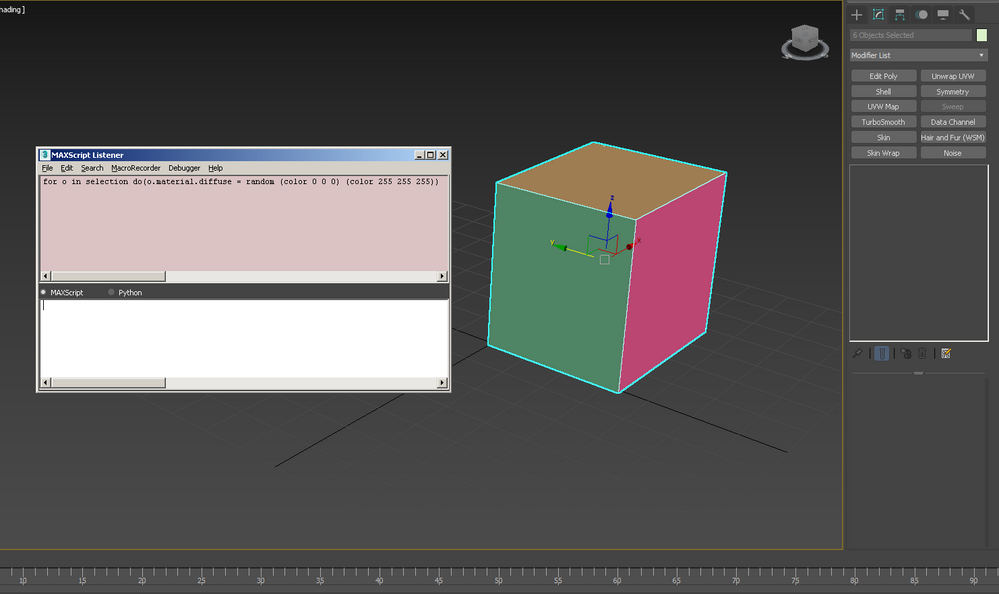
  1. Did you remember to select all of the objects in your scene first and then run the script?  The script requires that the objects with a unique standard material applied to each one are selected first.  


  1. If you are running the script from the Maxscript Listener window, the script must be all on the same line as follows:  

for o in selection do(o.material.diffuse = random (color 0 0 0) (color 255 255 255))


Explanation: The Maxscript  Listener window can only run a single line of maxscript.  When I originally posted the script, I posted it as multiple lines, and I am sorry if this is confusing you.  But this particular script can be put on a single line as above to be run from listener window.   To broaden your understanding, you should be aware in the future that not every script can be on a single line.  Most have multiple commands and they cannot be run from the maxscript listener.  For these more complex scripts there are other easy methods of running them.  For example, in the Maxscript Editor window (available via Scripting>Maxscript Editor) you can copy and paste the multi-line version of the script and then in then select Tools Menu > Evaluate All to run the multi-line script. 


Multicolor Random_3.png


Another very simple way to run a script is to highlight all of the lines of the script in the Editor window or a single line in the Maxscript listener window and then drag the selected text to a toolbar.  Max will automatically generate a button that you can customize. When you click that button the script will run.  


Message 19 of 20

Anonymous
Not applicable

I figure out with this and it works. But I also understood that there are Multi/Sub-Object Materials and is that possible to do the same with them but with some another script?

0 Likes
Message 20 of 20

10DSpace
Advisor
Advisor
Accepted solution

@Anonymous 


I am glad you were able to get this to work.   


But I also understood that there are Multi/Sub-Object Materials and is that possible to do the same with them but with some another script?


Yes, the attached script will work with both standard materials and multi/sub-object materials.  But please note  the  following:


1. the sub-materials of the multi/subobject material must also be a standard material or a vray material for the script to change the color of it.   If this is confusing to you, just think of the Mult/subobject material as a container that holds a separate material in each of it's numbered slots.   So I rewrote the attached script to look into each of the slots and change that sub-material's color.  

2.  Run this script from the Maxscript Editor Window as explained in my post above.   It is a multi-line script and cannot be run from the Maxscript Listener.    You can also select all of the script text in the maxscript Editor  window and drag the script to a toolbar if you find it convenient. 


Unzip the script and then open it in the Maxscript Editor and run it as explained after first selecting the objects whose color you want to change.   Hopefully, this works for you more easily now that you have a better understanding.