AutoCAD Map 3D
- Subscribe to RSS Feed
- Mark Topic as New
- Mark Topic as Read
- Float this Topic to the Top
- Bookmark
- Subscribe
- Printer Friendly Page
Re: Bring csv file (with additional attributes ) into Map
- Mark as New
- Bookmark
- Subscribe
- Subscribe to RSS Feed
- Highlight
- Email to a Friend
- Report Inappropriate Content
I have tried this and the additional attributes are visible in C3D but the SDF export seems to ignore them. The lines below show the data I am tryingto work with - there are more fields in the full dataset but these are the main ones of interest at the moment
| |||||||||||||||||||||||||||||||||||||||||
(No connection with Autodesk other than using the products in the real world)

IDSP Premium 2014 (mainly Civil 3D 2014 but also 3ds Max Design)
Win 7 Pro x64, 256Gb SSD, 300Gb 15,000 rpm HDD
16Gb Ram Intel Xeon CPU E5-1607 0 @ 3.00GHz (4 CPUs), ~3.0GHz
NVIDIA Quadro 4000, Dual 27" Monitor, Dell T3600
Re: Bring csv file (with additional attributes ) into Map
- Mark as New
- Bookmark
- Subscribe
- Subscribe to RSS Feed
- Highlight
- Email to a Friend
- Report Inappropriate Content
neilyj wrote:I have tried this and the additional attributes are visible in C3D but the SDF export seems to ignore them. The lines below show the data I am tryingto work with - there are more fields in the full dataset but these are the main ones of interest at the moment
#Pt E N Name Description Region 1 278200 647200 Canderigg Lochhead/Broomfield Sth. Lanarks 2 279100 648700 Woodside Colliery Sth. Lanarks 3 297900 689000 Bogside Mine West Fife 4 347300 709200 Highham Farm Radernie East Fife 5 280000 645700 East Draffan Sth. Lanarks
I'll tinker with it later today, got some boats engines to get running first. ![]()
Supportting the troops daily.
Re: Bring csv file (with additional attributes ) into Map
- Mark as New
- Bookmark
- Subscribe
- Subscribe to RSS Feed
- Highlight
- Email to a Friend
- Report Inappropriate Content
Neily,
I was able to connect to your data via FDO ODBC to Excel.
I've got the current 64-bit Access ODBC driver and 32-bit Office 2007.
From Excel - highlight all of your data & set up a "named range"
From the ODBC data sources in Control Panel, Create a DSN to the Excel workbook.
From Data Connect in Map/C3D, select the DSN from a FDO to ODBC.
You should see the named range & X/Y/Z columns - select your easting & northing & points should come into the workspace.
Update if you need more help... I didn't have to modify anything you posted regarding characters...
Best of Luck!
C3D 2011
Intel Xeon E5630@2.53Ghz
NVIDA Quadro NVS420 Dual Monitor
12GB Ram / Win7 Professional 64bit SP1
Re: Bring csv file (with additional attributes ) into Map
- Mark as New
- Bookmark
- Subscribe
- Subscribe to RSS Feed
- Highlight
- Email to a Friend
- Report Inappropriate Content
(No connection with Autodesk other than using the products in the real world)

IDSP Premium 2014 (mainly Civil 3D 2014 but also 3ds Max Design)
Win 7 Pro x64, 256Gb SSD, 300Gb 15,000 rpm HDD
16Gb Ram Intel Xeon CPU E5-1607 0 @ 3.00GHz (4 CPUs), ~3.0GHz
NVIDIA Quadro 4000, Dual 27" Monitor, Dell T3600
Re: Bring csv file (with additional attributes ) into Map
- Mark as New
- Bookmark
- Subscribe
- Subscribe to RSS Feed
- Highlight
- Email to a Friend
- Report Inappropriate Content
You are correct. However, when I uninstalled Office I was prepared with backing up all of my email/info to a .pst and thought I'd have to reload all of my messages/notes/calendar from it. Turned out not to be the case - everything was "as-is" prior to the installation. Dunno if this is because we're on a MS Exchange server, or if some of the settings are retained in the registry (or elsewhere) even with the uninstall (maybe uninstall not complete/clean???) Won't promise it would be the same for you, but was less painful that monkeying around with a VM..... the only other alternative I could think of for you.
C3D 2011
Intel Xeon E5630@2.53Ghz
NVIDA Quadro NVS420 Dual Monitor
12GB Ram / Win7 Professional 64bit SP1
Re: Bring csv file (with additional attributes ) into Map
- Mark as New
- Bookmark
- Subscribe
- Subscribe to RSS Feed
- Highlight
- Email to a Friend
- Report Inappropriate Content
1. Get your pure data
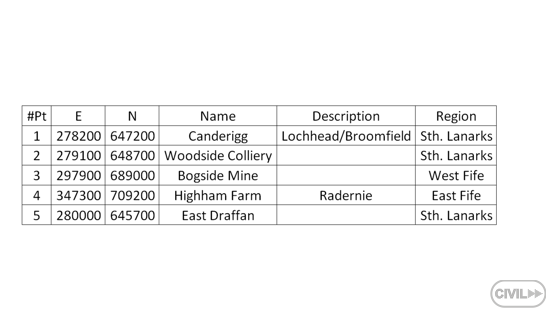
2. Insert the data to your favorite spreadsheet (in this description I use Microsoft Excel)
3. Save your pure data to the CSV file called CSV (Comma delimited) but notice that you get a semicolon separator ( ; )
4. Create a new Point File Format in Autodesk Civil 3D and call it e.g. PEN(semicolon) with settings:
- Default file extension .csv
- Comment Tag #
- Format options Delimited by ;
5. Import the points to Autodesk Civil 3D from your CSV file
6. Choose Output and Export Civil Object to SDF Set your coordinate system in this example Arbitrary X-Y Coordinates (XY-BC) is used
7. Change the workspace to Autodesk Map 3D (Planning and Analysis)
8. Type a MAPWSPACE command and choose On
9. Connect to the SDF file
10. Choose Points data from Civil_Schema and press Add to Map
11. The Data Table is empty
12. Export Layer Data to SQLite
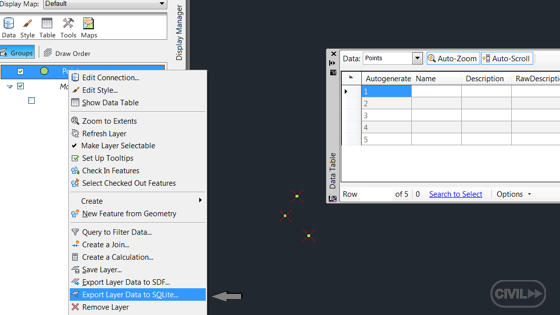
13. Open the Mozilla Firefox browser
14. Install Extension called SQLite Manager from Mozilla Add-Ons
15. From the Mozilla Firefox browser choose Web Developer and open SQLite Manager
16. Open the SQLite Points base exported by Autodesk Map 3D
17. Open the table called Points, select Stucture and copy the statement (mentioned below) to the notepad for future reuse in next steps:
CREATE TABLE "Points" ("Autogenerated_SDF_ID" INTEGER PRIMARY KEY, "Geometry" BLOB, "Name" TEXT, "Description" TEXT, "RawDescription" TEXT, "Number" INTEGER, "Elevation" REAL, "Latitude" TEXT, "Longitude" TEXT)
18. Select Points, choose Export Table and export the data to the CSV file Select the checkboxes: First row contains column names and Fields separated by Semicolon ( ; )
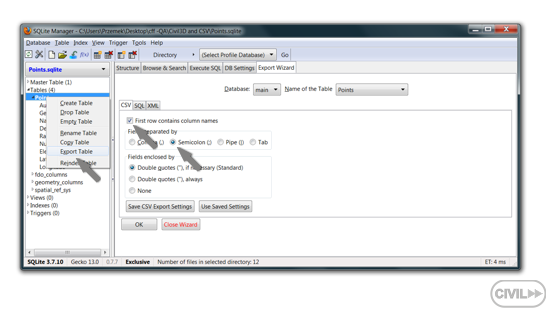
19. Select the exported Points table and delete it
20. Open the exported Points table form the CSV file format in Microsoft Excel
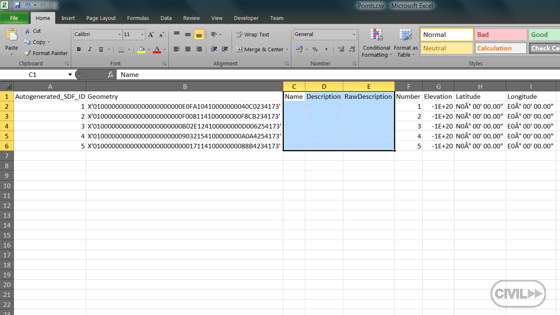
21. Change the column names and copy your data to these empty columns from the pure data CSV file
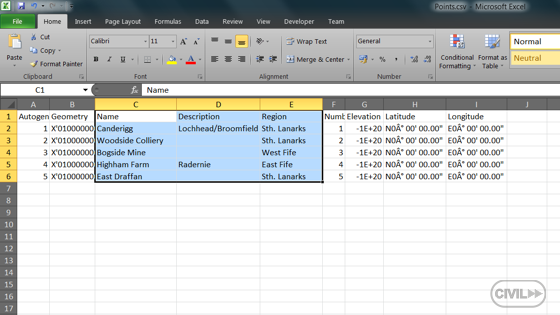
22. Save the edited CSV file as the CSV format file
23. Go back to SQLite Manager and import the edited CSV file
- Select First row containing column names
- Select Fields separated by Semicolon ( ; )
24. Set types of data for all columns from the information that you have saved in the notepad:
Autogenerated_SDF_ID -> INTEGER
Geometry - > BLOB
Name - > TEXT
… etc.
25. Save and Close SQLite Manager
26. Go Back to Autodesk Map 3D and connect to the re-edited SQLite database
27. Select Points and Add to Map
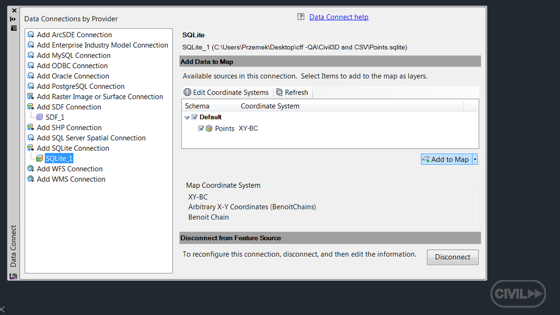
28. Finally you will get your points from Civil 3D with data from the CSV table, other words you have just inserted all pure data
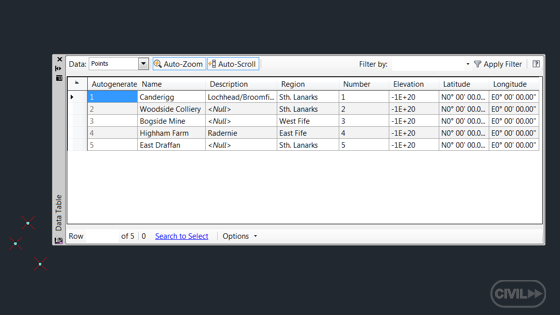
If you check the result - geometry matches the description.
CivilFF
www.civilfastforward.com
Re: Bring csv file (with additional attributes ) into Map
- Mark as New
- Bookmark
- Subscribe
- Subscribe to RSS Feed
- Highlight
- Email to a Friend
- Report Inappropriate Content
CivilFF - Thanks for taking the time to produce the instructions and screen shots, I'll give it a try and see if I can get it to work.
Incidentally, it seems like we have to jump through several hoops to get any useful data exchange between Map and C3D - it really shouldn't be this involved should it??
(No connection with Autodesk other than using the products in the real world)

IDSP Premium 2014 (mainly Civil 3D 2014 but also 3ds Max Design)
Win 7 Pro x64, 256Gb SSD, 300Gb 15,000 rpm HDD
16Gb Ram Intel Xeon CPU E5-1607 0 @ 3.00GHz (4 CPUs), ~3.0GHz
NVIDIA Quadro 4000, Dual 27" Monitor, Dell T3600
Re: Bring csv file (with additional attributes ) into Map
- Mark as New
- Bookmark
- Subscribe
- Subscribe to RSS Feed
- Highlight
- Email to a Friend
- Report Inappropriate Content
Just worked through this and it worked like a charm - it's not a procedure you just stumble upon though....!!!!![]()
(No connection with Autodesk other than using the products in the real world)

IDSP Premium 2014 (mainly Civil 3D 2014 but also 3ds Max Design)
Win 7 Pro x64, 256Gb SSD, 300Gb 15,000 rpm HDD
16Gb Ram Intel Xeon CPU E5-1607 0 @ 3.00GHz (4 CPUs), ~3.0GHz
NVIDIA Quadro 4000, Dual 27" Monitor, Dell T3600



