1. Get your pure data
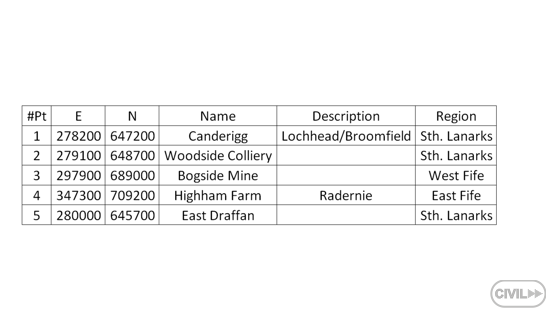
2. Insert the data to your favorite spreadsheet (in this description I use Microsoft Excel)

3. Save your pure data to the CSV file called CSV (Comma delimited) but notice that you get a semicolon separator ( ; )

4. Create a new Point File Format in Autodesk Civil 3D and call it e.g. PEN(semicolon) with settings:
- Default file extension .csv
- Comment Tag #
- Format options Delimited by ;

5. Import the points to Autodesk Civil 3D from your CSV file

6. Choose Output and Export Civil Object to SDF Set your coordinate system in this example Arbitrary X-Y Coordinates (XY-BC) is used

7. Change the workspace to Autodesk Map 3D (Planning and Analysis)
8. Type a MAPWSPACE command and choose On
9. Connect to the SDF file

10. Choose Points data from Civil_Schema and press Add to Map
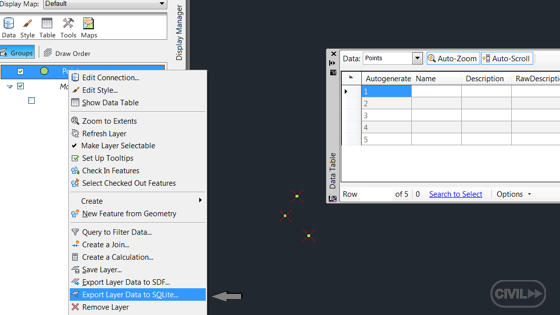
11. The Data Table is empty

12. Export Layer Data to SQLite
13. Open the Mozilla Firefox browser
14. Install Extension called SQLite Manager from Mozilla Add-Ons
15. From the Mozilla Firefox browser choose Web Developer and open SQLite Manager

16. Open the SQLite Points base exported by Autodesk Map 3D

17. Open the table called Points, select Stucture and copy the statement (mentioned below) to the notepad for future reuse in next steps:
CREATE TABLE "Points" ("Autogenerated_SDF_ID" INTEGER PRIMARY KEY, "Geometry" BLOB, "Name" TEXT, "Description" TEXT, "RawDescription" TEXT, "Number" INTEGER, "Elevation" REAL, "Latitude" TEXT, "Longitude" TEXT)

18. Select Points, choose Export Table and export the data to the CSV file Select the checkboxes: First row contains column names and Fields separated by Semicolon ( ; )
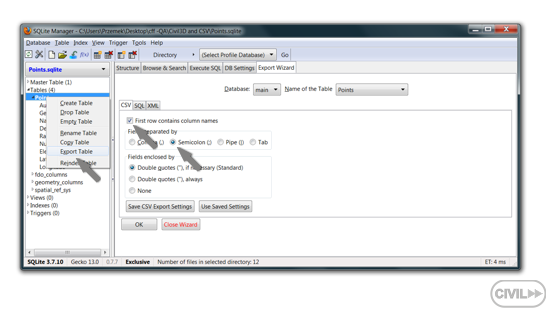
19. Select the exported Points table and delete it

20. Open the exported Points table form the CSV file format in Microsoft Excel
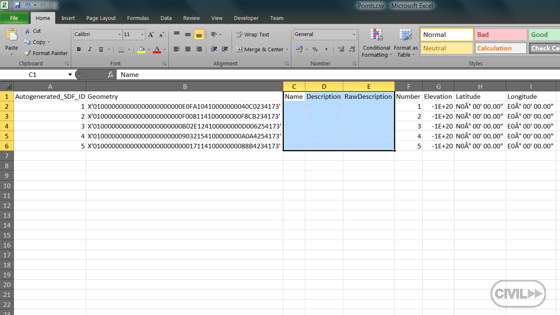
21. Change the column names and copy your data to these empty columns from the pure data CSV file
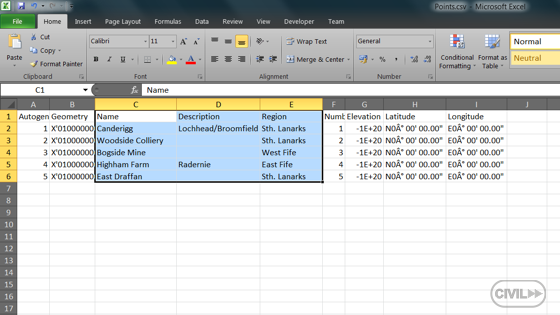
22. Save the edited CSV file as the CSV format file
23. Go back to SQLite Manager and import the edited CSV file
- Select First row containing column names
- Select Fields separated by Semicolon ( ; )

24. Set types of data for all columns from the information that you have saved in the notepad:
Autogenerated_SDF_ID -> INTEGER
Geometry - > BLOB
Name - > TEXT
… etc.

25. Save and Close SQLite Manager

26. Go Back to Autodesk Map 3D and connect to the re-edited SQLite database
27. Select Points and Add to Map
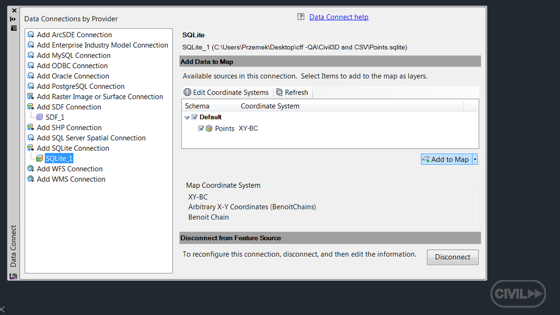
28. Finally you will get your points from Civil 3D with data from the CSV table, other words you have just inserted all pure data
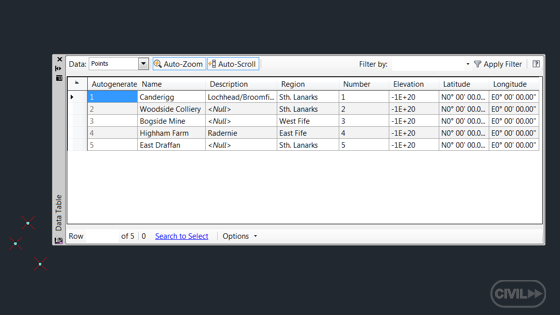
If you check the result - geometry matches the description.








