Change category Part with Purchased

Change category Part with Purchased

Anonymous
Not applicable
2,574 Views
10 Replies
Message 1 of 11

Change category Part with Purchased

Anonymous
Not applicable

Hi,


I want to change category from "Part" to "Purchased". My workflow is like this:

I open BOM in Inventor (2019) and I change the category from part to purchased there. Then, I check in the assembly in Vault (Professional 2019). After I refresh the Vault, I go to "Assign/Update Item..." click on BOM and I see the part with same category as previous "Part". It doesn't changed. What I'm missing...?


0 Likes
Accepted solutions (1)
2,575 Views
10 Replies
Replies (10)
Message 2 of 11

ihayesjr
Community Manager
Community Manager

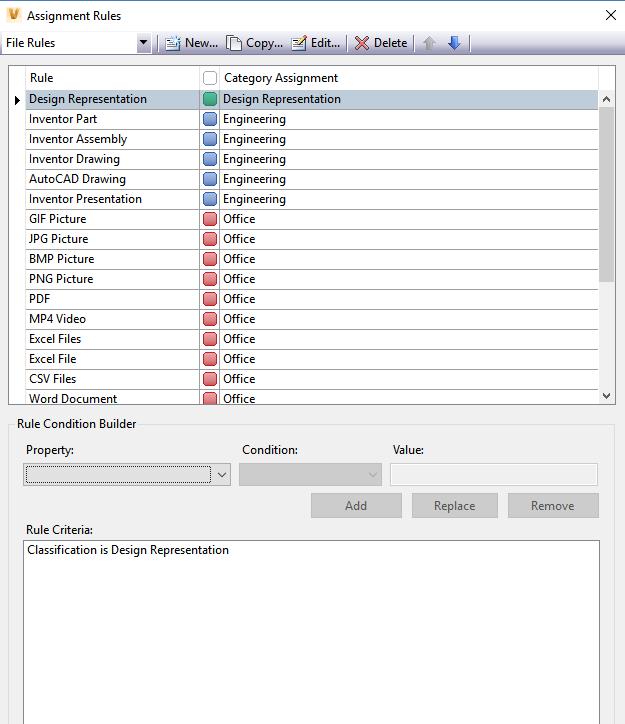
Inside of the Vault Settings -> Behaviors -> Categories -> Assignment Rules, make sure you have a rule configurated that will look at the property value and assign the category properly on Check-in. Also, check the box "Apply rules on object creation."


Slight correct, make sure there is an Item Rule that looks at the property Type is Purchased is there to assign the part to the Item Purchase category.


If it is there and still not working, can you create a screencast showing how you are changing the BOM for the part and it showing that it is not being assigned to the Purchased Item category?


Irvin Hayes Jr
Principal Product Manager
Autodesk, Inc.

Vault - Under the Hood Blog
Message 3 of 11

Anonymous
Not applicable

Hi,


Please find attached print screen files of the Assignement Rules. I am not sure is properly configurated...

I would like to configure that first as you propose, but I don't know exactly how to check.

Thanks,

0 Likes
Message 4 of 11

marina.collet
Advocate
Advocate

Was your item created before you changed the part type in Inventor?

In this case, you will have to change your item category manually.

0 Likes
Message 5 of 11

Anonymous
Not applicable

Yes, the Item was created before I changed the part in Inventor. 

I then deleted the Item and re assigned new one. Same problem, one of the parts has "Part" category instead of purchased.

By the way, I do not understand how to manyally change the category. I cannot change anythyng in the table, its read only.

0 Likes
Message 6 of 11

marina.collet
Advocate
Advocate

To change the category manually:

- select your Item (either in the Item Master grid or in the BOM of its parent item)

- call the function "Change Category" which is on the icon toolbar or on the "Actions" menu

- then you should be able to select the new category in the drop-down list


NB: your user account in Vault must have the correct authorization (through its role) to change item categories.


2018-09-11_10-59-22.jpg2018-09-11_11-02-38.jpg

Message 7 of 11

Anonymous
Not applicable

I did as you say. I still have "Part" when I attempt to export BOM.

0 Likes
Message 8 of 11

Richard.Rankin
Autodesk Support
Autodesk Support

Hi @Anonymous


It sounds like you have something that needs investigating by Autodesk Support.

If you still need help we can create a support case for you and one of our team can call you to take a look.


If you find my response solves your question, please click the "Accept Solution" below the response

Richard Rankin
Vault Support Specialist
Global Product Support
Autodesk, Inc.

Message 9 of 11

Anonymous
Not applicable

Hi,


I need help, I haven't resolve it yet.

Thank you very much.


Regargs,


0 Likes
Message 10 of 11

Elisabeth_Boehm
Autodesk Support
Autodesk Support
Accepted solution

Hi,


When creating a new part, then get this new part the customized rule part category. .

When you change in Inventor from Document the Default BOM Structure from "Normal" to " Purchased",

then does not updating the category automatically.
About Item Mapping you cannot do this, because Category is a System Property.   
This is as designed!


In your situation can you use following workaround:

1. Change manuelly the item category in Vault > new Item Version exist in Vault

2. Go to assembly > Assign/Update Item ... 

3. Bill of Materials is now correct

item normal to purchased.PNG


Elisabeth Böhm
Data Management
Senior Technical Support Specialist
Data Management
Customer Technical Success
Autodesk, Inc.
Message 11 of 11

Anonymous
Not applicable

Thank you 🙂 it works now