Curtain Wall Double Doors

Curtain Wall Double Doors

chris_pitt
Enthusiast Enthusiast
6,365 Views
8 Replies
Message 1 of 9

Curtain Wall Double Doors

chris_pitt
Enthusiast
Enthusiast

Hi


I've made a set of curtain wall double doors that just won't work the way they should!


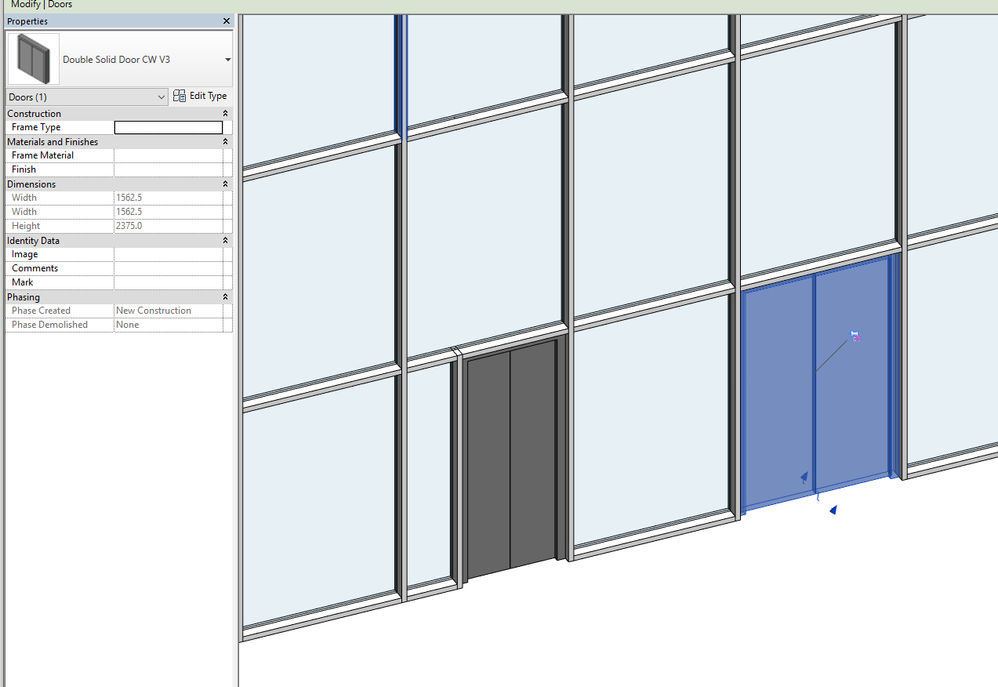
In the family when I flex the model everything appears fine.  However, when I insert the family into the building model and place a door in the curtain wall the meeting stile is NEVER central (it should be)!


I cannot see anything in the family which would affect the stile position.  As far as I can see it should be tie to the central reference plane which is equidistant between the right and left planes.  Any suggestions?


Regards


Christopher Alan Pitt

Frank Shaw Associates

0 Likes
Accepted solutions (1)
6,366 Views
8 Replies
Replies (8)
Message 2 of 9

Alfredo_Medina
Mentor
Mentor
Accepted solution

In the door family, find the Center (Left/Right) reference plane, and unpin it. That gives it the freedom to move at the center of the curtain wall panel. Load again into project, and.... happy face. 🙂


Alfredo Medina _________________________________________________________________ ______
Licensed Architect (Florida) | Freelance Instructor | Profile on Linkedin
Message 3 of 9

Anonymous
Not applicable

Or...you can create another reference plane that is EQ and associate to that one instead of the pinned one...

0 Likes
Message 4 of 9

chris_pitt
Enthusiast
Enthusiast

I have to say that I'd have never thought of that, especially as It does seem counterintuitive.


Regards


Christopher Alan Pitt

Frank Shaw Associates

0 Likes
Message 5 of 9

Kimtaurus
Advisor
Advisor

Hate to revive an old post, but I've run into the same problem.

Unpinning the center reference plane works, but, there's always a but, the Room Calculation Point becomes offcenter when the door flexes. Has anyone found a solution asides unpinning the center ref plane?

_____________________________________________________________________________
Please use "Accept as Solution" and give kudos as appropriate to further enhance these forums. Thank you!
0 Likes
Message 6 of 9

ToanDN
Consultant
Consultant

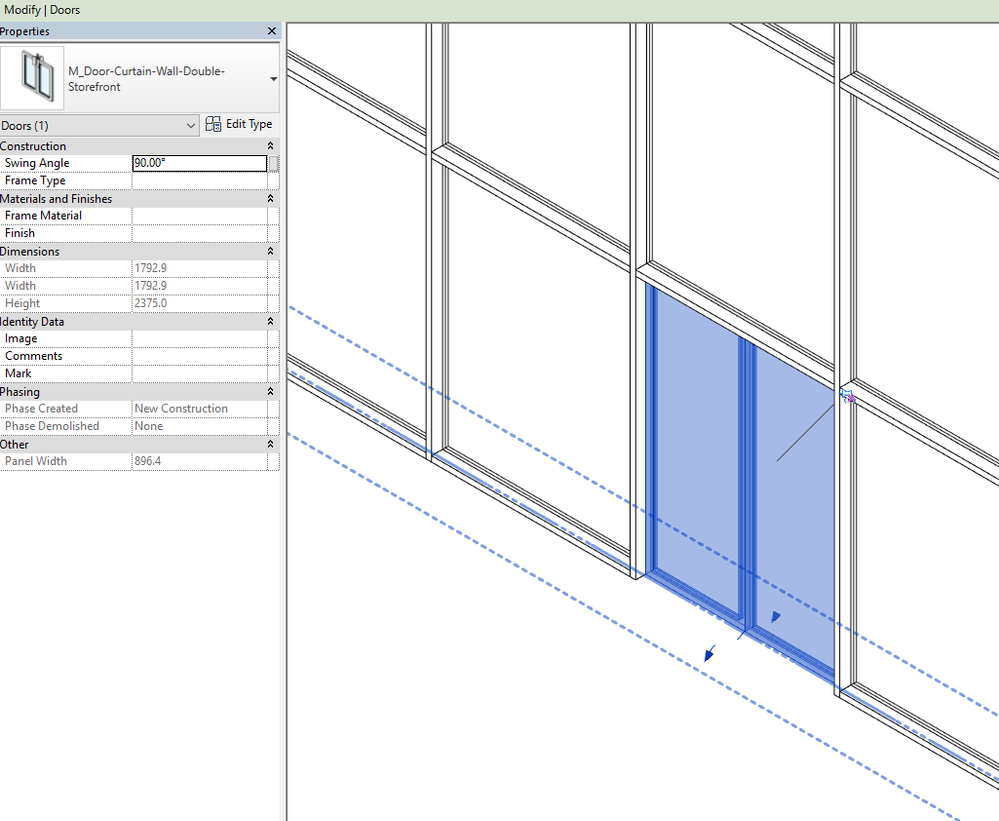
It is strange that the OOTB family has no problem centering the door panels with the Center reference plane pinned. 


Capture1.PNGCapture.PNG

0 Likes
Message 7 of 9

ToanDN
Consultant
Consultant

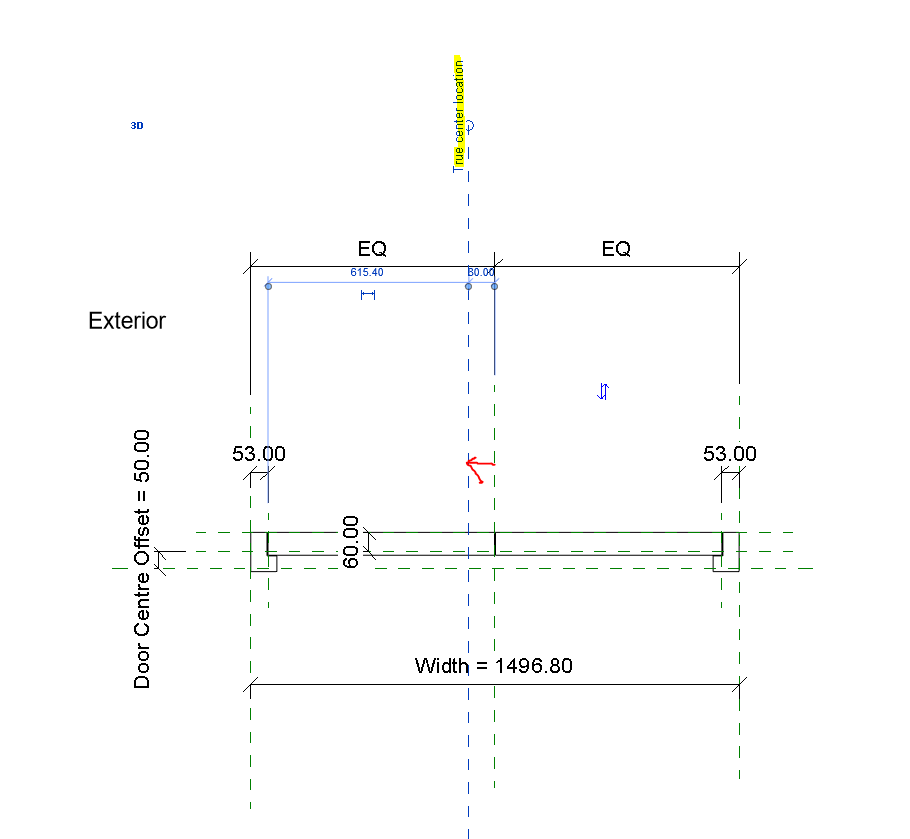
I figured out why @chris_pitt original family did not work.  The entire family is off center from the family's Origin (see pic 1 where I pasted a center reference plane from the OOTB family and it is off to the left).  After moving everything so that the family's Center Left/Right reference plane is on the Origin, the door works as expected in Project with the Center reference plane still pinned.


Revised 2017 file attached.


Capture.PNGCapture1.PNG

0 Likes
Message 8 of 9

Kimtaurus
Advisor
Advisor

The plot thickens...


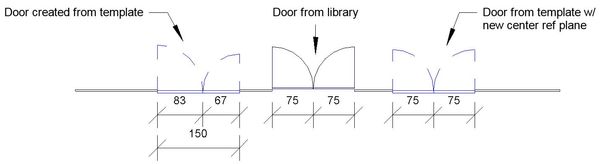
So the OOTB door works.But, if you create a new door from the template, the center is off again! In other words the templates are at fault. It's kinda hard to create good families if Autodesk gives us faulty templates to begin with Smiley Frustrated

curtain door.JPG

I've done your suggestion with copy-pasting the ref plane from the OOTB door. Repositioned the center ref plane from the template door and voila: it works.

Guess I've found another suggestion for the Idea boards. (And have some work to edit our office library doors)

_____________________________________________________________________________
Please use "Accept as Solution" and give kudos as appropriate to further enhance these forums. Thank you!
Message 9 of 9

Kimtaurus
Advisor
Advisor

A (small) workaround when creating new curtain wall doors:

Start from the curtain wall panel template and change the category to doors.

You get any door parameters without having to reposition the center ref plane.

_____________________________________________________________________________
Please use "Accept as Solution" and give kudos as appropriate to further enhance these forums. Thank you!
0 Likes