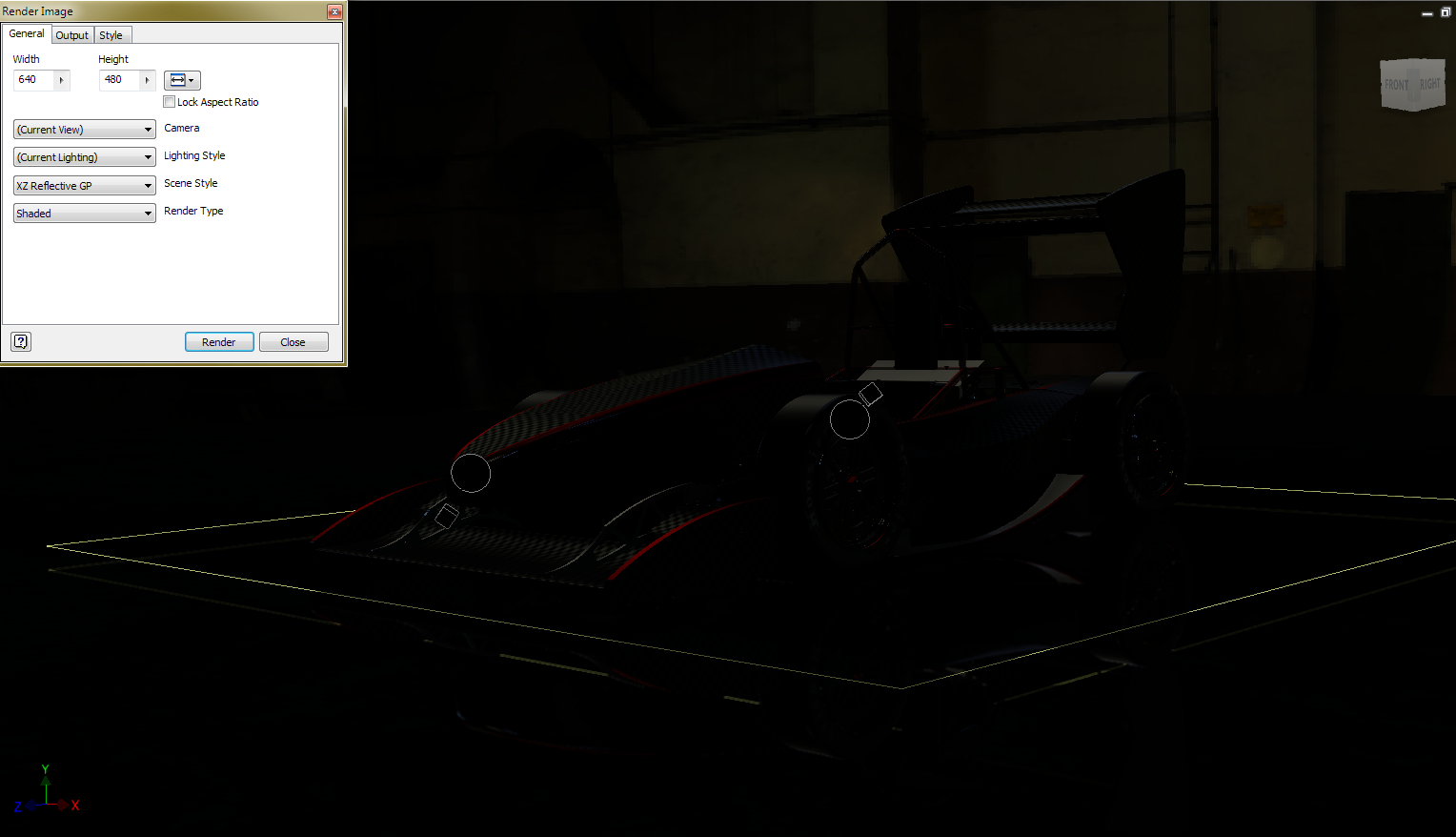
Inventor Studio : Cannot set background, ground plane, poor lighting

Inventor Studio : Cannot set background, ground plane, poor lighting

Anonymous
Not applicable
2,122 Views
2 Replies
Message 1 of 3

Inventor Studio : Cannot set background, ground plane, poor lighting

Anonymous
Not applicable

Hello all, 


I'm a student at the University of Tasmania, trying to get some 'erie' or 'silhouetted' images of the car prior to release. 


In standard viewing, I can get the images looking very much how I want it. Lighting well set up (2 spot lights behind the car). Warehouse background will do for now. 

But when I click render, despite setting backgrounds, ground planes and lighting to be "as current", it keeps defaulting to settings that look awful. I cannot find anything on google that shows how I can correct this, any help?


Many thanks, 


Adam.

0 Likes
Accepted solutions (1)
2,123 Views
2 Replies
Replies (2)
Message 2 of 3

Daniel248
Collaborator
Collaborator
Accepted solution

@Anonymous wrote:

Hello all, 


I'm a student at the University of Tasmania, trying to get some 'erie' or 'silhouetted' images of the car prior to release. 


In standard viewing, I can get the images looking very much how I want it. Lighting well set up (2 spot lights behind the car). Warehouse background will do for now. 

But when I click render, despite setting backgrounds, ground planes and lighting to be "as current", it keeps defaulting to settings that look awful. I cannot find anything on google that shows how I can correct this, any help?


Many thanks, 


Adam.


Hi Adam,


Looks like you have a very pretty model there to work with.


If you’re happy with the way it looks in standard view, do this:

Save Copy As >

  • Drop down the ‘Save as type’ and choose PNG files (or other image type you prefer);
  • Click ‘Options’ and enter a value for X or Y (not both) – say 5000 (Max.10000) – this will be the number of horizontal or vertical pixels of your snapshot;
  • Click ‘Save’.


In Inventor releases prior to 2016, the Studio render engine does not work within the IBL environment, so it defaults to something else when you try to render. If you’re not happy with your current Studio rendering results, you’ll need to create your own scene, add your model, and experiment with lights until you’re satisfied that you’ve got the best it can do.


Regards,

Daniel

Message 3 of 3

Anonymous
Not applicable
Thanks very much, makes a bit more sense now. Pity it doesn't set the IBL environment to the studio but hopefully it's better in 2016.
0 Likes