Computer freeze on Inventor launch screen

Computer freeze on Inventor launch screen

Anonymous
Not applicable
1,158 Views
19 Replies
Message 1 of 20

Computer freeze on Inventor launch screen

Anonymous
Not applicable

Computer freeze on Inventor launch screen.

Disk and ram checked with diagnostic tools, disk defragmented.

Drivers up to date. Tried on all versions of Inventor with student license.


Lenovo G70

Hardware:

Processor Intel Core i5-5200U 2.20 Ghz 8GB RAM

Intel HD Graphics 5500 + NVIDIA GeForce 920M

Operating System: Win10 Home 64bit

0 Likes
1,159 Views
19 Replies
Replies (19)
Message 2 of 20

TheCADWhisperer
Consultant
Consultant

Is this a new install that never worked?


Or is this an install that used to work, but for some reason now it doesn't work?


I am going to guess it is a new install that never worked.


You need to get these 3 files - someone will come along a post a link to the 3 files in a minute or so....


Inventor 2018.png


Also - be sure to read the instructions on disabling anti-virus and setting UAC to lowest level.

0 Likes
Message 3 of 20

Anonymous
Not applicable

Yes, its first instalation.

0 Likes
Message 4 of 20

TheCADWhisperer
Consultant
Consultant

Get the 3 install files from here

https://forums.autodesk.com/t5/installation-licensing/autodesk-2018-direct-download-links-until-avai...


I recommend running in Trial mode for about 30 days before using your Student Serial Number to Activate your student license.

0 Likes
Message 5 of 20

johnsonshiue
Community Manager
Community Manager

Hi! I suspect the Win 10 or your system decides to run Inventor using the integrated graphics card instead of the dedicated Nvidia card. Could you check if Nvidia has a management utility allowing you to configure Inventor to run on Nvidia card?

Many thanks!


Johnson Shiue (johnson.shiue@autodesk.com)
Software Test Engineer
0 Likes
Message 6 of 20

Anonymous
Not applicable

Ok, its working on trial - i have installed Inventor 2017, but if i want to write serial number from student licence - computer freezes again. I need full version, because on trial i cannot save my model as STL. What should I do? Till now i'm using trial for 4 days.

0 Likes
Message 7 of 20

Anonymous
Not applicable

Ok, its working on trial - i have installed Inventor 2017, but if i want to write serial number from student licence - computer freezes again. I need full version, because on trial i cannot save my model as STL. What should I do? Till now i'm using trial for 4 days.

0 Likes
Message 8 of 20

JDMather
Consultant
Consultant

@Anonymous wrote:

Ok, its working on trial - ... I need full version, because on trial i cannot save my model as STL. ....


@Anonymous

No, if you cannot save as stl, then it is not working correctly.

This is the reason for running in Trial mode - to make sure everything is working correctly before Activating.

Trial version is fully functional.

Can you attach *.ipt file here that will not save as stl?


What Product Key are you using to attempt Activation?

208I1 or 208J1?


-----------------------------------------------------------------------------------------
Autodesk Inventor 2019 Certified Professional
Autodesk AutoCAD 2013 Certified Professional
Certified SolidWorks Professional


0 Likes
Message 9 of 20

Mark.Lancaster
Consultant
Consultant

@Anonymous


If its running trial mode it shouldn't be freezing in activated mode..   Is it freezing when you are trying to enter your serial #/product key and activate it?

Mark Lancaster


  &  Autodesk Services MarketPlace Provider


Autodesk Inventor Certified Professional & not an Autodesk Employee


Likes is much appreciated if the information I have shared is helpful to you and/or others


Did this resolve your issue? Please accept it "As a Solution" so others may benefit from it.

0 Likes
Message 10 of 20

Anonymous
Not applicable
@Mark.Lancaster
Exactly. It freezes when Inventor is reloading to enter seral key.

@Anonymous
I even don't have option to save as STL, no matter which file. Its not the issue with the file, because on the other computer it works fine.
0 Likes
Message 11 of 20

Mark.Lancaster
Consultant
Consultant

@Anonymous


Perform a license reset per the following steps:


Please note, folders of C:\Programdata and C:\Users\[Username]\Appdata (listed below) are hidden folders and you may need to adjust your viewing settings.


First make sure you're signed out of the desktop app and A360 (both are located in your Windows system tray


On your computer, navigate to


2017 Version: ​​C:\ProgramData\Autodesk\CLM\LGS\<Product_Key>_2017.0.0.F  [<Product Key> is the product key of the application you have]


2018 Version: ​​C:\ProgramData\Autodesk\CLM\LGS\<Product_Key>_2018.0.0.F  [<Product Key> is the product key of the application you have]


Delete the LGS.data file.
Navigate to C:\Users\[username]\AppData\Roaming\Autodesk\ folder
Delete the ADUT folder and its contents


When you start the application, it will prompt you to choose one (that matches your license) of the following:

Login - 30 day trial or CLIC (Cloud Based) licenses
Serial Number - Students, Standalone and Single-User Term Based activation
Network - Network License server for obtaining licenses from a machine on your network

Good luck and report back on your progress

Mark Lancaster


  &  Autodesk Services MarketPlace Provider


Autodesk Inventor Certified Professional & not an Autodesk Employee


Likes is much appreciated if the information I have shared is helpful to you and/or others


Did this resolve your issue? Please accept it "As a Solution" so others may benefit from it.

0 Likes
Message 12 of 20

JDMather
Consultant
Consultant

@Anonymous wrote:
...

@Anonymous
I even don't have option to save as STL, no matter which file. Its not the issue with the file, because on the other computer it works fine.

Show screen capture of your Add-ins Manager.

You didn't answer my question about Product Key (not to be confused with Serial Number).


Does your school have a Student Help Desk that can help you install software?

Can your instructor help?


-----------------------------------------------------------------------------------------
Autodesk Inventor 2019 Certified Professional
Autodesk AutoCAD 2013 Certified Professional
Certified SolidWorks Professional


0 Likes
Message 13 of 20

Anonymous
Not applicable

@Mark.Lancaster

I followed your instructions, but still computer freezes after choosing "Enter serial number".


@JDMather

Product key: 797I1


0 Likes
Message 14 of 20

JDMather
Consultant
Consultant

Well, that is the correct Product Key for Inventor Professional 2017.

I don't know what the issue is.


Can you create a Screencast Recording of your steps till it locks?


And show image of your Add-ins Manager.


-----------------------------------------------------------------------------------------
Autodesk Inventor 2019 Certified Professional
Autodesk AutoCAD 2013 Certified Professional
Certified SolidWorks Professional


0 Likes
Message 15 of 20

Mark.Lancaster
Consultant
Consultant

@Anonymous


When you say it freezes..  The entire computer is locked up or only Inventor is locked up?


I'm wondering if you have the serial #/product key dialog off the screen.


Lets do a test..


When it locks..


ALT+SPACEBAR

M Key

Right or left arrow key

Move mouse


Does the serial #/product key dialog appear again at the mouse location?

Mark Lancaster


  &  Autodesk Services MarketPlace Provider


Autodesk Inventor Certified Professional & not an Autodesk Employee


Likes is much appreciated if the information I have shared is helpful to you and/or others


Did this resolve your issue? Please accept it "As a Solution" so others may benefit from it.

0 Likes
Message 16 of 20

Anonymous
Not applicable

@Mark.Lancaster

The entire computer freezes - any combination of keys didnt work. 


@JDMatherhttps://knowledge.autodesk.com/community/screencast/d6c96178-e485-48a3-9e1c-208a2585a491

After choosing second option Inventor is loading for about 5 seconds and then entire computer freezes.


0 Likes
Message 17 of 20

JDMather
Consultant
Consultant

In your Screencast video I have no idea what you are trying to do.


I thought your problem statement was - 
1. I can run Inventor in 30-day Trial Mode, but

2. When I try to activate the license - Inventor locks up.


I did not see you do 1 and 2 in your video.


I did see a desktop icon - what version of Inventor is this?


Inventor Version.png


Can you create new video

1. Double click on that icon.

Run in trial mode opening one of the files on your desktop.

Attempt to Save Copy As one of the files as *.stl format.


2. Close and then restart Inventor.

This time select Activate rather than Trial.


-----------------------------------------------------------------------------------------
Autodesk Inventor 2019 Certified Professional
Autodesk AutoCAD 2013 Certified Professional
Certified SolidWorks Professional


0 Likes
Message 18 of 20

Anonymous
Not applicable

I can't show you the attempt to activate, because computer will freeze and I won't be able to save the screencast. 


https://knowledge.autodesk.com/community/screencast/025661a5-db1a-4c3d-bfa9-14ae72110c55

0 Likes
Message 19 of 20

JDMather
Consultant
Consultant

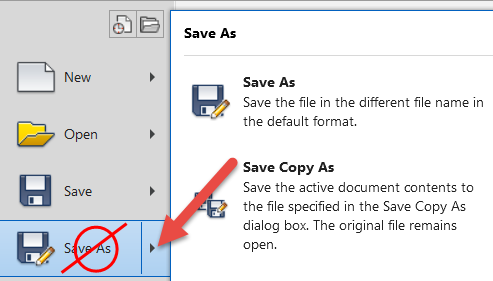
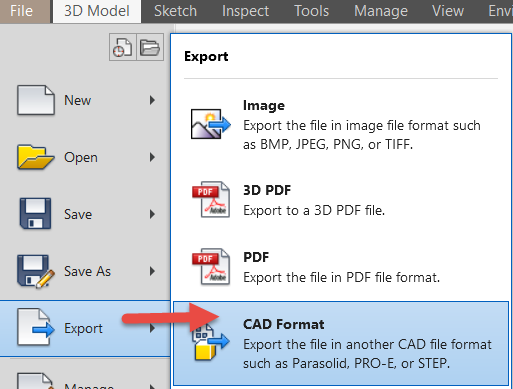
This does not solve your Activation issue, but for stl you are not saving the file correctly.


Save Copy As.png


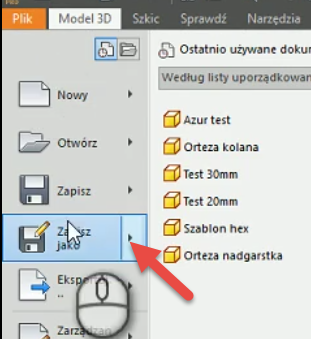
In your video you do Save As rather than the correct technique of Save Copy As


or


you could do File>Export


Export.png


This is not correct method....


Save As.png


Also, in an unrelated issue - I noticed several error in the feature tree of your model.

Can you ask your instructor to join this discussion?


-----------------------------------------------------------------------------------------
Autodesk Inventor 2019 Certified Professional
Autodesk AutoCAD 2013 Certified Professional
Certified SolidWorks Professional


0 Likes
Message 20 of 20

Anonymous
Not applicable

I have found it by myself - thanks for help.

I don't have instructor.

What about issue with freezing?

0 Likes