Which version are you working on?
Have you connect to multiple monitor before?
How about reset Inventor to get all the setting back?
Solution:
Note: It may be necessary to lower the User Account Control settings to the lowest level and temporarily disable any anti-virus software for the reset activity.
To lower the User Account Control settings:
- Browse to Control Panel\All Control Panel Items\User Accounts.
- Select "Change User Account Control Settings."
- Move the slider to the lowest setting, "Never Notify."
- Select OK.
Warning:
This process will remove all customizations done in the following areas:
- Ribbon
- Keyboard shortcuts
- Marking menu
- Application options
- Current Autoload state for Inventor add-ins
- Current state of Welcome Screen
- Recently opened files
- Vault Server login information
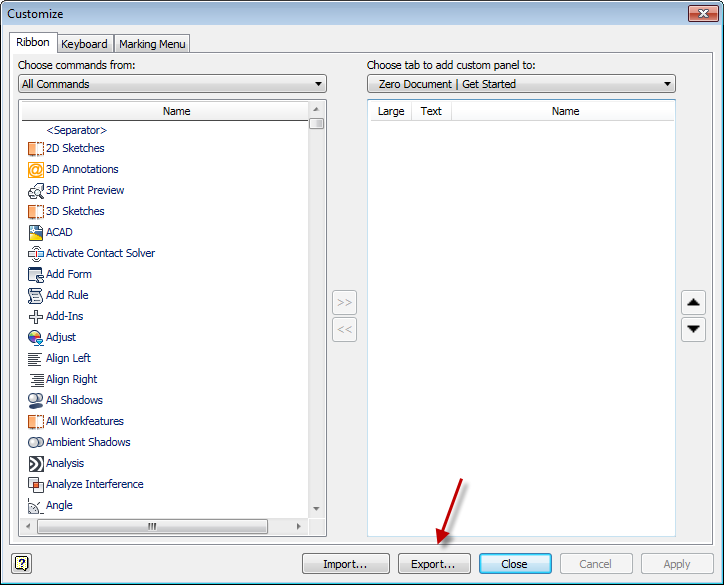
To backup all ribbon, keyboard, and marking menu (GUI) customizations:
- Export an XML file from the Customize dialog box (Tools ribbon > Customize).
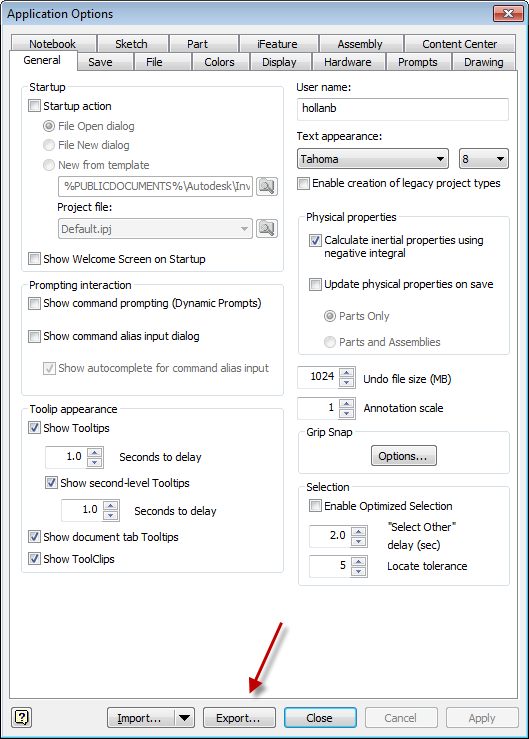
To backup all of the Application Options:
- Export an XML file from the Application Options dialog box (Tools ribbon > Application Options).
Warning: Be sure to save the Customization XML file to a directory outside of the following default location:
%LOCALAPPDATA%\Autodesk
Example: C:\Users\%USERPROFILE%\AppData\Local\Autodesk\Inventor 2016\Preferences
These directories will be deleted when the reset utility is run.
Run the Inventor Reset Utility
The reset tool will automatically detect which versions of Inventor the user has run and display them in the Autodesk Inventor Reset dialog box. By default, the reset tool selects the version initiated most recently.
Starting with the 2016 release, the reset utility is available with Inventor in the Tools folder.

To obtain the reset utility for an older version or from the web:
- Extract the attachment in this article and double-click the executable file.
Xun