Layer stackup

Layer stackup

mike.durian
Advocate Advocate
1,262 Views
10 Replies
Message 1 of 11

Layer stackup

mike.durian
Advocate
Advocate

I'm editing a Layer Stack in DRC for the first time. When I add a layer pair, it always does it as copper foil / prepreg, with the copper foil is farther from the core than the prepreg (on top of the prepreg when considering the top layers). Is there a way to flip this so it is prepreg above the associated copper foil?


I've received a recommended stackup that is L1 foil, prepreg, prepreg, L2 foil, core, L3 foil, prepreg, prepreg, L4 foil. I'd like to be able to configure this correctly in Fusion. How would I do it?

0 Likes
Accepted solutions (1)
1,263 Views
10 Replies
Replies (10)
Message 2 of 11

constantin.popescuXD3CL
Autodesk
Autodesk

Hi Mike,

This is not very difficult to achieve. I have made a layer stackup preset for you named: Mike.Durian.CustomStack.estackup.zip (you need to un-zip it before using). You can load the preset by using the layer stackups drop-down box to teh left of the Layer Stack dialog, please see pictures below: 

Load-Preset.LayerStack-FromFile-1.png

Load-Preset.LayerStack-FromFile-2.png

Loaded-Preset.LayerStack-FromFile.png

After loading the layer stack preset following the steps shown in the 3 pictures above you can update the layer stack as required by using the Right Mouse Button context menu that allows you to add / delete layers including Silk Screen, Solder Mask, Surface Finish, Pre-Preg. etc. You can also change layer material properties by toggling on the "Edit material properties" check-box:

Edit-LayerStack-MaterialProperties-Locally.png

If you make changes you can save them by using the Save button to the right of the Layer Stack preset drop-down box, please see picture below:

Save-LayerStack-Preset.png

The easiest way to start customizing a layer stack is by starting with one of the provided presets that you can pick from the drop-down box. When you start a new design that will have 2 signal layers the "2 Layer Stack" will be selected. You can change to any of the existing simetrical setups for 2, 4, 6,.., 16 layers adn then customize to make it your own.

The other way is to use one of the Eagle layer setups, for your setup is this: ([2:1+(2*15)+16:15]). You can load it by selecting the "Open From Setup String..." command as shown below:
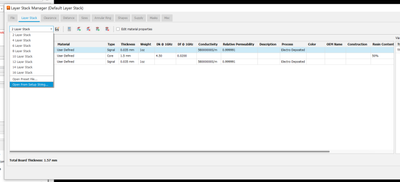
constantinpopescuXD3CL_0-1660173544174.png

In the subsequent dialog:

constantinpopescuXD3CL_1-1660173621910.png

Insert you layer setup string click Apply and the layer stack will be populated with the right setup. Then you can adjsut it using the Right Mouse Click context menu commands:

constantinpopescuXD3CL_2-1660173734578.png

and if you want to change layer material properties locally then check the Edit material properties check-box and the layer stack grid cells will become editable.

I hope this will help you.

Please let me know if you need anything else.


Kind regards,

Constantin Popescu



Constantin Popescu
Principal Software Engineer

0 Likes
Message 3 of 11

mike.durian
Advocate
Advocate

Thanks for the reply @constantin.popescuXD3CL. I'm having trouble reproducing the stack up you created. If I right-click on a layer, I get the options to insert a layer above or below, but Pre Preg is the only option not greyed out. A copper foil layer is not an option (greyed-out or otherwise). The only way I've found to add a copper layer is to use Add Layer Pair - either from the button in the menu bar or by right-clicking. Once created, I cannot figure out how to flip it upside-down.


The Type field is only editable for the Pre Preg layer, where I can choose Pre Preg, Dielectric or Core. Signal is not an option, so I can't turn it into a signal layer. The Type field is not editable for the Signal layer, so I can't turn it into a Pre Preg either.


I understand about modifying existing stack-ups, saving and loading them and editing some of the fields.


I'm attaching the stack-up I created. Can you walk me through how to convert it to what I want?

0 Likes
Message 4 of 11

constantin.popescuXD3CL
Autodesk
Autodesk

Hi Mike,

Have you loaded the layer stackup I have attached? I thought it mapped the steup you asked for initially.

You can edit the signal layers individually but you need to remove the layer stack symmetry. Please open the Layer Stack Properties dialog using the button below:

constantinpopescuXD3CL_0-1660175988397.png

Then in the following dialog:

constantinpopescuXD3CL_1-1660176025545.png

Un-check the "Maintain Symmetry" check-box and click OK. After this you can start adding / deleteing signal layers individually.

You can still start this by using the layer setup string like I described in my previous answer because that could potentially save you some time. You might be able to start with the following: [2:1+(2*3)+4:3] and the result is:

constantinpopescuXD3CL_2-1660176641806.png

I have attached the new layer stack preset as well: Mike.Durian.CustomStack-non-symmetrical.estackup.zip

Please let me know how you go with this.


Kind Regards,

Constantin Popescu


Constantin Popescu
Principal Software Engineer
0 Likes
Message 5 of 11

Hi Mike,

I have loaded your layer stack preset and I can see that you have pre-preg and core together. I assume that you did this manually in the pre-set Xml file because in the Layer Stack UI this is not allowed. The reason is that the core material comes with copper foil on both sides so it is not possible to add pre-preg there. The current implementation enforces this invariant.

I have taken your layer stack preset and updated it so it has the signal layers 1,2, 3 and 4 with 2 pre-pregs between 1 - 2 and 3 - 4 and only one core between layers 2 and 3 with 991mic thickness.

Please let me know if this is closer to your requirements.


Kind Regards,

Constantin Popescu


Constantin Popescu
Principal Software Engineer
0 Likes
Message 6 of 11

Hi Mike,

Apologies but the previous layer stackup had an incorrect thickness for the pre-preg layers and I corrected it. Please use the one from here instead if you need to.


Kind Regards,

Constantin Popescu


Constantin Popescu
Principal Software Engineer
0 Likes
Message 7 of 11

mike.durian
Advocate
Advocate

Hi Constantin,

This initial stackup you sent was fine. However, I want to learn how to do this instead of just use one you provide. That way I'll be able to create other stackups as I need them. It's the whole give a man a fish vs teach a man to fish thing.


In the image below, I used the buttons circled in red to create a new layer pair. I do not need to disable symmetry as I want to create the signal/prepreg layer pairs in pairs. Ugly wording there. Let's just say I wanted to create both L2 and L15, knowing that creating a signal layer will also create an associated prepreg layer.


That created the layers circled in green. Both a prepreg and signal layer were created. This is fine and expected.


What I want to learn is how to flip the prepreg/signal pair such that the prepreg is above the signal, not below it (for L2, for L15 it would be the other way around). By default it is creating the signal layer farther from the core than the prepreg. I want prepreg father from the core (for L2 and L15, not L1 and L16).


I'm sure I could easily do this by editing the XML, but I'd like to learn how to do it through the UI. Can you please explain how I can do this?


Thanks,

mike

Screen Shot 2022-08-10 at 8.56.54 PM.png


0 Likes
Message 8 of 11

constantin.popescuXD3CL
Autodesk
Autodesk

Hi Mike,

The easiest way to achieve this is to 1st remove the 2 Pre-pregs that are incapsulating the Core layer and then Right Click on the Route2 and select Insert Above and choose the only available option which is Pre-Preg, then do the same for Route15 but select Insert Below and choose the Pre-Preg. The reason for which you need to remove the 2 extra pre-pregs is that we don't currently have commands to move them up or down. We'll look into adding them in the future if the current supported commands are not sufficient.

I understnd that you want to learn how to use it and that's great, I just wanted to give you head start with your current issue. I have built that layer stack completely by using the UI I haven't touched the Xml file at all so everything should be possible right there.

Please let me know if this still doesn't answer your question and I'll try again. Good luck.


Kind regards,

Constantin popescu 


Constantin Popescu
Principal Software Engineer
0 Likes
Message 9 of 11

Accepted solution

Hi Mike,

Here is a movie showing delete / add pre-preg layers above / below existing signal layers using the stackup you created earlier.

I hope this will help as well.


Kind Regards,

Constantin Popescu


Constantin Popescu
Principal Software Engineer
0 Likes
Message 10 of 11

mike.durian
Advocate
Advocate

Thank you. I was hung up thinking one had to manipulate the signal layer and associated prepreg layer together since they were created as a pair.


Not related to my question, but what do the asterisks in the first column (the one with the layer numbers) mean?

0 Likes
Message 11 of 11

constantin.popescuXD3CL
Autodesk
Autodesk

Hi Mike,

Great to hear you are on track now. Regarding your question the asterisk (*) means that one or more of the layer material properties has been changed locally and it no longer matches the values from the Layer Material Library. Once this happen the Material column will contain the text User Defined. The way the Layer Stack works is that when a new layer is created we assign default material information that comes from the material library. You can select any of the currently available materials from the Material drop-down or you can click on the ... (elipsis button), see below picture:

constantinpopescuXD3CL_0-1660191468206.png

and this will open the Material Library dialog from which you can select any of the available materials and see all the available properties. At this time the Material Library is not editable but we have plans in place to do this in the not too distant future.

Currently the way of creating custom material propertiues is by editing the material properties in place in the Layer Stack dialog and then saving the layer stack as a preset file that you can reuse later.

I have attached another movie showing how to go about creating a custom layer stack by starting with a simple Eagle layer setup string.

I hope this helps.


Kind Regards,

Constantin Popescu


Constantin Popescu
Principal Software Engineer

0 Likes