I'm not aware of setting to modify the size of the constraints/load glyphs in the Simulation environment at this time. Would it be possible to share some screenshots of the issue you're grappling with?
I'm not sure if this helps, but I think of the "right-hand rule." If you stick your thumb out along the axis (normal to the face you've applied the load to), the Positive force direction is same direction your fingers "curl" in. I think this image might help explain this better:

The hard part may be to figure out which normal direction is positive. There is a 50/50 chance you'll get it right if you take a wild guess.
Usually I would just look at the glyph in canvas, but if that is difficult to read....
Another way you can check yourself is to examine the Reaction Forces on the Constraints after you've run the simulation:
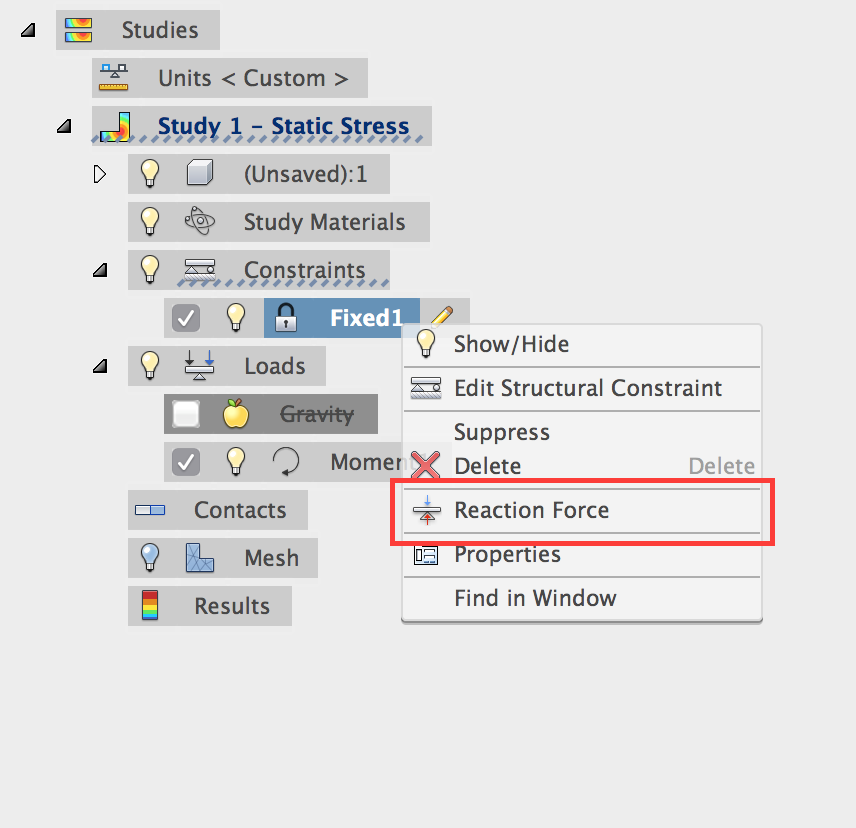
The will break down the reaction forces along the primary axis. This can be helpful to understand how the load is being distributed.

I note that the moment dialog also contains different Direction Type inputs. You could apply the load using XYZ vectors outright (think of the right hand rule in association with the primary axis). Since the XYZ axis is always displayed in the simulation environment, it is very easy to determine how the load is being applied to a face this way.
Another good note, if you switch to XYZ vectors as the Direction Type at any point, the numerical values about each primary axis will be created from your previous input. This can provide some clue about which direction the load is being applied in before running the simulation.
*really wishing there was a thumbs up smiley right now.. 🙂
I hope this helps.
 Nathan Chandler
Principal Specialist


