Plotting Lineweights in Monochrome

Plotting Lineweights in Monochrome

Anonymous
Not applicable
7,217 Views
5 Replies
Message 1 of 6

Plotting Lineweights in Monochrome

Anonymous
Not applicable

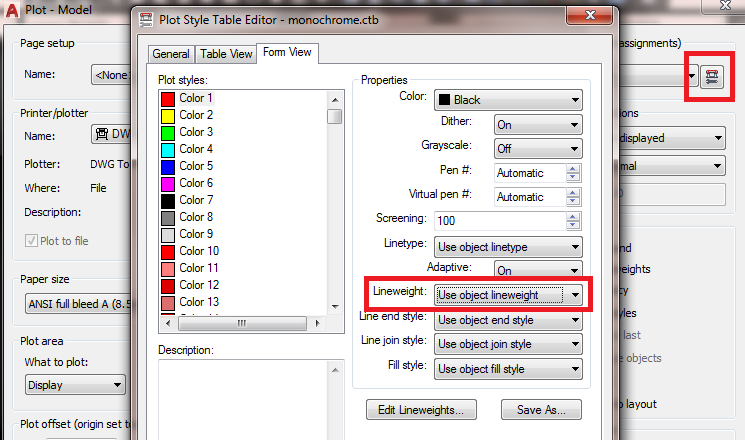
When I plot in monochrome it looks as thought there aren't any different lineweights assigned or anything to the each of the layers, they all look like they have the same lineweight. How would I edit some of the colors so they'll be more/less thick when I plot them? I've opened up the monochrome.ctb plot style but all of the settings seem to be the same for every color. Any advice on trying to alleviate this problem?

0 Likes
7,218 Views
5 Replies
Replies (5)
Message 2 of 6

imadHabash
Mentor
Mentor

Hi,


you can make your own CTB and edit pen assignment as you need,from plot dialog assign the color with lineweight ( see attached image) 


plt.png


Imad Habash

EESignature

0 Likes
Message 3 of 6

Patchy
Mentor
Mentor

Edit them in here:


Capture.JPG


0 Likes
Message 4 of 6

Llam.Tech
Advocate
Advocate

@Anonymous

You can also change your line weight in the layer tool bar. You can always change it by layer.

Hope this helps.

Jay

Capture.JPG

0 Likes
Message 5 of 6

scot-65
Advisor
Advisor

While in the PLOT dialog, if you assign a CTB pen table to anything other than "None", the

Lineweight column is for display purposes only and is controlled by the variable LWDISPLAY.


Otherwise, selecting "None" will print both the lineweight and color.


???


Scot-65
A gift of extraordinary Common Sense does not require an Acronym Suffix to be added to my given name.

0 Likes
Message 6 of 6

scot-65
Advisor
Advisor

Others have shown you how to set up the pen tables.

This reply is to help you determine the number of line weights to use and the range of sizes.


For practical purposes, limit the number of line weights to 5.

Anything beyond that will be unnoticeable.


Also, assign 3 gray scales, all having the same line weight.


Finally, assign a "No Plot" color who's screening is 0%.


====


For every color you assign a line weight to, select Color "Black".


Use a range of 0.09mm to 0.35mm as a start. You will find there is

a threshold that will make the line weight jump to the next size, so

keep an eye on this.


Assign White (Color 7) to be the "Neutral" line weight.

Most places I have seen use Red (Color 1) as the thinnest line weight.


Assign the gray scales to the second thinnest line weight.

Colors 251, 252 and 253 work well for gray scale in lieu of setting

up the screening.


I use color 11 for Defpoints and the Color 11 as 0% screening.


Hope this helps.


And Welcome to these Forums.


???


Scot-65
A gift of extraordinary Common Sense does not require an Acronym Suffix to be added to my given name.

0 Likes