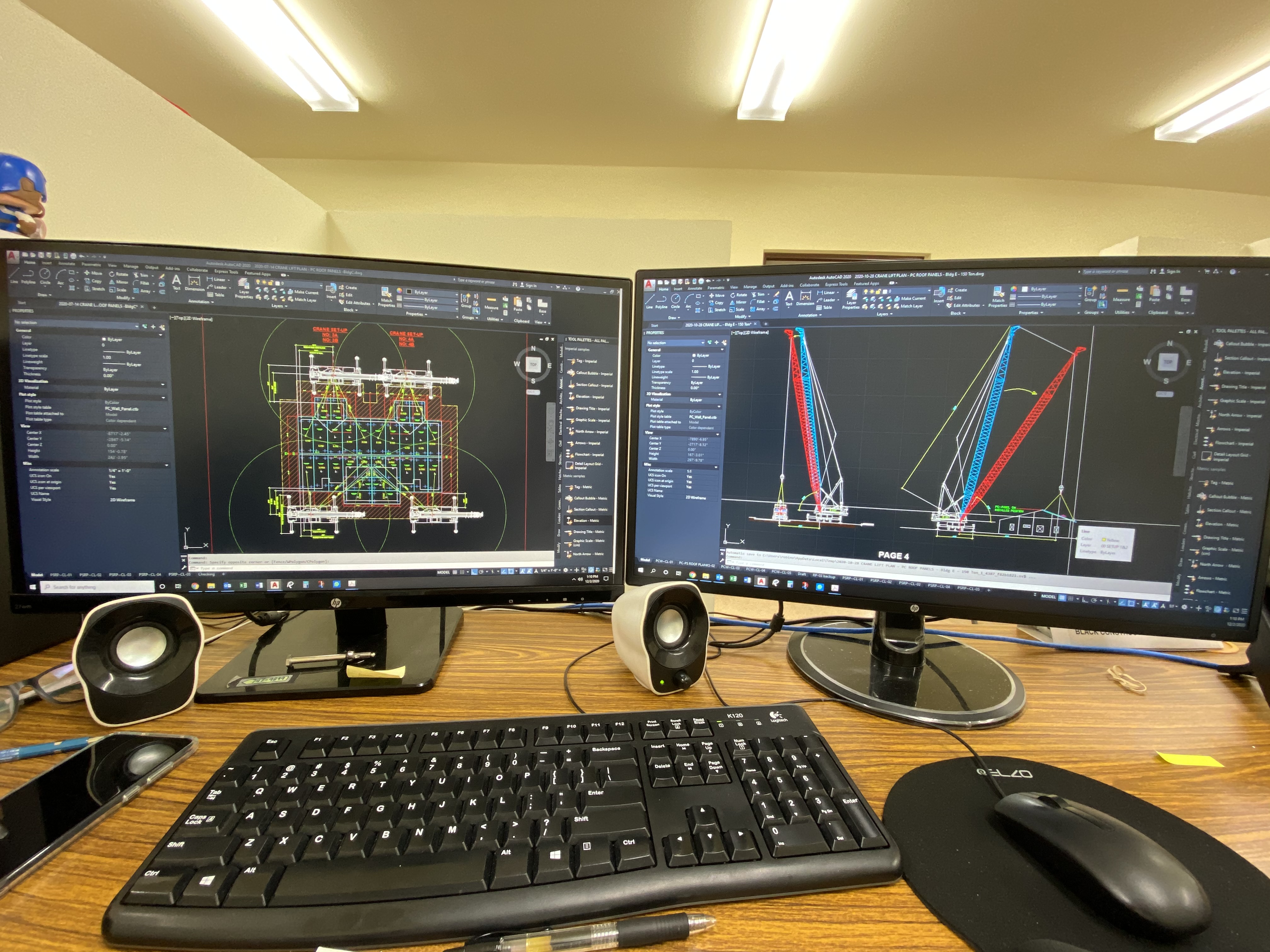
Dual monitor setup with AutoCAD 2020/tabs

Dual monitor setup with AutoCAD 2020/tabs

ScottRoth
Enthusiast Enthusiast
59,211 Views
40 Replies
Message 1 of 41

Dual monitor setup with AutoCAD 2020/tabs

ScottRoth
Enthusiast
Enthusiast

Hello,

Just got a second monitor for the purpose of having two tabs open at the same time to work on two drawings with only one session of ACAD2020 opened using windows 10. Being a novice at this setup, not sure if/how possible. I have the display setting at "extend these displays" under multiple displays. I can open separate sessions of AutoCAD in each monitor (workaround) and can have multiple tabs in each monitor opened. I want to be able to open 1 session with a separate tab opened on each monitor.

I can do this with MS products (excel) by opening the program and multiple tabs, then dragging one of the tabs over to the other monitor. This process doesn't work with AutoCAD though...


Is this possible? If so, how is this done??

Thanks in advance,

- Scott


0 Likes
Accepted solutions (2)
59,212 Views
40 Replies
Replies (40)
Message 2 of 41

user181
Mentor
Mentor

With your drawings open hit the restore down button in the upper right of the screen and you can size the drawing windows how you want them. 


restoredwn.png

EESignature


0 Likes
Message 3 of 41

ScottRoth
Enthusiast
Enthusiast

User181,

My problem is I can't drag a tab or window into the second monitor.

0 Likes
Message 4 of 41

user181
Mentor
Mentor

You would need to use the restore down above that one for the cad program and stretch the autocad window onto both monitors and then move the drawing windows around. 

EESignature


0 Likes
Message 5 of 41

cadffm
Consultant
Consultant

Your ONE Autocad window 50% on the left and 50% on the right monitor now?

Then do the same with your file windows inside acad.

Upper right area (of the right monitor) you will find the same icons for the current file window.

Change the second..

OR USE COMMAND: SYSWINDOWS


Upload a screenshot of both monitors, so we can see what  you seeing.

Sebastian

0 Likes
Message 6 of 41

pendean
Community Legend
Community Legend

You need to expand the single AutoCAD program session across both screens, then click on the VIEW tab in the Ribbon, select TILE VERTICALLY button on the Interface panel.


See Vid https://www.youtube.com/watch?v=hoFnbyYYgWc


0 Likes
Message 7 of 41

ScottRoth
Enthusiast
Enthusiast

I have one session opened on the left monitor. If I reduce the window size and try to drag to the right monitor it only appears on the right in a reduced window in a reduced image. If I open full screen it only appears in the left monitor. I know I'm doing something wrong but don't know what?

Excuse my noviceness <g>


dual1.jpgdual2.jpg

0 Likes
Message 8 of 41

ScottRoth
Enthusiast
Enthusiast

pendean,

Sorry, but "how" do I expand one session over both screens?

(btw, the video is in another language and not really addressing what my question is, thanks though)

0 Likes
Message 9 of 41

ScottRoth
Enthusiast
Enthusiast

Cadffm,

No: "Your ONE Autocad window 50% on the left and 50% on the right monitor now?"

I can't get one session to show on both screens - so this isn't correct:

0 Likes
Message 10 of 41

pendean
Community Legend
Community Legend
>>>...I can't get one session to show on both screens...<<<<
Then you did not set up dual screens correctly to be one-streched-across-two-monitors in Windows: post a screenshot (not using your phone) of your dual-screen setup in Windows please.

0 Likes
Message 11 of 41

ScottRoth
Enthusiast
Enthusiast

windows dual screen.jpgwindows dual screen2.jpgwindows dual screen3.jpg

0 Likes
Message 12 of 41

cadffm
Consultant
Consultant

Your first picture shows: All right there! except your DPI and resolution settings.


From state of the first picture: Stretch the program window to the edges,

then start the command SYSWINDOWS.


HTH

Sebastian

0 Likes
Message 13 of 41

pendean
Community Legend
Community Legend

Capture.PNG

0 Likes
Message 14 of 41

dgorsman
Consultant
Consultant

Going to back all this up for a minute, to cover a few basics.  All drawing windows must exist inside the application window.  If you have multiple AutoCAD sessions running, each can have its own set of drawings open, and they are within the appropriate parent application window.


Each drawing has multiple layouts, usually shown as tabs.  Any active drawing can only show one one layout at a time i.e. you cannot display both the model space and a paper space layout of a given drawing at the same time.


There are a couple of ways to cheat this, but usually more work than they are worth.  The more common method is to open another AutoCAD session with a read-only version of the drawing.

----------------------------------
If you are going to fly by the seat of your pants, expect friction burns.
"I don't know" is the beginning of knowledge, not the end.


Message 15 of 41

Anonymous
Not applicable

Hi! If you are using a Windows system, try opening one of your cad file. Once it's open, find the Autocad App in your desktop or in the start apps section, right click the icon/app then click "Run as administrator" then open a file on that window. Then you have 2 operating Autocad XD


Please let me know if you have an alternate solution for this.


Please click the "Accept as Solution" button if I solve your issue or answer your question.

0 Likes
Message 16 of 41

ScottRoth
Enthusiast
Enthusiast

Hello,

I can get to the point of having two different acad sessions open separately in each monitor. My original question was if it is possible to have multiple sheets open (tabs) and then grab one tab (sheet) to the other monitor to see it. Apparently I can't.

In other applications such as MS office (excel) etc, I can grab a tab/file and drag it onto my other monitor and it opens separately there.

I guess I have to manually open each file separately in each ACAD session that is open on each monitor - so no go on dragging across the the separate session of ACAD?

0 Likes
Message 17 of 41

pendean
Community Legend
Community Legend

At the moment, through R2021, you cannot do what you wish for.... .
Maybe in R2022-25-30.

Message 18 of 41

sascari
Advocate
Advocate

2020 and AutoCAD can't do multi-monitor support... That should tell you all you need to know about Autodesk

Message 19 of 41

cwr-pae
Mentor
Mentor

Since at least 2007 and through 2013, MS office programs (Excel and Word to be exact) do not use tabs for multiple files, they open separate instances of the program windows. Test it, open a file, reduce the window to less than full screen but not minimized, open or create a 'new' file. You have two program windows. Excel gives added tabs as the bottom for added sheets, but these remain in the original file and file window. Autocad still use the old multiple file tab paradigm or the single drawing interface (sdi=1) similar to MS Office.

0 Likes
Message 20 of 41

elie.accari
Participant
Participant
Accepted solution

Just a note that in Revit 2020 you can take a tab and drag it outside the Revit windows.


In previous revisions, Revit people had to use t he same t rick described here: stretch the Revit app across two monitors then tile the sheets and work here and look there. Autodesk spent the R&D and fixed this for Revit but not for AutoCAD. 


As it stands today: it is a feature in Revit but not a feature in Autocad, you have to use a work-around.