Printing on an iMac

Printing on an iMac

Anonymous
Not applicable
2,169 Views
15 Replies
Message 1 of 16

Printing on an iMac

Anonymous
Not applicable

Hi all.


I have just changed from a windows machine to an iMac, ie yesterday, and sure, there are one or two different things to learn about AC but my biggest problem is printing on A3 as that's the drawing size I use.

On my old machine with windows 10, I would go to print, set the printer, paper size, orientation, scale and extents (yes some or all of these things should have already been set as standard I know so forgive me that), press the print button and out it would come at for instance 1/100 on A3.

My printer's standard setting is A4 portrait but AC sorted out the fact that I was printing on A3 and that was that. I never had to get into printer settings to alert the paper size. If I do that now, then all docs will be printed on A3 which is not required obviously for A4 letters etc.

If I do just the same on the iMac it prints a bit of the drawing at 1/100, but on A4, and my printer tells me to check paper and it then proceeds to print the rest of the drawing on another A4 sheet.  

I can't see where I'm going wrong but I hope somebody can. 

Summary - default A3 and I alter scale as I see fit. 

Just to let you know that I don't scale at print stage as I have various size sheets, A1, A2 and A3 at various scales, ie 1/25, 1/50 and 1/100 so I draw at the required scale on the required sized sheet and then print as above - never been a problem!!

Views welcome and thanks in advance.

0 Likes
2,170 Views
15 Replies
Replies (15)
Message 2 of 16

maxim_k
Consultant
Consultant
Hi David,

What AutoCAD version are you using?
What printer are you using?
Can you share screenshot of Print window with settings you are using to print to A3 paper size?

Do you find the posts helpful? "LIKE" these posts!
Have your question been answered successfully? Click 'ACCEPT SOLUTION' button.


Maxim Kanaev
Architect
MARSS

MacACAD | Linkedin

Etiquette and Ground Rules of Autodesk Community
0 Likes
Message 3 of 16

Anonymous
Not applicable
Hi. I’m using Acad lt 19 as before and my printer is a brother mfcj6920dw
which is all as before
Not sure how to do the screen shot but I can describe as follows: only had
Mac one day so still getting used to it
Printer selected adjacent printer box
Paper size selected at a3 and next box at landscape
What to print box is window as I have items outside my drawing sheet that I
don’t need to print
Scale set at 1/100
Press plot in bottom right hand corner

Thanks
0 Likes
Message 4 of 16

pendean
Community Legend
Community Legend
How to capture a screen view https://support.apple.com/en-us/HT201361

0 Likes
Message 5 of 16

Anonymous
Not applicable
Thanks Pendean I Googled it and found the shift, command, 3 option and thus
attached it to the relevant email
0 Likes
Message 6 of 16

maxim_k
Consultant
Consultant

@Anonymous 

Screenshot not attached.
In order to be able to attach screenshot to your replay, you need to answer in browser, but not by email.


Do you find the posts helpful? "LIKE" these posts!
Have your question been answered successfully? Click 'ACCEPT SOLUTION' button.


Maxim Kanaev
Architect
MARSS

MacACAD | Linkedin

Etiquette and Ground Rules of Autodesk Community
0 Likes
Message 7 of 16

maxim_k
Consultant
Consultant

@Anonymous 

What if you select "Preview" in Print window instead of selecting "Print"?

Do you get A3 paper size PDF in Preview app? You can check paper size in Preview app Inspector window.


Do you find the posts helpful? "LIKE" these posts!
Have your question been answered successfully? Click 'ACCEPT SOLUTION' button.


Maxim Kanaev
Architect
MARSS

MacACAD | Linkedin

Etiquette and Ground Rules of Autodesk Community
0 Likes
Message 8 of 16

Anonymous
Not applicable
I see Maxim thanks. Busy day so it might take a while to get back to you
but I appreciate your patience
0 Likes
Message 9 of 16

Anonymous
Not applicable
Yes all looks good in preview which is what confused me as I thought it’d
print okay
0 Likes
Message 10 of 16

wei503
Community Manager
Community Manager

It would be helpful to check this:

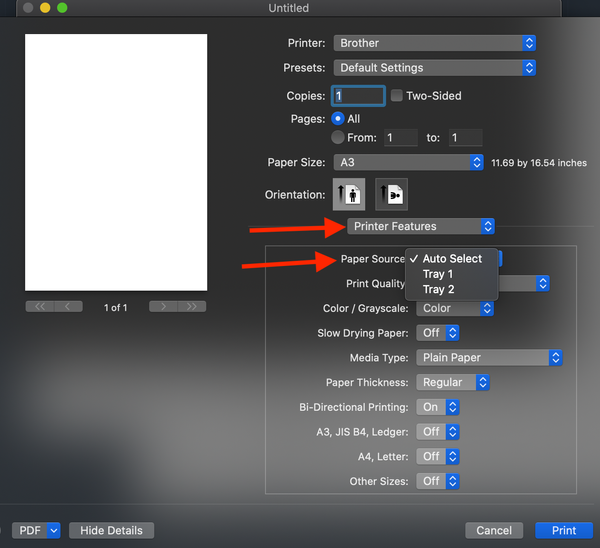
use a Mac native apps to print to A3(i.e. TextEdit app), see if the printer is able to choose the A3 size automatically.


If TextEdit also cannot print to A3 automatically, you may need to check the printer settings. In TextEdit, print dialog, you can check the paper source setting, see if it is "Auto Select"?

Screen Shot 2020-09-15 at 3.59.41 PM.png


Wei Ma
AutoCAD QA Manager

Message 11 of 16

maxim_k
Consultant
Consultant
What if you print from Preview app after you use "Preview" button in AutoCAD "Print" window?
Does it prints correctly - A3?

Do you find the posts helpful? "LIKE" these posts!
Have your question been answered successfully? Click 'ACCEPT SOLUTION' button.


Maxim Kanaev
Architect
MARSS

MacACAD | Linkedin

Etiquette and Ground Rules of Autodesk Community
0 Likes
Message 12 of 16

Anonymous
Not applicable
Hi as far as I can see whilst the preview is fine or showing drawing at a3
there’s no option to print from that stage
0 Likes
Message 13 of 16

maxim_k
Consultant
Consultant

>>>> there’s no option to print from that stage

Why?

You always can print from Preview app to one of the printers on your  Mac. Just select File -> Print


Do you find the posts helpful? "LIKE" these posts!
Have your question been answered successfully? Click 'ACCEPT SOLUTION' button.


Maxim Kanaev
Architect
MARSS

MacACAD | Linkedin

Etiquette and Ground Rules of Autodesk Community
0 Likes
Message 14 of 16

Anonymous
Not applicable

Just got weird message from Autodesk about can’t reply to emails!!! Don’t make things easy do they? Anyway will not print on a3 even using command plus p

0 Likes
Message 15 of 16

maxim_k
Consultant
Consultant

If you unable to print to A3 paper from standard Preview app, then you need to check settings in your printer software as Wei Ma @wei503  suggested in this post:
https://forums.autodesk.com/t5/autocad-for-mac-forum/printing-on-an-imac/m-p/9747383#M39190

or check for latest printer software here:
https://support.brother.com/g/b/downloadtop.aspx?c=us_ot&lang=en&prod=mfcj6920dw_us_eu_as


Do you find the posts helpful? "LIKE" these posts!
Have your question been answered successfully? Click 'ACCEPT SOLUTION' button.


Maxim Kanaev
Architect
MARSS

MacACAD | Linkedin

Etiquette and Ground Rules of Autodesk Community
0 Likes
Message 16 of 16

Anonymous
Not applicable
Thanks for your email
0 Likes