Ladder Orientation

Ladder Orientation

Anonymous
Not applicable
4,826 Views
11 Replies
Message 1 of 12

Ladder Orientation

Anonymous
Not applicable

Is it possible to create an electrical ladder diagram oriented 90 degrees on an 11" x 17" sheet? I tried changing the UCS icon and it reverts back to default while placing certain symbols/

0 Likes
Accepted solutions (1)
4,827 Views
11 Replies
Replies (11)
Message 2 of 12

jseefdrumr
Mentor
Mentor

It looks like you are plotting from paperspace. If so, I would just draw my ladder normally (=vertically) in modelspace. Of course, set it up so that it's proportioned correctly for 11x17.

When it comes time to plot, use a normal layout tab with landscape-oriented title block. Then you can use ALIGNSPACE to force the viewport to align itself to the drawing. The plot will come out similar to what I've posted.


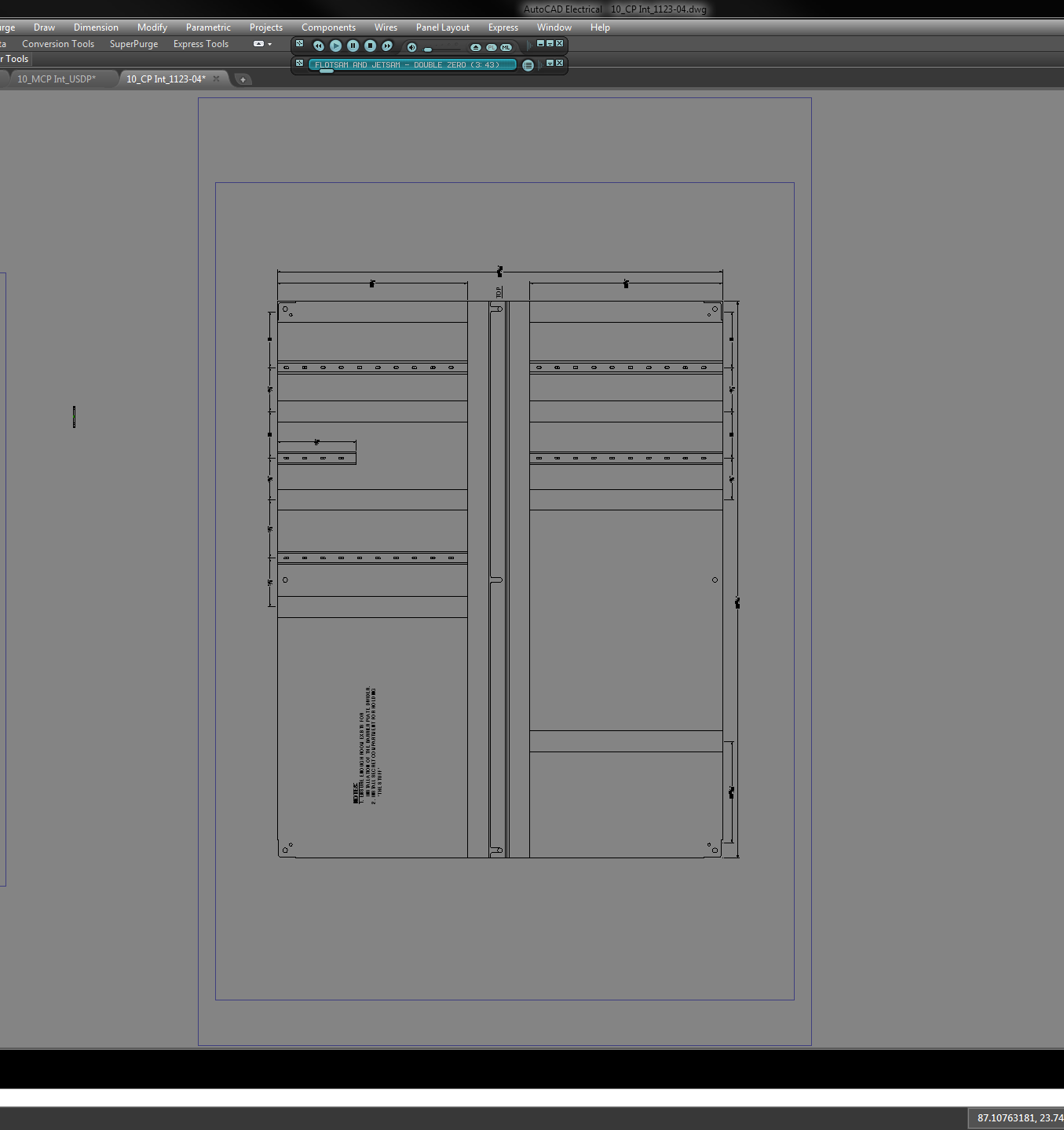
The first image is of a panel layout as it's drawn in modelspace. The second image is its layout tab. Note that the panel is 'portrait' oriented while the viewport is still 'landscape' oriented. The only non-normal command I used for any of this is ALIGNSPACE.


If you're not familiar with it, it's an Express Tool. Somewhere on this forum I've posted about it before, you may also want to search for that post.


Hope this helps,


Jim


Jim Seefeldt
Electrical Engineering Technician


0 Likes
Message 3 of 12

Anonymous
Not applicable

My attachment example is a regular autocad drawing.I am creating a new drawing in AutoCAD Electrical. How does alignspace rotate what I have done vertically in modelspace. Will I be able to utilize Titleblock Grid coordinates for my off page references?

0 Likes
Message 4 of 12

testsubject
Advisor
Advisor

I don't think I ever used Alignspace.


I created a macro that rotates the ucs (within the viewport) around the z-axis either +90 or -90 degrees and then initiates "Plan" to rotate modelspace within the viewport. I then zoom into the area I want to highlight.


Bob Hanrahan
Ace User since 1998
Autodesk Expert Elite Alumni
If this answered your question, please click on "Accept Solution"
0 Likes
Message 5 of 12

Icemanau
Mentor
Mentor

The setting you need to change is in the DRAWING PROPERTIES on the Drawing Format tab.


Ladderr Rotation.jpg


Changing the setting here will affect ALL NEW ladders. You can also set the width, rung spacing and so on in this section.

Don't forget to change the 'Tag/Wire Number Order' at the bottom to match the new orientation.


Regards Brad

>

Brad Coleman, Electrical Draftsman
Did you find this post helpful? Feel free to Like this post.
Did your question get successfully answered? Then click on the ACCEPT SOLUTION button.

EESignature

0 Likes
Message 6 of 12

Anonymous
Not applicable

Thanks Icemanau! Selecting vertical under Ladder Defaults is exactly what I looking for. Now when I place a component to the rung the tag is turned 90 degrees. Is ther a setting that I can change that places tag parellel with the component? Rung ID is shown correctly. Regardless if I place component horizontally or vertically from the icon menu it places tag at 90 degrees. See attached. I would like component tag to be shown like the one with the tag on top of component but both component and tag turned 90 degrees. Is that clear?

0 Likes
Message 7 of 12

Anonymous
Not applicable

Correction to last reply... I meant Selecting horizontal under Ladder Defaults is what I am using.

0 Likes
Message 8 of 12

Anonymous
Not applicable

Maybe the attached will shed some light on component placement problem I'm having. This was set up by an implementation consultant. Does anything on the Project Properties cause component to be placed wrong?

0 Likes
Message 9 of 12

jseefdrumr
Mentor
Mentor
What's incorrect about this component placement? This appears correct for components drawn on a horizontal ladder.

Jim


Jim Seefeldt
Electrical Engineering Technician


0 Likes
Message 10 of 12

Anonymous
Not applicable

No...it's not correct. I need a single ladder at 90 degrees on a landscape layout as shown in my example on my earlier post.  Everything should be the same as a vertical ladder but turned 90 degree.

0 Likes
Message 11 of 12

jseefdrumr
Mentor
Mentor

Ah, okay, I see.


To clarify what I meant, the second example you posted is correct for typical standards applying to horizontal ladders. However, returning to your OP, I see what you're looking for. I think that in order to get what you want, you'll be faced with a lot of repositioning of text. (It will all have to be set to 90 degree orientation in PROPERTIES, which causes them to overlap. You can't maintain their relationship to one another by using ROTATE because that rotates the whole symbol.)


I can't find any setting that places a schematic symbol at a 90 degree rotation. That doesn't mean a way doesn't exist though.


So, it's either go with your second example and rotate each and every symbol, or go with your second example and reposition the text for every symbol. I'm not finding a way to set up ACADE to draw a ladder, like the one in your first example, sideways.


That said, I would stick with using ALIGNSPACE, my first suggestion to your OP. Here's a brief walkthrough so that you can decide if this is right for you..


The first attachment is your drawing with my alignspace setup. Here's what I did:

1. I inserted a title block into Layout 1. It has a predefined viewport. I killed everything else that was there.

2. In modelspace, I drew a rectangle at the exact same dimensions and orientation as the viewport border in paperspace.

3. Next, I rotated the rectangle 90 degrees, envisioning how I needed the ladder to look on paper. I had to use STRETCH to shorten the ladder a little so it would fit in my vp border. That was the only modification I made to your original objects. See attachment 2.

4. After that I returned to the layout. I verified that the viewport was unlocked, then entered ALIGNSPACE at the command line.

5. I was prompted to pick the first and second alignment points in modelspace. My crosshairs were automatically pushed through the viewport and into modelspace. (That's why I made sure the vp was unlocked.)

6. I chose the top left corner of my rectangle as point 1, and the top right corner as point 2.

7. Next, the crosshairs were automatically returned to paperspace, and I was prompted to select my alignment points in paperspace. I chose, on the viewport in my title block, the lower left and upper left corners respectively.

8. As soon as the second point was picked, ACAD adjusted the vp so that point 1 in modelspace was coincident with point 1 in paperspace. Same for the point 2's. The end result is attachment 3.

9. My final step is always to lock the viewport.


I set up an empty layout 2, except for my title block, so that you can try this step-by step. NOTE: Alignspace is an Express Tool; you'll need to install those if you haven't already.


Points to remember: ACAD matches point one (modelspace) to point one (paperspace). DO NOT pick the wrong two points in the paperspace part of the command. Likewise, don't pick them in the wrong order. ACAD will be very literal in this respect. Once your layout is correctly set up, I recommend you lock the VP. Finally, changing the orientation of what you see through the viewport isn't all you can do with this command - it calculates scale factors automatically so it can be used simply to resize what you see without you having to know a precise scale factor.


Why I like this setup:

  • I can draw 'right-side up' but plot in any orientation I want
  • very easy to 'force-fit' vendor drawings to my title block (or vice-versa)
  • I can achieve any orientation for plotting without fiddling with my UCS

Hope this helps. Sorry it's so long, I just can't think of any other way to do what you need here.


JIm


Jim Seefeldt
Electrical Engineering Technician


0 Likes
Message 12 of 12

Icemanau
Mentor
Mentor
Accepted solution

There is an easy way to rotate and move the attributes without affecting any settings which may interfere with the rest of the dwg...


First of all, draw your ladder and insert all the symbols. don't bother about the orientation of the text for the moment.

When you have finished with drawing the ladder, it's time to rotate all the attributes and then move them about.


This will be a bit time consumning but will only need to be done once as the dwg is apparently a one off.

Right click on a symbol and Hover over attributes on the radial menu. Select Rotate from the attribute sub menu.

Rotate all the required blocks.


Now hold down CTRL and select all attributes of the type that need to be moved. For example select all the TAG1 & TAG2 attributes.

Grab one of the grips from one of the attributes. Try and grab the insertion point of that attribute. Now move that attribute to where it needs to be.

All the other selected attributes will move with it. If you need to change the Justification of the attributes, do so in the properties. again, this will change all the selected attributes.


Repeat for all the other attributes as required.


You should now have a ladder showing what you want.


Regards Brad

>

Brad Coleman, Electrical Draftsman
Did you find this post helpful? Feel free to Like this post.
Did your question get successfully answered? Then click on the ACCEPT SOLUTION button.

EESignature